Turn on suggestions
Auto-suggest helps you quickly narrow down your search results by suggesting possible matches as you type.
Showing results for
Get 50% OFF QuickBooks for 3 months*
Buy nowI have switched to the new PayPal connector. With the old connector I used to be able to match an outgoing PayPal Payment with multiple expense documents. With the new connector I don't see the "Match" option anymore.
Is there a way to match the outgoing payment to expense documents?

Hi Gaspa, glad to have you here.
I understand you’ve recently switched to the new connector and are noticing changes in how it works, especially the missing “Match” option you were used to. I know how important that feature is for keeping your records accurate, so let me share some possible reasons why the Match option isn’t appearing and what you can try.
Before we go deeper, may I confirm whether this issue happens only with expense transactions, or are invoice transactions also not showing the Match option? Any details you can provide will help us identify the cause and offer a more accurate, tailored solution for you.
One of the most common reasons the Match option may not appear with the new PayPal connector is incorrect account mapping in your settings. The system looks specifically for transactions recorded to your PayPal account with closely matching dates, amounts, and details. If an expense was posted to a different bank or credit card account, or if the totals differ even slightly because of PayPal fees, the system may not recognize it as a valid match.
If the bank account linked to your expenses is correct but the Match option still isn’t showing, you can try triggering it manually. Click the PayPal transaction in the For review tab to expand it. In the expanded view, look for and select Find match; this opens a screen where you can tick the boxes for all the individual expenses, bills, or receipts that make up that single PayPal payment, allowing you to link multiple documents at once.
I also recommend performing monthly account reconciliations to keep a close eye on your transactions and ensure everything lines up. This regular review helps maintain consistent records and improves the reliability of your financial data.
This meticulous alignment of transactions ensures consistency in record-keeping and boosts the reliability of your financial data. If you have any further questions or concerns, please don't hesitate to click the Reply button below. My team and I are always here to help you.
Thanks for your response. I had created expense documents in the date range and with the PayPal account. I had done it like this with the old connector where this was no issue.
There is no "Find Match" option in the expanded review screen. I can only enter a split, but that doesn't help.
Hi there, @gaspa1960. Since QuickBooks matches transaction items to your existing products and services, you can simply select the Confirm option for PayPal payments from the For Review tab.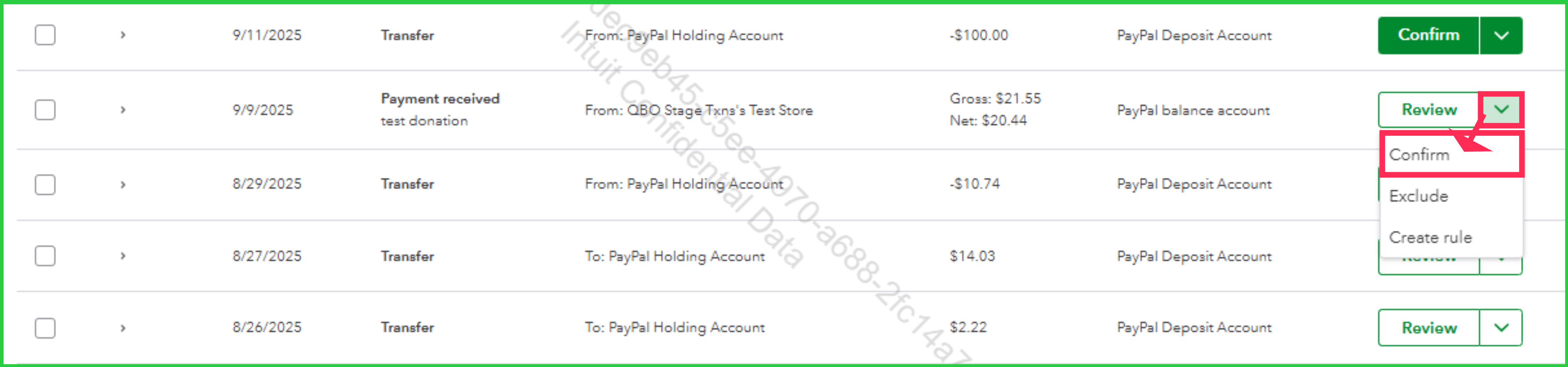
Please note that the match criteria are based on the item name. For more details, refer to the Matching items section in this article: Use the PayPal Connector by QuickBooks app.
Also, QuickBooks Online now automatically suggests the "Customer Name" or "Vendor Name" for matched transactions based on advanced algorithms and scoring; this happens once you turn on customer and vendor tracking in PayPal Settings.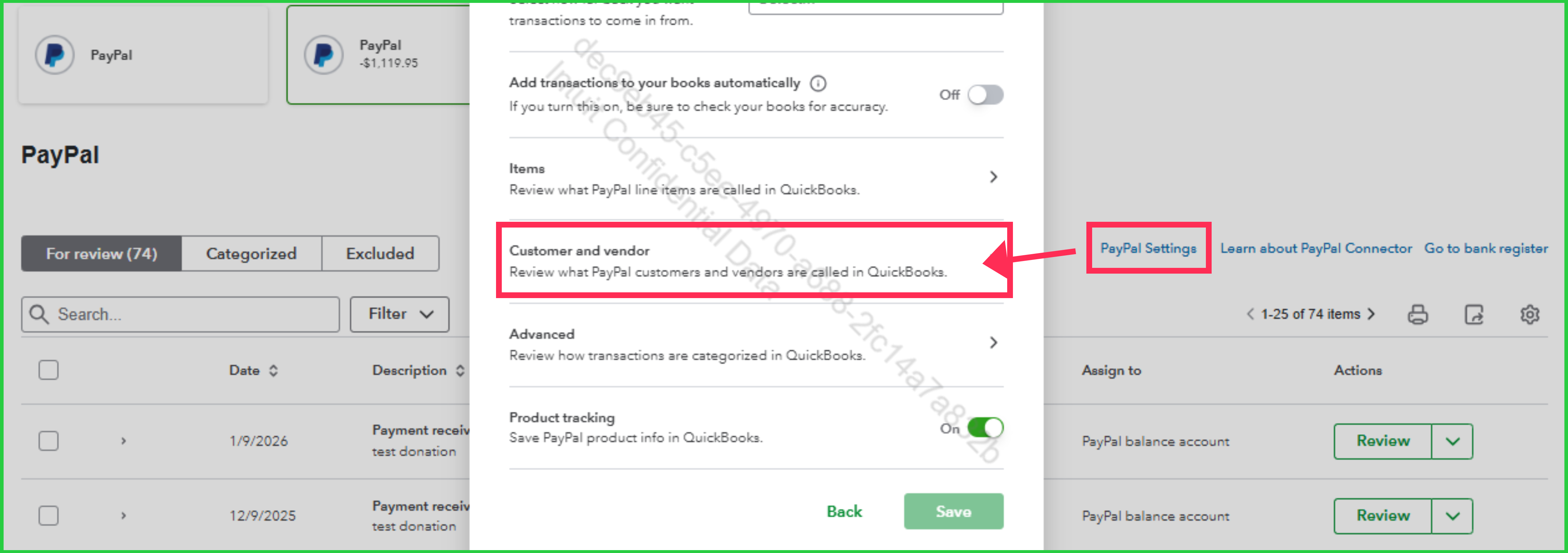
Should you have any questions, feel free to drop a message in this thread.
Hi @EduardA - Thanks for your response. Unfortunately, it does not answer my question. Let me explain in more detail.
My workflow is this:
1) Employee uploads a receipt.
2) I pay the employee with PayPal.
3) I review the receipt and create an expense. As "Payment Account" I enter the PayPal account.
4) Once the outgoing payment is available under "Integration Transactions" in "For Review" (for my PayPal integration), I want to match that payment with the expense. In the old PayPal integration there was a "Find Match" option to do that, and I could match one or more expense documents. Now I don't see a Match option anymore. I just processed a new payment, and the Integration Transaction process completely ignores the matching expense document
So in summary, this gap breaks my workflow in QBO. I cannot use uploaded receipts anymore with PayPal transactions. Even if I create the expense directly from the Integration Transaction payment, I do not see a way to attach an uploaded receipt using the "Add Attachment" dialog. That's another serious gap in functionality.
Am I missing something or are these really limitations of the new PayPal integration?
I was happy with how it worked with the old PayPal integration, and now it makes my expense payment processing more cumbersome.
Thanks!
Hi there, @gaspa1960. Thank you for sharing your workflow. I’d like to clarify how QuickBooks handles transaction matching.
When you import transactions from PayPal, QuickBooks attempts to match each transaction with products or services in the system based on the item name.
If the expense transactions generated from receipts aren't associated with any tracked item, this could explain why QuickBooks isn’t able to show a match. In such cases, your options are to either Confirm or Exclude the transaction.
If you don’t see the Confirm option, it means that one or more transactions require additional attention under the Actions column. To resolve this, review and confirm the affected transactions individually.
For instances where an expense item generated from receipts doesn’t appear as a match in the For review tab on the PayPal tile, let's Confirm the transactions and match them from the For review tab under the Receipts section instead.
If QuickBooks doesn’t automatically identify the match, but you know one exists, select Search manually.
Alternatively, you can manually attach the receipt to a generated transaction from PayPal.
On another note, the Add Attachment dialog is available and located in the Banking transactions page.
To enhance your experience with QuickBooks, our QuickBooks Live Expert Assisted team is available to help you manage your transactions and payments.
Feel free to respond below if you have any further questions. I’m here to help!
@Jelayca V Hi Jelayca, Thanks for your response. When I first create an expense from the PayPal payment record in "Integration Transactions", then the system indeed finds a match for the corresponding receipt in the QBO Receipt processing. This works as long as a PayPal payment only covers one expense.
If I'm paying multiple receipts/expenses with a single PayPal payment, then I cannot match the payment with these expenses. This used to be possible, as I explained earlier.
I don't think it's possible to group receipts into a single expense in the QBO Receipts processing, so I can use the QBO Receipts processing only if I pay for each receipt separately.
Similarly, the new PayPal Integration seems to assume that payments and expenses are in a 1:1 relationship, which is a severe limitation.
For me at least the natural process is to review receipts and create expenses in the QBO Receipts processing, and then go about creating the related PayPal payments and subsequently match these payments with the expenses. This is not possible anymore.
In my practice this means that QBO Receipts processing has become mostly useless for me. That's a bummer, because I really liked that functionality.
Hello Gaspa,
Thank you for sharing such a detailed breakdown of your workflow. I can see how our current requirement to match PayPal transactions with individual receipts adds extra steps to your process, especially when managing multiple expenses at once.
Our product development team is constantly working to improve our integrations suit various business needs. Your method of matching multiple expenses to a single payment is actually quite common, and your insights are valuable.
We'd love for you to share this directly with our product team, as it could benefit not just you but many other users who rely on similar efficient approaches.
Here is how you can submit your suggestion:
Please don't hesitate to leave a comment below if you need further assistance.


You have clicked a link to a site outside of the QuickBooks or ProFile Communities. By clicking "Continue", you will leave the community and be taken to that site instead.
For more information visit our Security Center or to report suspicious websites you can contact us here


