Hi there, @kendrassheshed.
Thank you for posting in the Community. I am here to help you sort this out. Once you connect a bank account to online banking, QuickBooks automatically download your transaction data each night, you can refer to this article for detailed information: Manually download online bank transactions in QuickBooks Online.
Though, we can perform some basic troubleshooting. You can start by manually updating your bank to sync the latest transactions.
Here's how:
- On the left pane, tap Banking. Then choose Banking.
- Choose the account.
- Click Update.

If you want to manually add bank transactions, you can use the WebConnect feature. You'll need to download the data first from your bank's website and import to QuickBooks Online.
After that, log in to your QuickBooks Online account. Once done, we can add transaction by importing it using CSV files. Though, to successfully add transactions using CSV files, we need to follow the bank formats. Let me show you how to import transaction:
- Click the Banking menu, choose banking.
- Under Update drop-down arrow, and select File upload.
- Tap the Browse to select a file to upload, press Open then next.
- Drop-down arrow select the Account type, or click the + Add new. Then press Next.
- Select a Date, date format, Description, and Account. Note: You can choose 1 column or 2 columns.
- Press Next.
- Onscreen message Select the transactions to import, hit Next.
- Pop up message will appear transaction will be imported. Do you want to continue? Press Yes.
- Hit Let's go!

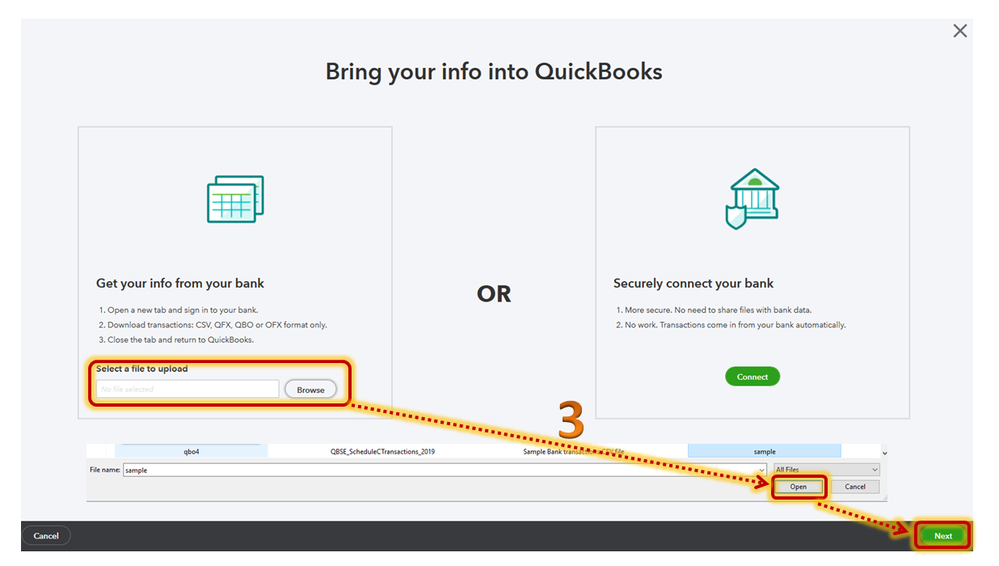


Once the import is finished, you are directed to the Banking menu or Transactions menu where your imported transactions are displayed on the For Review tab. You can review, add, or match each transaction.
For more information about import CSV Files, you can check out this article: Import bank transactions using Excel CSV files.
Also, For more details about how to manage your bank transactions, you can refer to this article: Categorize and match online bank transactions in QuickBooks Online.
I want to make sure that you'll be able to download data to your bank, please don't hesitate to let me know how it goes. If you should have additional questions, I'm just a click away. Take care.


