Hey there, @BLinc.
The Community has you covered. I'll help you get that CSV uploaded right away.
Did you get a specific error message? To import bank transactions using CSV in QuickBooks Self-Employed (QBSE), you'll have to make sure you've chosen the correct columns in the mapping stage. Otherwise, QuickBooks will not be able to read the data. To make the mapping stage easier, you can do the following:
- Delete columns you do not need from your CSV to avoid any confusion. Beforehand, please ensure to secure a backup copy. The columns that are required by QuickBooks are:
- Date - Correct and standardize the date format to a single format (for example, dd/mm/yyyy).
- Description
- Amount
- Change the names of the columns in your CSV to match the titles in QuickBooks.
Then, here's how to import them:
- Go to the Gear icon.
- Select Imports.
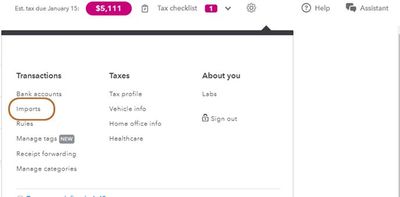
- Select Import older transactions for the account you want to add transactions to.
- Select Browse and find the file you downloaded from your bank. It's usually in your Downloads folder.
- Select the file and select Open to start the import.
- Review the column headers and data. Make sure the Date, Description, and Amount columns on the CSV match the columns and order in QuickBooks. The other column headers can be in any order.
- Select Continue to complete the import.
- Follow the on-screen instruction.
You may also read through these articles for more information:
When you're done, review and categorize your transactions to put them in your accounts.
Feel free to reach out to us here with all your questions and concerns about CSV uploads. I'm determined to ensure your success.


