You can start by reviewing your bank feed transactions to identify the payments made on 5/9/25 that correspond to the invoices processed through Bill.com on 2/28/25 and 3/31/25, Stephanie.
To match your invoices in QuickBooks Online, ensure the following:
- If the payment dates recorded in QuickBooks don’t match the actual payment date (5/9/25), QuickBooks will not recognize the transactions as matches.
- If the invoices processed through Bill.com haven’t synced correctly with QuickBooks Online, the system won’t link them during matching.
- If the bank feed transactions are categorized as generic expenses instead of Bill Payments, they won’t be associated with the invoices.
- Also, look for any duplicate entries in the bank feed that can cause confusion, and ensure the invoices are marked as paid in QuickBooks.
To match the invoices and payments in QuickBooks Online, follow these steps:
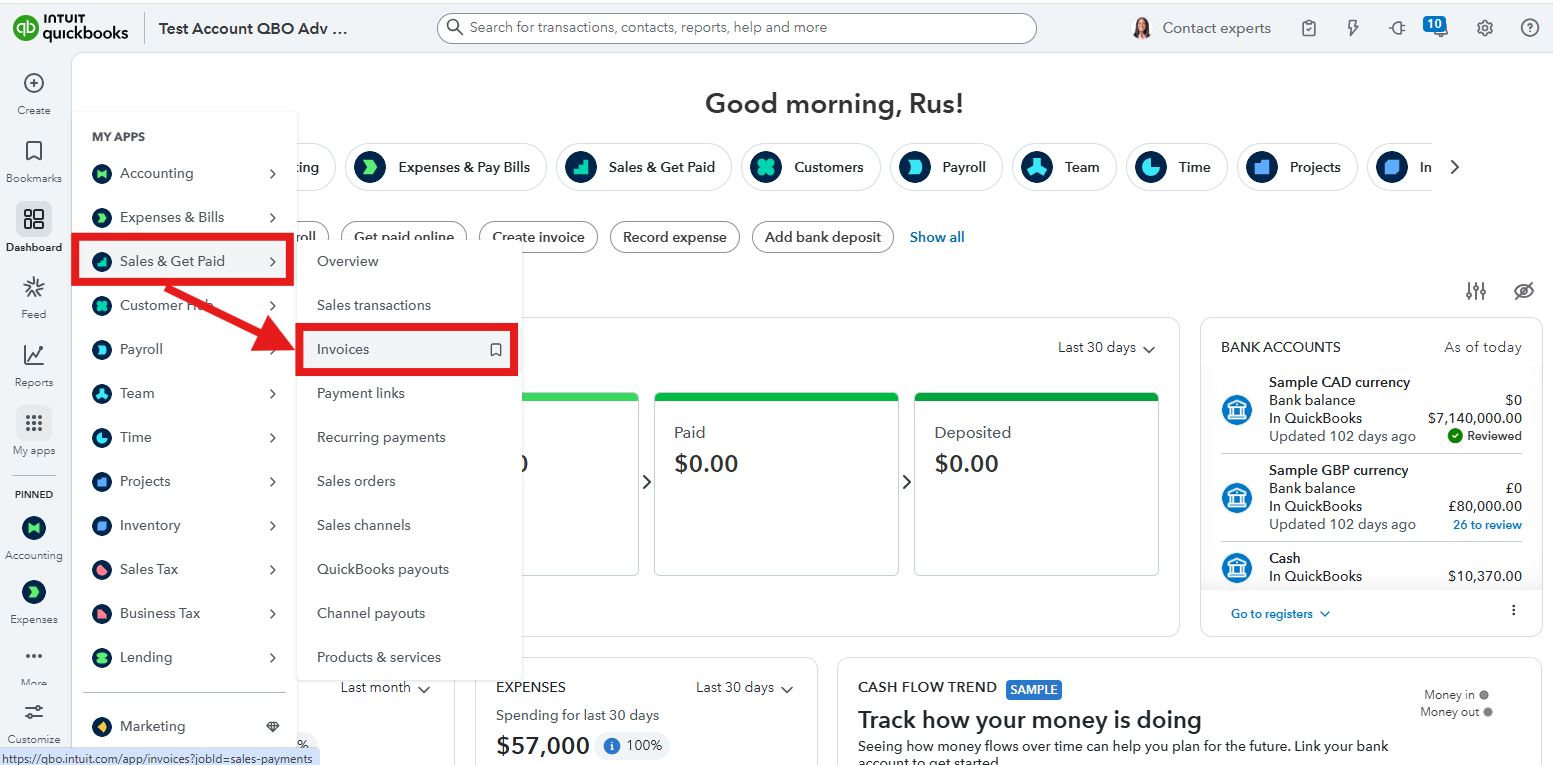
1. Go to Sales & Get Paid, select Invoices and verify that the invoices dated 2/28/25 and 3/31/25 are correctly entered and marked as paid.
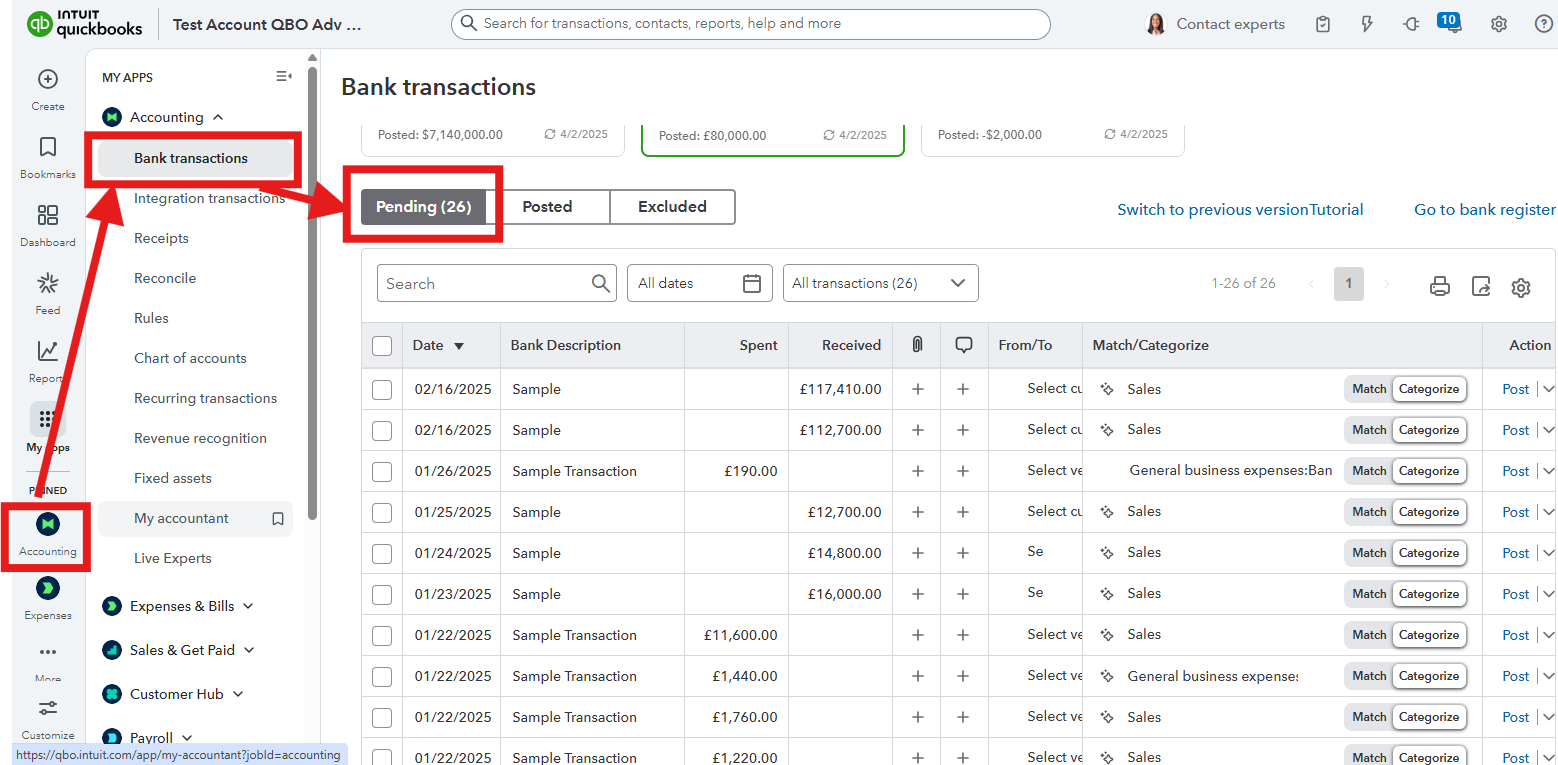
2. After that, go to Accounting, select Bank Transactions, and choose Pending, then locate the payment transaction from 5/9/25 in the bank feed. Make sure the payment amount matches the invoices and hasn’t been categorized incorrectly.
3. Select the transaction in Pending and click Match.
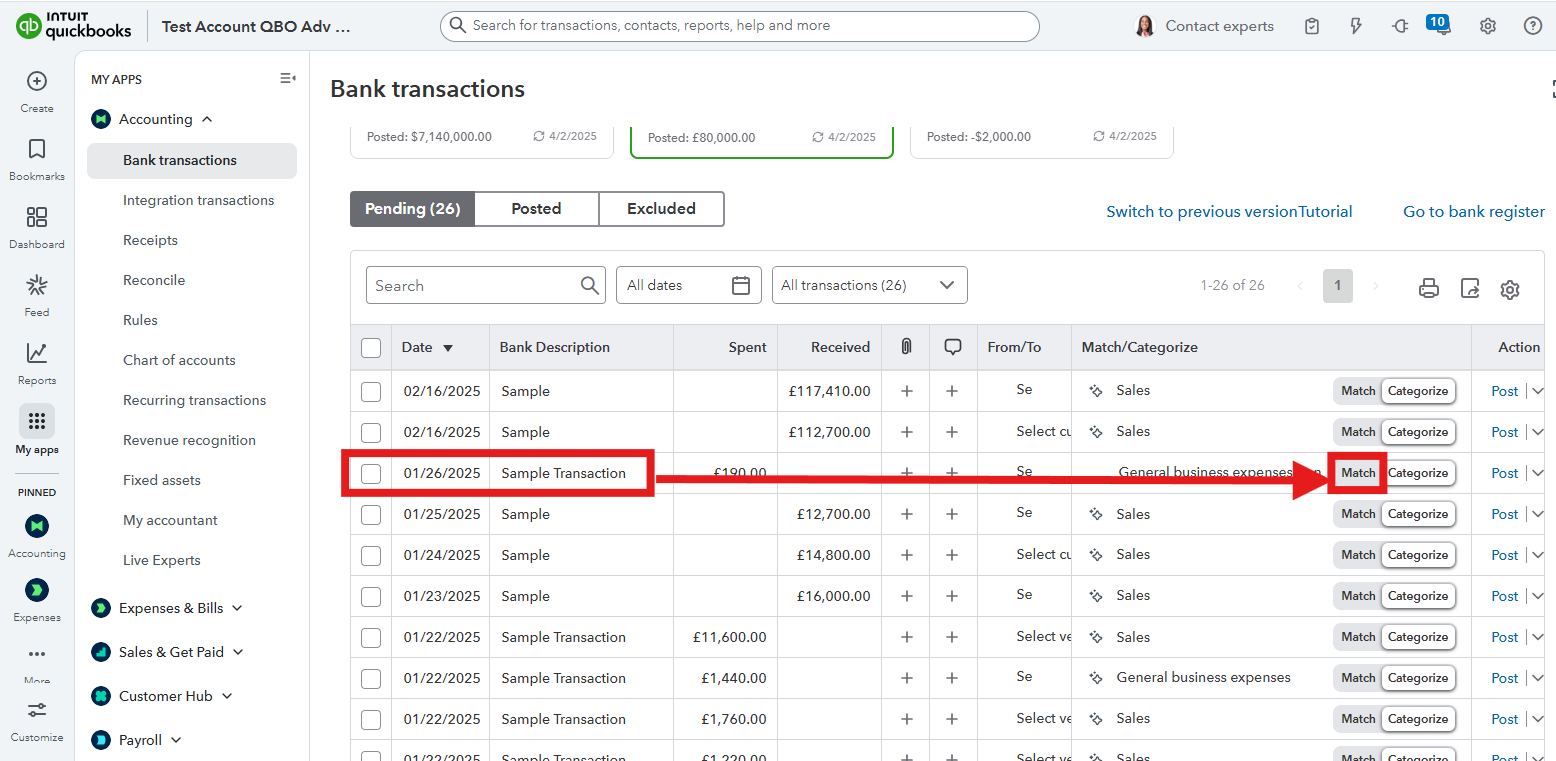
4. After clicking Match, you will be redirected to find other matches. Then, match the transactions to the corresponding payment.

However, if no payment appears after clicking Match, check if Bill.com has synced with QuickBooks Online. You will need to update the status of the invoices manually to mark them as paid. Here's how:
- Go to Sales & Get Paid, select Invoices.
- Select the invoice and click Receive Payment.
- Choose the Bank Account where the payment was deposited.
- Enter the payment amount and date and save to update the invoice status.
It's also worth noting that if Bill.com invoices aren’t syncing properly, make sure the integration between Bill.com and QuickBooks Online is active. You can reauthorize or reconnect Bill.com within QuickBooks Online Apps menu.
On top of that, we have a team of experts who can offer personal guidance on linking your accounts, automating tasks, and teaching the best bookkeeping practices to increase your efficiency. Check out QuickBooks Live Expert Assisted for more details.
If you need additional assistance, please don't hesitate to reach out. The Community space is available 24/7.


