I appreciate you sharing your concern, Lisa.
It's good to know that you can efficiently convert your estimate directly into an invoice. QuickBooks Desktop (QBDT) Pro 2021 does not currently support directly converting an Estimate into a Purchase Order. However, consider exploring third-party applications that offer your workflow needs. Let me elaborate more below.
For a more streamlined process, third-party applications integrating with QBDT can offer enhanced functionalities. These tools will help in significantly reducing manual data entry and improve workflow efficiency. Follow these steps:
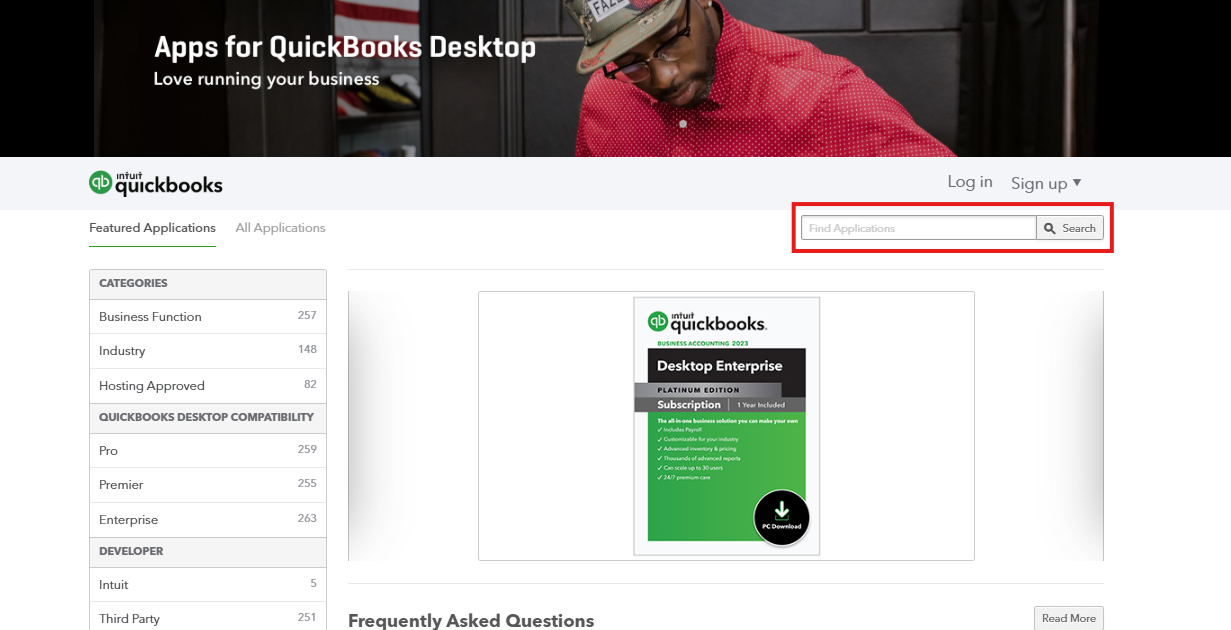
- Visit QuickBooks Marketplace. You'll find several excellent suggestions here.
- Use the search function to find apps.
- Review app descriptions, features, and user reviews to identify the best fit for your needs.
- Follow the installation instructions to integrate the app with your QBDT.
Additionally, please know that we value your feedback for future updates. I encourage you to send your suggestions to our product engineers. Here's how you can send your thoughts:
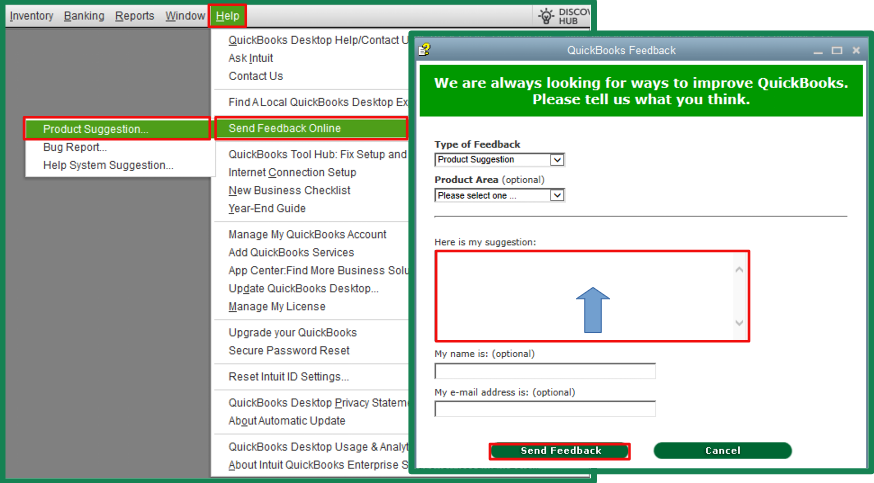
- Select the Help option.
- Select the Send Feedback Online option.
- Select the Product Suggestion option. A pop-up window displays.
- Enter your feedback suggestion.
- Click the Send Feedback button.
For future reference on managing repetitive transactions, consider using memorized transactions to create templates for common Estimates and Purchase Orders. This can save time and streamline data entry for similar transactions. Learn more through this article: Create, edit, or delete memorized transactions.
Feel free to come back to the thread if you have more questions about your transactions in QBDT. I'll be eager to loop back to assist. Take care.




