Turn on suggestions
Auto-suggest helps you quickly narrow down your search results by suggesting possible matches as you type.
Showing results for
Get 50% OFF QuickBooks for 3 months*
Buy nowIn time entry approvals my employee is showing "missing pay rate" however when I go into my payroll she still has her hourly pay rate set up like normal. So not sure how or where to fix this when in one screen it shows but it won't let us approve her time for last week.

Hi there, Amy.
The prompt you are seeing while approving time could be due to the incomplete payroll settings in your QuickBooks Time. Ensure that your employee's pay type is set to Regular Pay.
To update the settings in the Payroll Item Mapping Tool within QuickBooks Time, follow these steps:
If you have follow-up questions, don’t hesitate to click the Reply button below.
When I go to the Payroll Item Mapping Tool and select the Employee in question, there is no option to select Regular Pay for him. All my other employees have the options...it's just this one employee. I cannot choose Regular Pay, Overtime Pay, or Holiday Pay for him.
Hello there, @JohnDWess.
In QuickBooks Online Payroll (QBO Payroll), the Mapping Tool can work with pay types that are already included in the employee's payroll profile.
If any pay types are missing in QBO Payroll, you'll need to add them first. Once the pay types are added, the Mapping Tool will display those options.
Here's how to do it:
After verifying the pay types in QBO Payroll, log in to QuickBooks Time to view those changes. You can also refresh the Payroll Item Mapping Tool or log out and log back in to see if the options appear.
You can also find detailed steps about the process in this article: Map QuickBooks Payroll items in QuickBooks Time.
If you have any further questions about QuickBooks, please feel free to reach out through this thread.
I appreciate the screenshot you've provided, JohnDWess. Let me chime in on this thread to help with your missing pay types in the QuickBooks Mapping Tool.
First, ensure that the specific employee has both a pay type assigned and a pay rate set up in the Employee settings. Here's how you can do that:
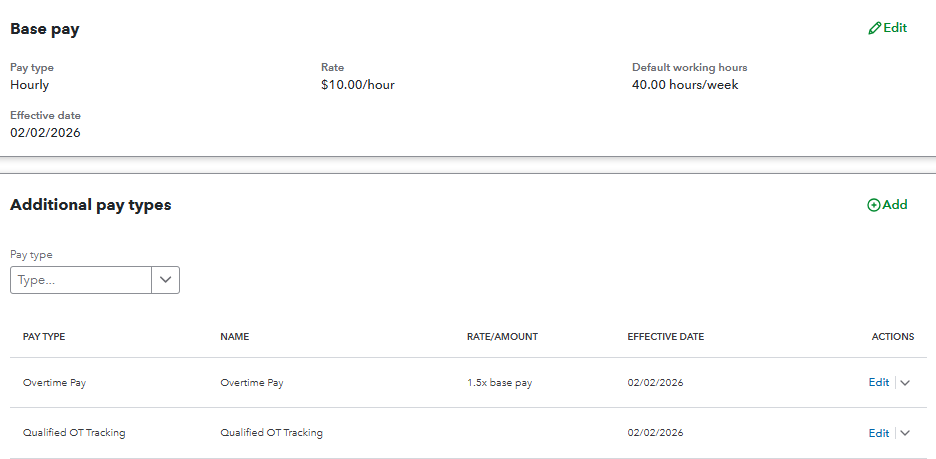
After confirming this, verify that the pay type is active in QuickBooks Payroll. Then, sync these changes in classic QuickBooks Time.
Here's how:
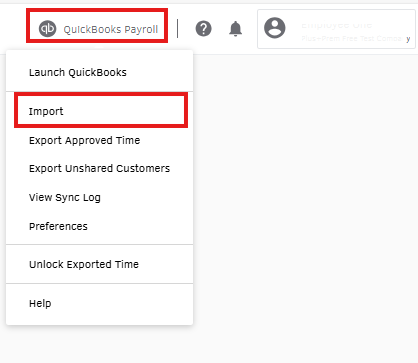
Return to this post if you have other questions or concerns.
I do appreciate everyone's suggestions. The actions I took to finally get this to work, and enable my ability to approve his time, was deleting all Pay Rates from his User and adding them back one at a time (Regular PAY: Hourly, Holiday, Overtime etc.) Once I did that, I was able to approve his time and process payroll like the other employees.


You have clicked a link to a site outside of the QuickBooks or ProFile Communities. By clicking "Continue", you will leave the community and be taken to that site instead.
For more information visit our Security Center or to report suspicious websites you can contact us here


