I'm pleased to assist with your paychecks and tax payments, @nbeaver.
If you switch from QuickBooks Desktop (QBDT) to QuickBooks Online (QBO), your books might look different. One thing that won't transfer to QBO is payroll, including previous years' payroll history and transaction details. For more info, check out this article: Learn how features and data move from QuickBooks Desktop to QuickBooks Online.
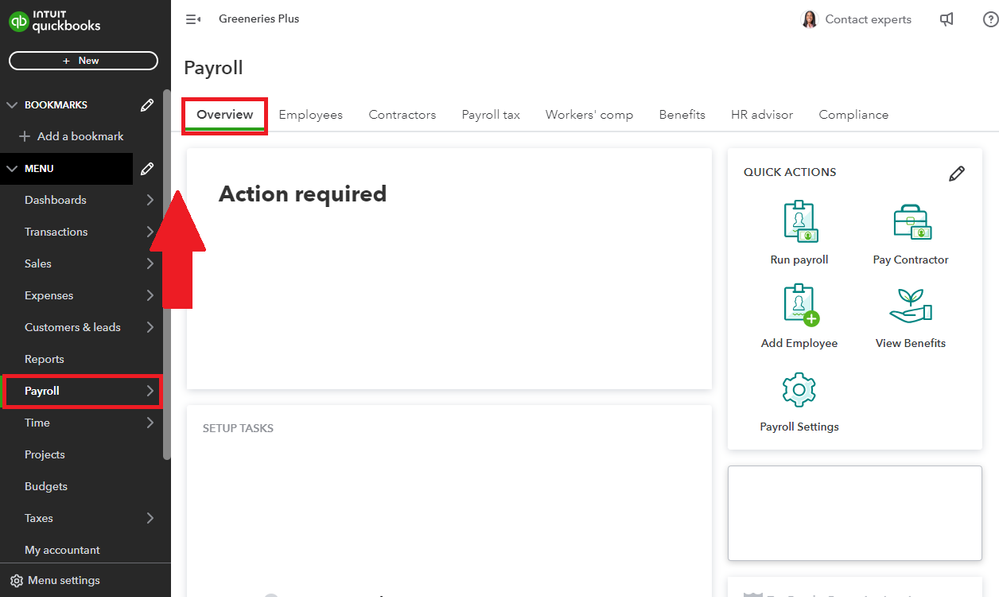
To resolve any discrepancies between paychecks and reports, it depends on whether you've created paychecks or not. If you haven't, you can adjust your pay history from the Payroll menu by selecting Overview. If paychecks have already been created, feel free to reach out to our support team for assistance.
As for the doubled liability payment, QB may have automatically processed it if the Automate taxes and forms option is enabled. Check this by going to the Gear icon, then Payroll Settings, and finally the Taxes and forms section.

If the option was turned on, contact us to inquire about canceling a payment. However, if you manually pay and file your tax filings, you might be able to cancel tax payments.
Here's how:
- Navigate to Taxes, then Payroll tax.
- Open the Payments tab and scroll down to select Payment history.
- Choose the tax payment you want to cancel or delete and change the date range if necessary.
- Click the Edit dropdown and select Delete. If you don't see it, you won't be able to remove the payment.
- Hit Yes to confirm.

For more info on payroll taxes and forms that QB handles, check out this article: Understand the taxes and forms that QuickBooks payroll submits for you.
You can always return to this thread if you have any other payroll-related concerns. Take care and have a good one!


