Letting an employee go is challenging, SA2024. When an employee leaves, you must provide their final paycheck for the remaining wages. We’re here to guide you through the steps of adding a severance amount to an employee’s check on QuickBooks Desktop (QBDT) Payroll. We also added a screenshot below. Here's how:
1. From the Employees menu, select Pay Employees and then Termination Check.
2. Review the Pay Period Ends date, Check date, and the Bank Account the payment comes from.
3. To avoid a late fee, date the check for today or a future date. Put a checkmark next to the employees you need to give a termination paycheck to.
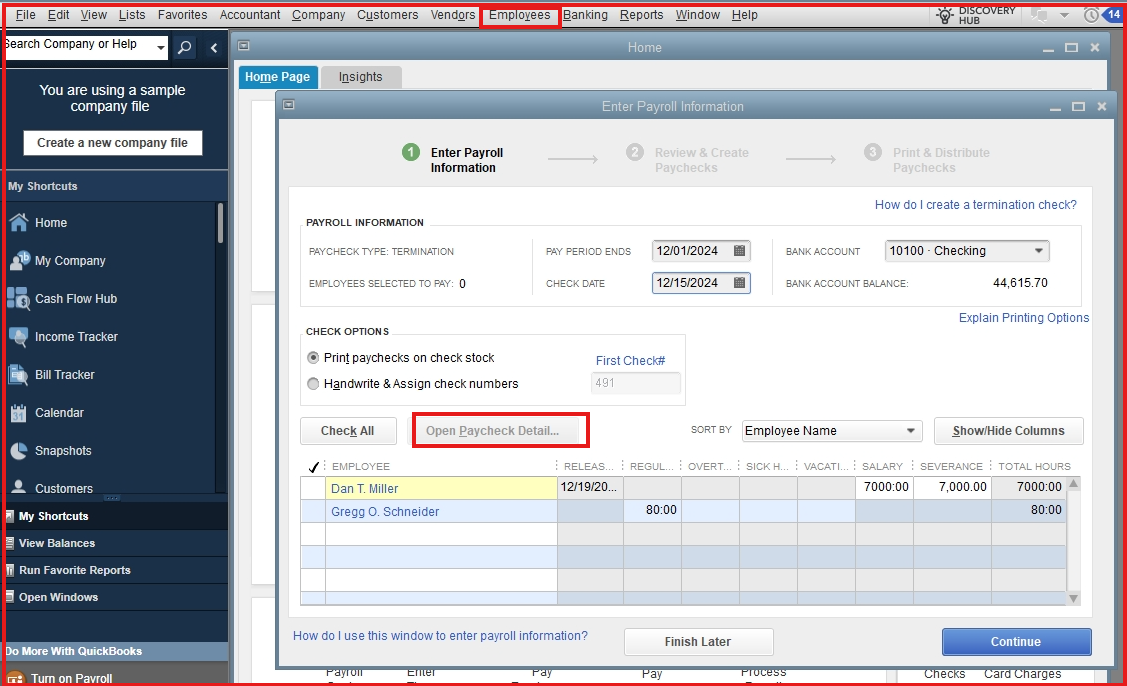
4. Next, create a termination check under the Release Date column, and select the Calendar icon. Then select the employee's release date. Or enter the employee's release date.
5. Enter and review the hours or salary. Select Open Paycheck Detail to review the paycheck details.
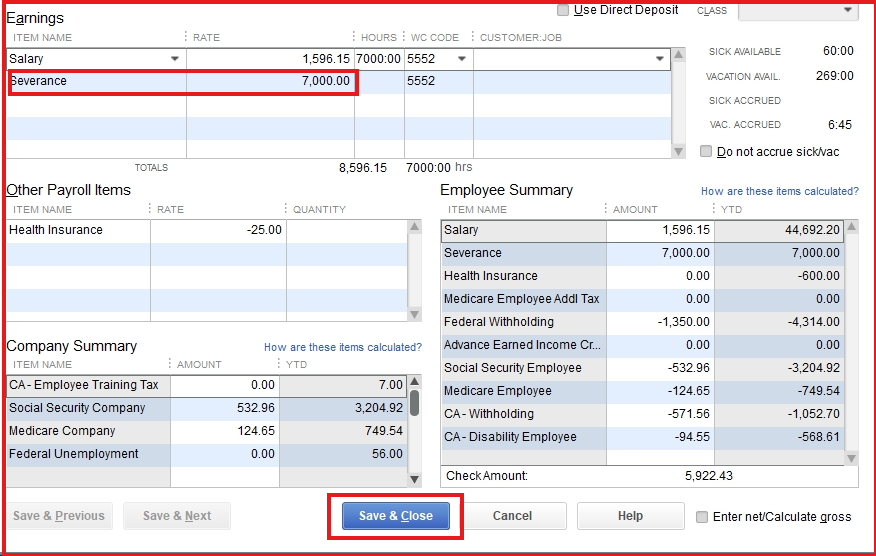
6. To add a severance amount to an employee’s check under Earnings add the amount and enter. Ensure that the amount you enter is correct. Then Save & Close.
For detailed steps, refer to this article on creating a final paycheck: Create final paychecks for terminated employees.
In addition, check this article on how to change employee statuses from any QuickBooks or Intuit payroll product: Terminate or change your employee's status on payroll.
We'll be here in the Community if you have any further questions about adding a severance amount to your employee's paycheck on QBDT Payroll. We're committed to providing ongoing support. Take care.


