Turn on suggestions
Auto-suggest helps you quickly narrow down your search results by suggesting possible matches as you type.
Showing results for
Get 50% OFF QuickBooks for 3 months*
Buy nowI need to update my employee's pay rate per hour. I can see where to update it, but it does not have an effective date to enter. I just wanted to make sure that if I updated the rate under the pay rate tab that it will not affect any past paychecks/paystubs.
Solved! Go to Solution.

Hi there, @missmissySEI.
You are correct that in QuickBooks Desktop (QBDT), there is no "effective date" field for pay rate changes.
When you update the pay rate, it does not affect any past paychecks or pay stubs. QuickBooks keeps each paycheck as a permanent historical record, so changing the rate in the employee profile only sets the "default" rate for the next paycheck you create.
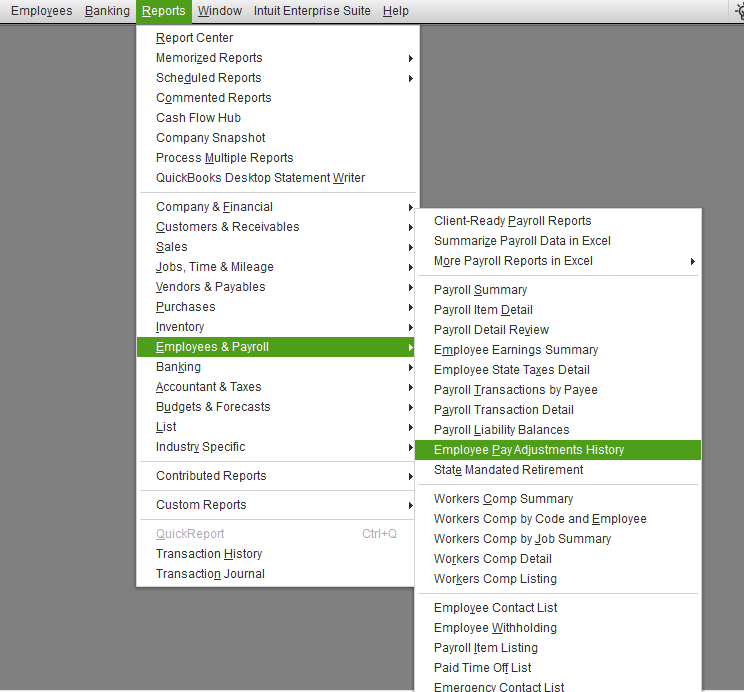
To view the applied pay rate adjustments, you can run the Employee Pay Adjustments History Report. Here’s how:
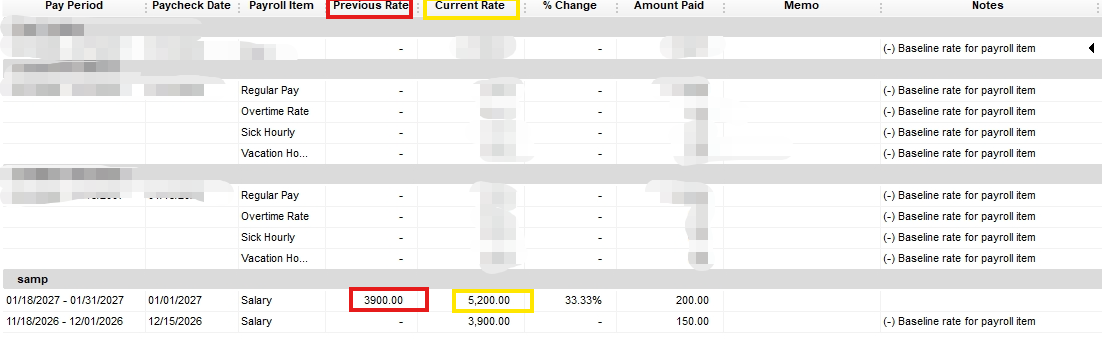
This report displays the employee's name, the pay item that was changed, the old rate, the new rate, and the date the modification was made.
If you have follow-up questions, please don't hesitate to click the Reply button.
Hi there, @missmissySEI.
You are correct that in QuickBooks Desktop (QBDT), there is no "effective date" field for pay rate changes.
When you update the pay rate, it does not affect any past paychecks or pay stubs. QuickBooks keeps each paycheck as a permanent historical record, so changing the rate in the employee profile only sets the "default" rate for the next paycheck you create.
To view the applied pay rate adjustments, you can run the Employee Pay Adjustments History Report. Here’s how:
This report displays the employee's name, the pay item that was changed, the old rate, the new rate, and the date the modification was made.
If you have follow-up questions, please don't hesitate to click the Reply button.
I have a newer version of QuickBooks. I believe it’s QuickBooks online that’s we are using in the office and I change the pay rate of an employee, but it does not carryover to weekly timesheet nor does his auto deposit carryover from paper check. Where can I adjust this so it carries over??
Hey there, @Huotari.
Thanks for joining the thread and sharing your concerns. I hope you are having a great day so far.
It sounds like the employee’s payroll settings just need to be adjusted in a couple of different places, since QuickBooks Online doesn’t always automatically push changes like pay rate or payment method into existing timesheets.
In QBO, timesheets can still pull from the job/employee default rate that was originally set when the timesheet was created.
To fix this:
If needed, you may have to edit past or existing timesheets individually or delete/recreate them so they pull the updated rate.
To change an employee from a paper check to Direct Deposit:
That should do the trick. For more information about this process check out the help guides I'm including below.
Please don't hesitate to let me know if you have any additional questions or concerns. I'm happy to lend a hand. Have a good one!


You have clicked a link to a site outside of the QuickBooks or ProFile Communities. By clicking "Continue", you will leave the community and be taken to that site instead.
For more information visit our Security Center or to report suspicious websites you can contact us here


