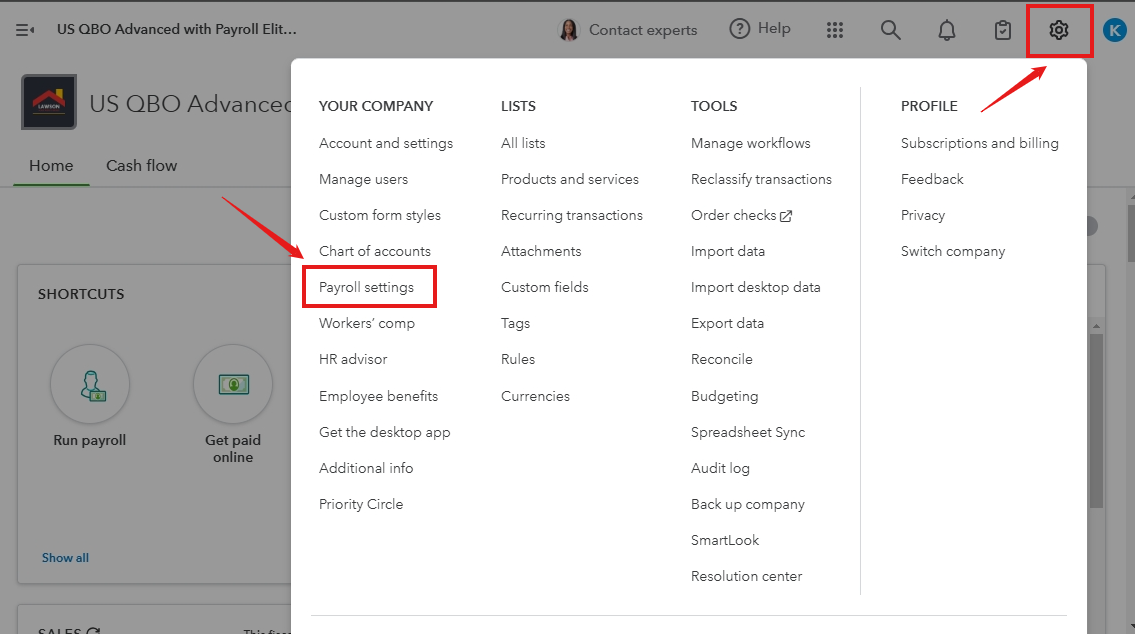
The gear icon in QuickBooks Online serves as an entryway to various functionalities and settings within the platform. You can find this icon in the upper right corner of your screen.
Meanwhile, let me guide you through changing your state unemployment insurance rate in QBO.
After logging into your account, please follow these steps:
- Navigate to Gear Icon.
- Select Payroll settings.
- Beside the state you wish to update, click on the Pencil icon.
- In SUI section, Change or add new rate.
- Enter your new rate and its effective date.
- Update any surcharge or assessment rates, if necessary.
- Once done, click OK
For additional detail in the effective date for your updated rate, please check on this article : Update your State Unemployment Insurance (SUI) rate.
Additionally, you can check this article to choose how you want to handle your payroll taxes and fillings: Set up QuickBooks Online Payroll to pay and file your payroll taxes and forms.
Moreover, in QuickBooks we have different platforms such as QuickBooks Online and Desktop. To assist you further, you can add screenshots if you are referring to something else.
Experience the convenience and efficiency of managing your workforce with QuickBooks Payroll. This powerful tool allows you to automate employee payments with precision, ensuring that your team is paid accurately and on time. You can easily track work hours to better manage schedules and performance.
We are committed in providing any further assistance you may required. We are always prepared to support you once again with any inquiries. Please click on Reply. Have a great day!


