Turn on suggestions
Auto-suggest helps you quickly narrow down your search results by suggesting possible matches as you type.
Showing results for
Get 50% OFF QuickBooks for 3 months*
Buy nowBack in Q1, the company misapplied a payment to a customer invoice (customer BAD) and I need to reapply the same amount to a different customer invoice (customer GOOD).
Can I do the following with no problems with reconciliations or periods (outside the A/R balance for BAD would increase and GOOD’s A/R would decrease)?
Go to BAD’s invoice and click payments made.
Go to bad payment made.
Uncheck BAD’s invoice to where to apply payment.

Go to Client box at top and put in GOOD as Client
Click Yes below.

At this point, I stopped. If I hit Yes, will it be ok? Will QB next pull up GOOD’s unapplied invoices then so I can select where the payment should have been applied?
During the first time, the answer was, "Yes, you can do it. "
So here is where I am ---
So doing this, given it is the same dollar amount and in Q1 2023, will not mess with any reconciliations done since then? Or any month end info, outside the A/R amounts for the two customers will change?
Guidance on this is very much appreciated.
Solved! Go to Solution.
I'm grateful for your swift reply and for providing us with supplementary details and screenshots, @g_Quik_Online. I'll guide you through the process on how to handle this situation.
Step 1: Undo the matched entry:
Since the transaction is matched to a downloaded entry, our first step is to unmatch it, allowing us to make the necessary changes.
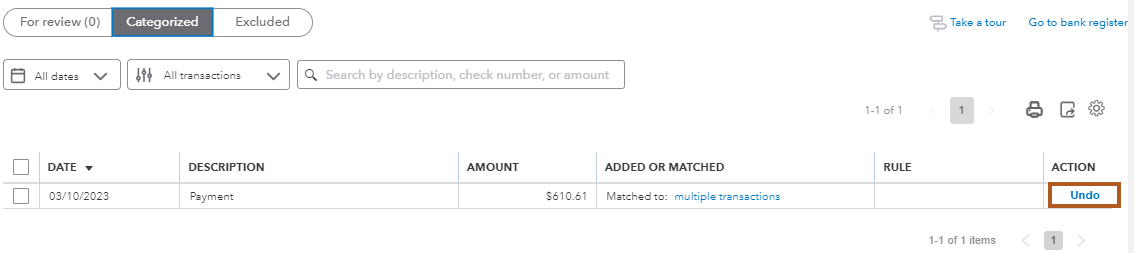
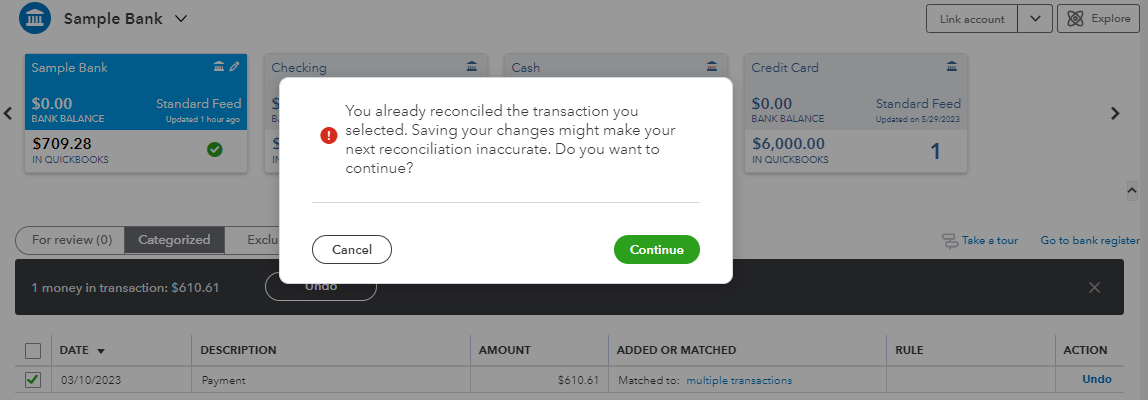
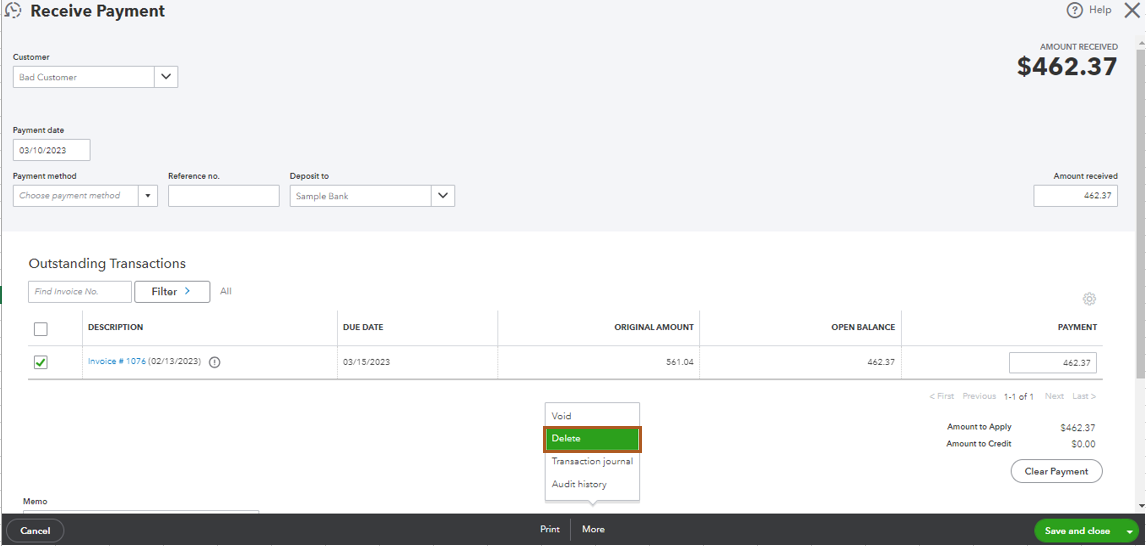
Step 2: Delete the incorrect payment:

Step 3: Recreate the payment for the correct customer:
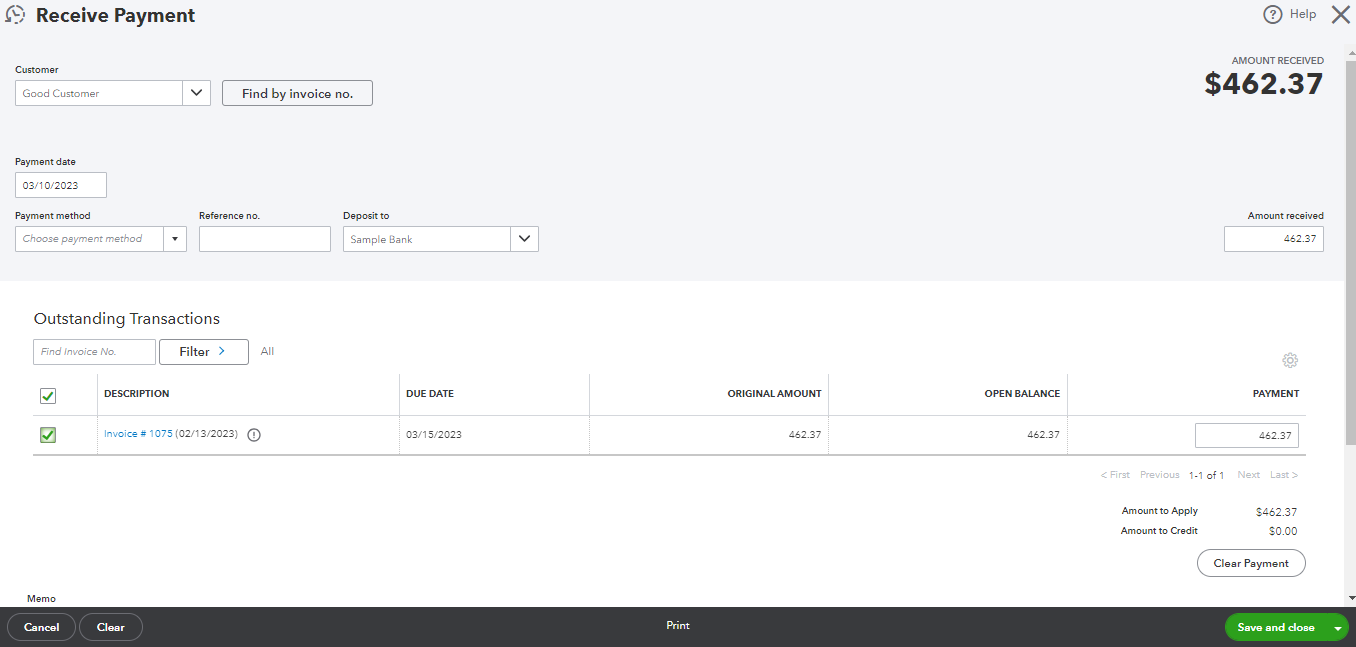
Step 4: Match the payments with the downloaded entry:
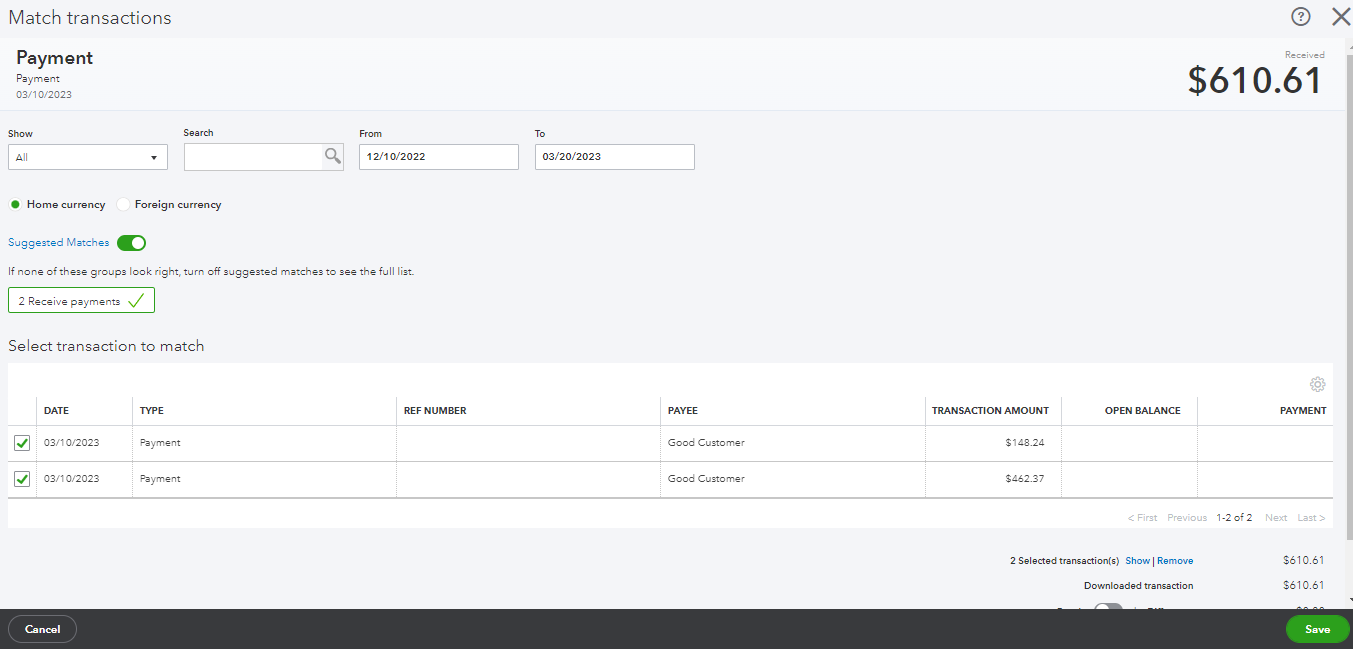
Step 5: Manually Reconcile the Transaction:
Since the incorrect payment was already reconciled, you'll need to manually reconcile the corrected transaction to ensure your accounts are accurate.

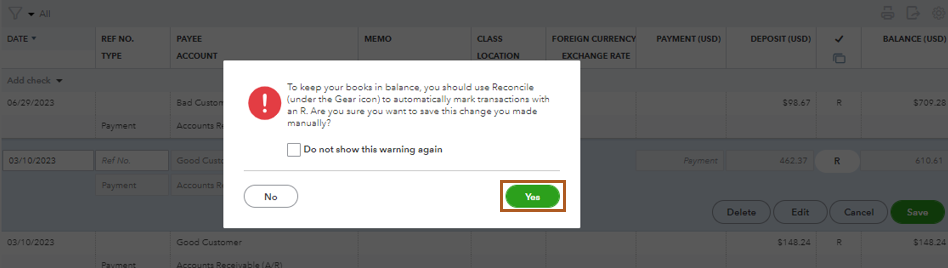
Additionally, I've included a related article that might be of help in case you encounter any challenges during the reconciliation process: Resolve Reconciliation Issues.
If you come across any additional queries or complexities, please feel free to get in touch. Your success remains our foremost concern.
Hello there, @g_Quik_Online.
I'm here to assist you with resolving the payment misapplication issue you've encountered.
Certainly, the process you are engaged in will undoubtedly yield successful outcomes and will not mess any reconciliations done previously.
Upon selecting "Yes," the payment from customer BAD will be removed and QuickBooks will display the outstanding invoices for Customer GOOD that haven't been applied yet. This interface will enable you to choose the specific invoice to which the payment should have been originally allocated.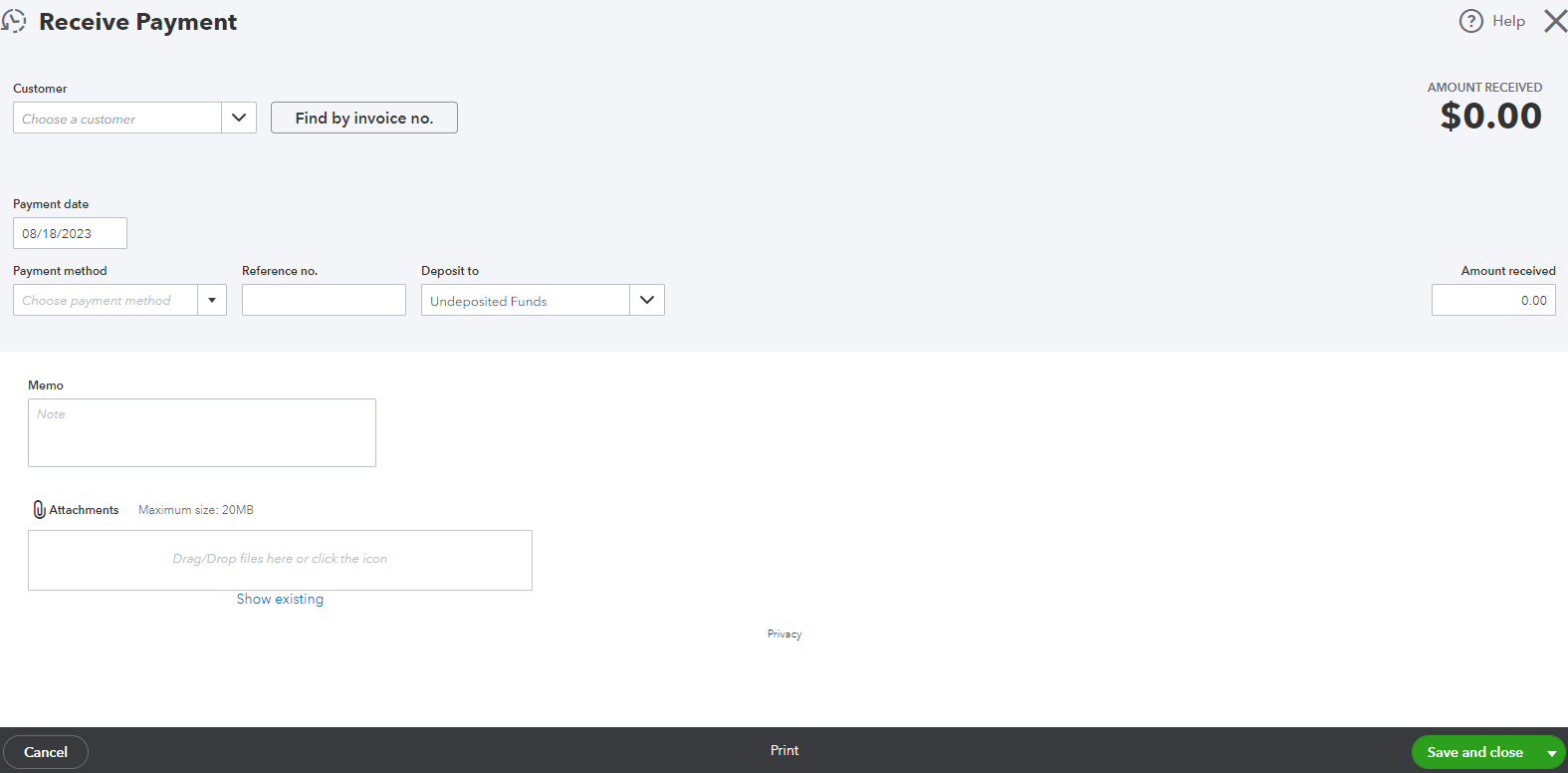
You can also review to this resource as another way of correcting payments: How to fix a payment applied to the wrong customer invoice.
If you have any questions or concerns along the way, don't hesitate to ask. Let's work together to rectify this payment misapplication and ensure your financial records are in impeccable shape.
Thank you Rubielyn_J. When I tried doing it, I receive the following message as the "bad" payment ($400) was part of a lockbox batch. Should I continue anyway?
Are you sure you want to change the amount? It will be different from the matching downloaded transaction: $610.61 credit from PREAUTHORIZED ACH CREDIT on 03/10/2023
This can cause differences between your bank and QuickBooks balances.
Do you want to continue?
Thanks!
Hello there, @g_Quik_Online.
It sounds like you're dealing with a bit of a complex situation here. Before we proceed, I'd like to clarify a few things to make sure we're on the same page.
Once I have this information, I'll be able to assist you further in determining the best course of action. Thanks for your cooperation!
Original lockbox deposit bank categorized (total 610.61). Deposited directly into bank account.
The $462.37 was applied to the wrong customer (BAD) and invoice (15061).
Want the $462.37 applied to a different customer (GOOD) /invoice 15060.
Then went to BAD invoice. Clicked $462.37
Under Receive Payment, unclicked payments to BAD's 15061.
Changed Client – received following message and hit Yes.
Clicked on GOOD client’s invoice of 15060.
Hit Save and Close.
Hit Yes below.
Received the below.
Hit No as this point as I don’t want to mess anything up. Is it ok to click Yes at this point?
Forgot the thank you LieraMarie_A
I'm grateful for your swift reply and for providing us with supplementary details and screenshots, @g_Quik_Online. I'll guide you through the process on how to handle this situation.
Step 1: Undo the matched entry:
Since the transaction is matched to a downloaded entry, our first step is to unmatch it, allowing us to make the necessary changes.
Step 2: Delete the incorrect payment:
Step 3: Recreate the payment for the correct customer:
Step 4: Match the payments with the downloaded entry:
Step 5: Manually Reconcile the Transaction:
Since the incorrect payment was already reconciled, you'll need to manually reconcile the corrected transaction to ensure your accounts are accurate.
Additionally, I've included a related article that might be of help in case you encounter any challenges during the reconciliation process: Resolve Reconciliation Issues.
If you come across any additional queries or complexities, please feel free to get in touch. Your success remains our foremost concern.
Thank you so much LieraMarie! Your explanation and detailed steps were very helpful! I have asked QB community about this several times and yours was the first complete solution!
Thank you for getting back to us, g_Quik_Online.
I'm delighted to hear that my colleague LieraMarie has been of great help in addressing your concerns related to invoices. You are always welcome to post in the Community with any QuickBooks-related questions you may have.
If you need further assistance managing your invoices or any QuickBooks-related concerns, we are always here to assist. Please reach out to us again if you need further support. We wish you a prosperous year ahead with QuickBooks!


You have clicked a link to a site outside of the QuickBooks or ProFile Communities. By clicking "Continue", you will leave the community and be taken to that site instead.
For more information visit our Security Center or to report suspicious websites you can contact us here


