When an invoice is marked as paid, the payment will be automatically recorded in the selected Bank register or account under the Deposit to section, Agblueplumbing.
Let's open the your customer invoice to verify where the payment is deposited to. To do this, follow these steps:
- Navigate to the Sales menu then Invoice.
- Then select your customer invoice.
- Click on the View/edit. Then on the invoice go to the Manage option on the upper right corner.
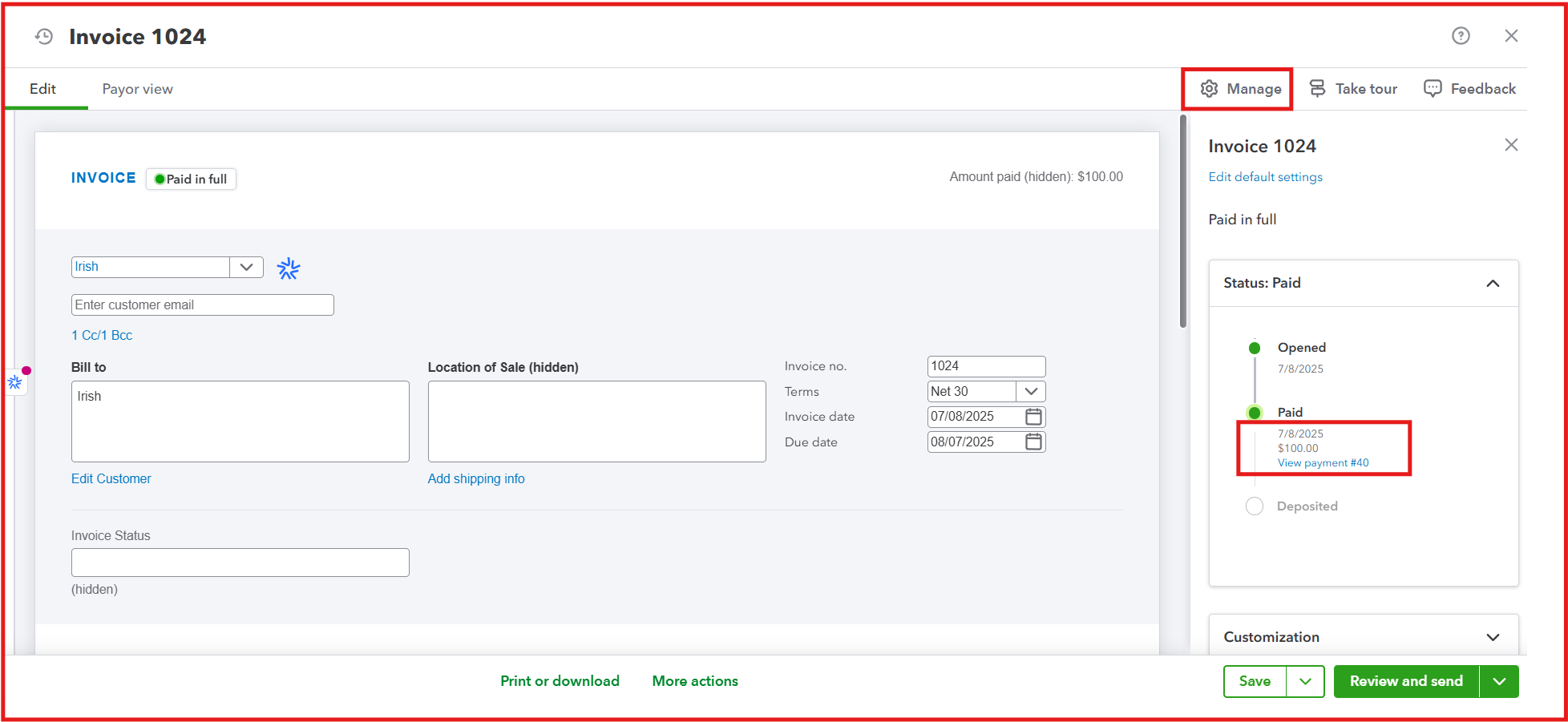
- From there you can check the Status of whether it was automatically deposited or just showing Paid.
Note: If the status indicates that the payment is not deposited, it means that the funds have been placed in Undeposited Funds.
- Select the payment link under the Paid. This will route you to the Receive payment tab. From there, it will show where the payment is Deposited to.
- If you find the payment is not recorded under the correct account or is in Undeposited Funds, you can select the appropriate account from the Deposit to drop-down.
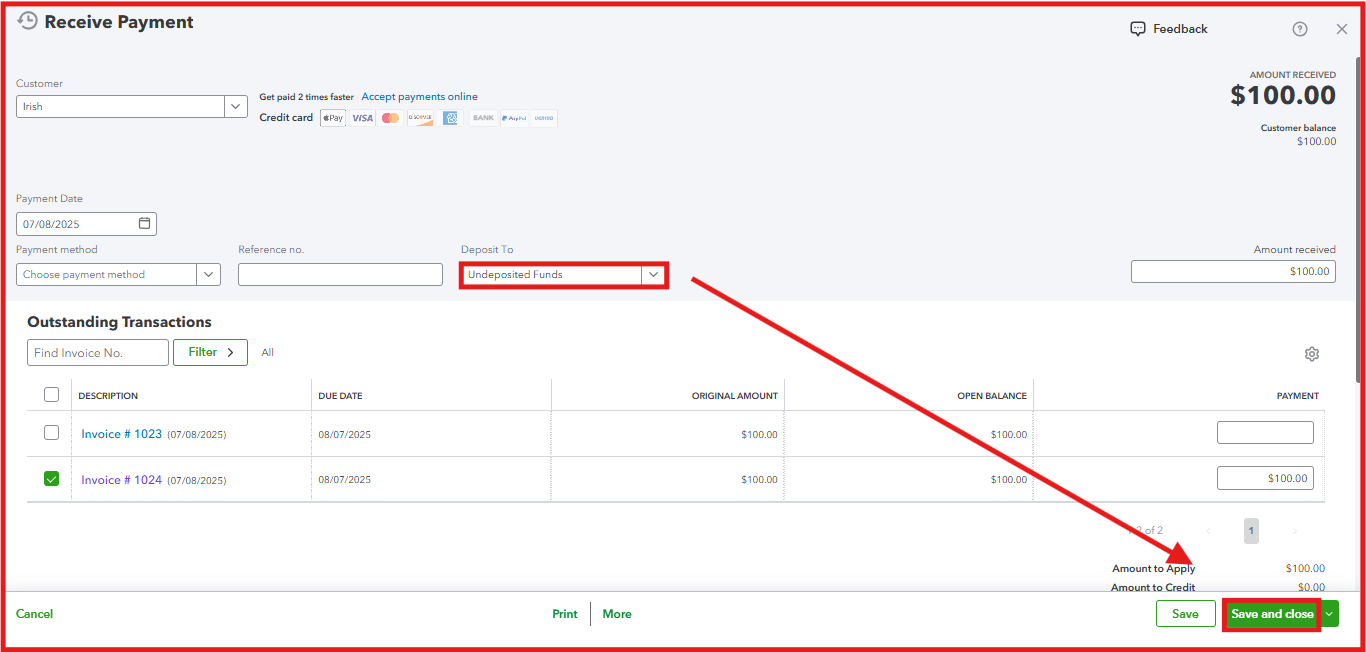
- Once done, click Save and Close.
If the invoice payments are deposited directly into your bank account, there is no need to record them manually in your chart of accounts, as this would result in duplicate transactions. You can check your bank register to see whether the payments have already been posted.
It is important to check or review your Undeposited Funds account to clear out any payments waiting to be deposited.
You can add your reply below if you have other questions or need further clarification.


