Turn on suggestions
Auto-suggest helps you quickly narrow down your search results by suggesting possible matches as you type.
Showing results for
Get 50% OFF QuickBooks for 3 months*
Buy nowOne of my users cannot manipulate customer contact info on Quckbooks Desktop enterprise 23.0
She can add new customers, add notes , add transactions, delete customers but every time we try to add data in the contact tab we get the error, 'Could not save the information'
Spent an hour on call with support just to find out its not a permissions issue, which we told them when the call started.
Let me share some information that can help fix this error in your QuickBooks Desktop (QBDT), lafuturex.
Since you've mentioned that you encounter some errors as you save your data, it's best to use the verify and rebuild data since it removes empty and/or damaged data from the file. Please know that it will also remove or delete transactions that are damaged, which can threaten the overall integrity of your company file.
Here's how:
Step 1: Verify your data
Step 2: Rebuild your file
For more details steps. please visit this website since this includes the additional info that can help in your future transaction: Verify and Rebuild Data in QuickBooks Desktop
You can also utilize this material if you get the same error: Fix common problems and errors with the QuickBooks Desktop Tool Hub.
Please leave your concern in the comment section so that we can further assist you. We're always around to help.
All other multi-user accounts on the server can manipulate and save the contact data. Only the one user can not
All other multi-user accounts are able to manipulate and save contact data. Just the one user is unable to do so. The file has been verified and the file doctor tool has been run on the file. The database scanner has also been run on the server itsself.
Thanks for getting back with the Community, lafuturex. I appreciate your detailed information.
I've checked our ongoing/solved investigations and can confirm there's currently a solved one about encountering a "Could not save the information" error message which prevents users from updating customer information in their Customer Center. The investigation case number is INV-46267, and it was closed on September 17, 2021.
Intuit's Product Investigations team has confirmed this issue is specific to the computer a user's using. Something on your system is causing the message to display. Their recommended troubleshooting is to use QuickBooks in Selective startup on the affected computer.
Here's how:
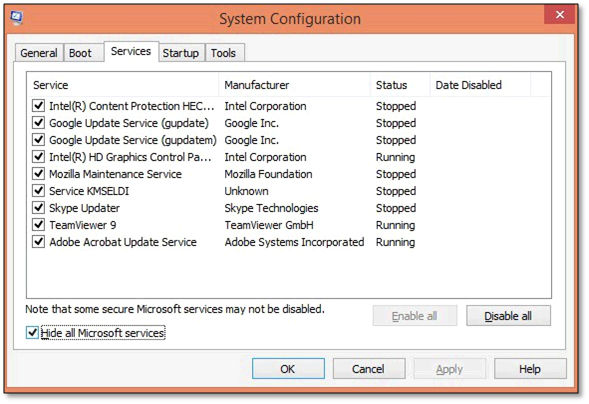
Another solution they've recommended is to have your user use a different system, instead of the computer they encounter the error message on. Ultimately, our Product Investigations team has verified there's another program conflicting with QuickBooks to cause this message. One that's been identified is Microsoft SQL Server. You can check your installed programs to see if there's anything that may be causing this.
I've also included a detailed resource about using Selective startup which may come in handy moving forward: Install or uninstall QuickBooks in Selective startup
If there's any additional questions, I'm just a post away. Have a great Friday!


You have clicked a link to a site outside of the QuickBooks or ProFile Communities. By clicking "Continue", you will leave the community and be taken to that site instead.
For more information visit our Security Center or to report suspicious websites you can contact us here


