Turn on suggestions
Auto-suggest helps you quickly narrow down your search results by suggesting possible matches as you type.
Showing results for
Get 50% OFF QuickBooks for 3 months*
Buy nowWhen I create a new company QB is saving the newly created company file in the Temp folder under my user name: C:\Users\myusername\appdata\local\temp\alphanumeric string. The problem is that the Temp folder is cleared by Windows 11 and I am losing my company files. These lost files are unrecoverable.
QB should be saving the company files to C:\Users\Public\Public Documents\Intuit\Quickbooks\Company Files. This folder is empty. All my company files are being routed to the file I referenced in the first paragraph.
How do I change the default company file save location?
I've already lost two company files. I moved a third company file to my desktop before Windows cleared the Temp folder.
QB's support could not understand my issue, for some reason. She kept asked me to show her how I backed up files-this has nothing to do with backing up files-it is the company files (qbw) that are being saved or routed to an incorrect location.
Please help. I am tired of recreating hours of lost work.
Thank you.

Let me guide you through changing the default location of your QuickBooks (QB) company file, @FLBill.
By default, QB saves the company file to C:\Users\Public\Documents\Intuit\QuickBooks\yourcompanyfile.qbw. To change the location where your company file is stored, here's how:
Here's an article that explains how to move your company files to different locations, such as another folder on your computer, network, or another computer: Move your company files to another computer.
In case you want to update your company file, you can visit this article for guidance: Update your company files to a new version of QuickBooks Desktop.
If you require further support in altering the default location of your QB company file, don't hesitate to reach out to us. Our Community is always ready to lend a helping hand.
Thank you for your reply.
My problem is that the QB program is saving my company files in a Temp folder that is deleted every time I sign out or restart my computer. By definition the Temp folder is not a permanent place to store files.
I want to know how to make the QB program route my company files to the proper location.
I know how to move files. I want QB to save my company files in the proper, permanent location.
Please reread my original post if you don't understand my problem.
Thank you for replying.
Hello, FLBill.
I'm here to explain why it saves in the temporary folder when you back up the file in Quickbooks Desktop.
In QuickBooks, if backing up your company file was not completed successfully. As a result, the backup file was saved in a temporary folder instead of the usual location. Once the backup process is finished, the files included in the backup will be safely stored in a designated area. After the backup is completed, the system will automatically delete these files from their original location to prevent data redundancy or confusion.
To ensure the company file is saved in the correct folder, you must check your settings preferences thoroughly. Ensure the correct folder has been designated for the company file to be held in. Double-check that the settings have been configured correctly, including file-naming conventions or type specifications. These steps will ensure that you have an organized and efficient system for managing your company files.
Here's how:
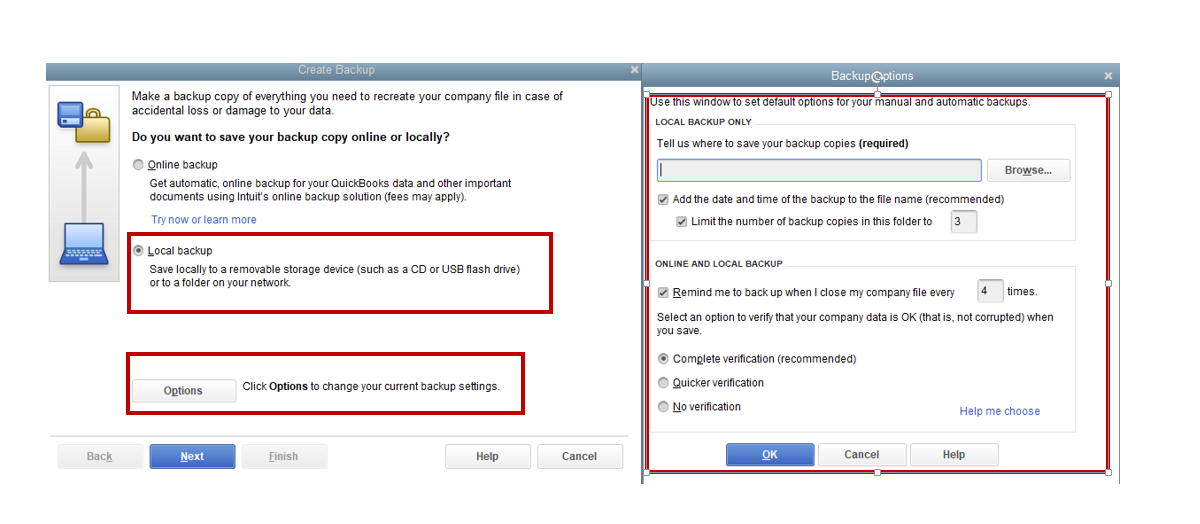
You can follow these steps in the article for more details on setting a local backup: Back up your QuickBooks Desktop company file.
Additionally, you can visit this resource to see what file types and extensions QBDT uses to store data: File types and extensions used by QuickBooks Desktop.
Stay in touch if you have more concerns about your backup file. The Community will surely assist you with this. Stay safe!
Open your company file, create a backup file and save it to the folder you need.
Restore the backup file in the same folder.
Don't forget to delete the old *.qbw file in the old folder to avoid confusion.


You have clicked a link to a site outside of the QuickBooks or ProFile Communities. By clicking "Continue", you will leave the community and be taken to that site instead.
For more information visit our Security Center or to report suspicious websites you can contact us here


