Turn on suggestions
Auto-suggest helps you quickly narrow down your search results by suggesting possible matches as you type.
Showing results for
Get 50% OFF QuickBooks for 3 months*
Buy nowOwnership changed mid year 2020 and now they want to use separate Quickbook companies for before and after the change. How do I move all the transactions from a specific date from one company to another.
Utilize one of these migration tools
https://transactionpro.grsm.io/qbd
https://partners.saasant.com/affiliate/idevaffiliate.php?id=5051_2
Hello there, @RegionSolar.
You can filter the list of your transactions to a specific date and download it. Once competed, you can import it to the new QuickBooks company file. I can guide you on how to do it.
First, you'd want to make sure that your customer's new QuickBooks company file is completely set-up. Here's how to download your Customer/Vendor/Inventory/Payroll lists:
On the other hand, you can follow these steps to download your transactions list:
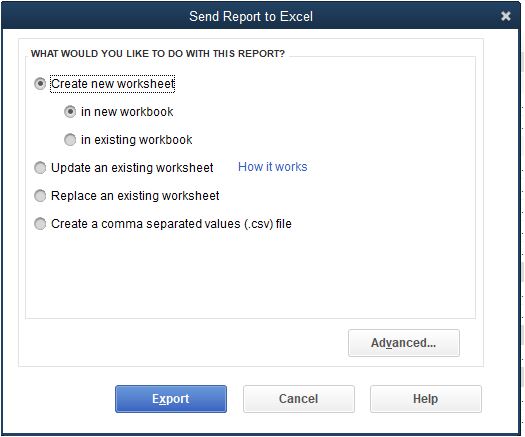
Now, you can import it to the new company file. let's import them to your new company file.
You can read through this article for more details about the steps above:Export and import data to QBDT.
Lastly, you can enter your transactions to the new company file by batch. You can refer to this article for the step-by-step instructions: Enter transactions by batch in QuickBooks Desktop.
Get back to us here if you have other questions about managing your client's QuickBooks data. I'm always here to help.


You have clicked a link to a site outside of the QuickBooks or ProFile Communities. By clicking "Continue", you will leave the community and be taken to that site instead.
For more information visit our Security Center or to report suspicious websites you can contact us here