I have a workaround, @hwdickey. This way, you can still ship your customer's products to multiple addresses.
Thank you for being a QuickBooks client for how many decades. I know it can be frustrating to wait on hold, especially when trying to get things done. We appreciate your patience while waiting. Also, providing unclear information is unacceptable, specifically if you expect multiple addresses to migrate it to QuickBooks Online (QBO). Rest assured, I'll pass along your feedback to the management team so we can improve your experience and other customers like you.
In addition, some features, lists, items, preferences, reports, and transactions do not convert when exporting data from Desktop to Online. You can check this article to learn more about this: Learn how features and data move from QuickBooks Desktop to QuickBooks Online.
The closest workaround I can think of is creating sub-customers and manually adding the addresses. This way, you can ship it to multiple places. Follow this process:
- Go to the Sales menu and select Customers.
- Click the New customer tab.
- Complete the customer's information and ensure to click the Is a sub-customer box.
- Hit Save.
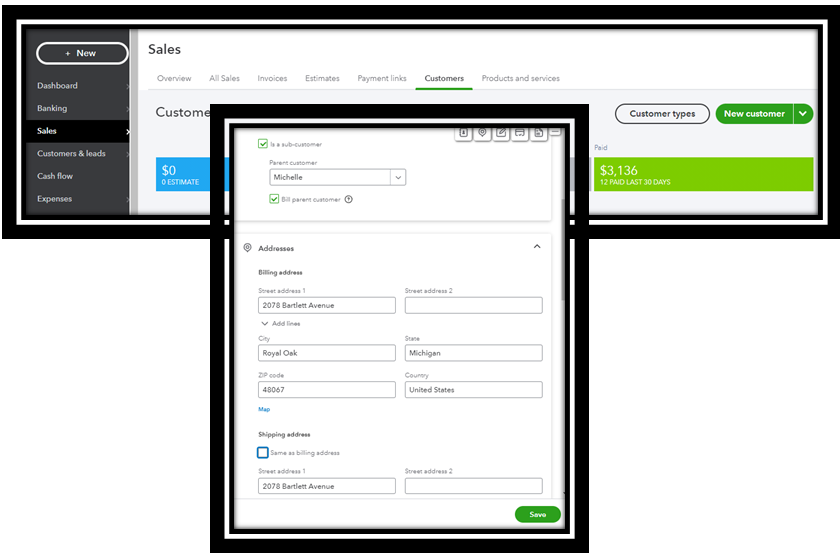
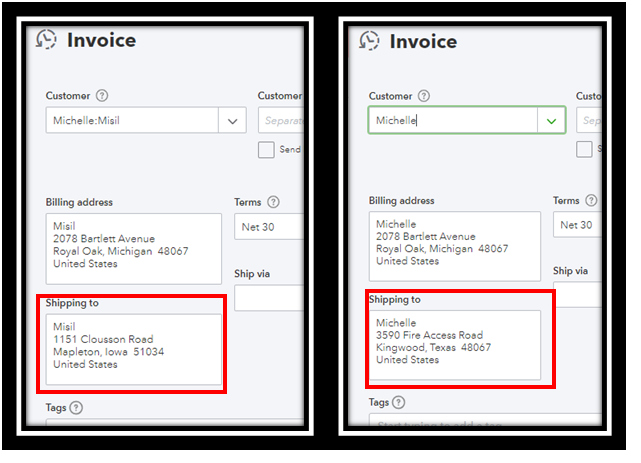
After that, pick the appropriate sub-customer when you create an invoice. So it will ship to the correct address. For more information, see this link: Add and manage customers in QuickBooks Online.
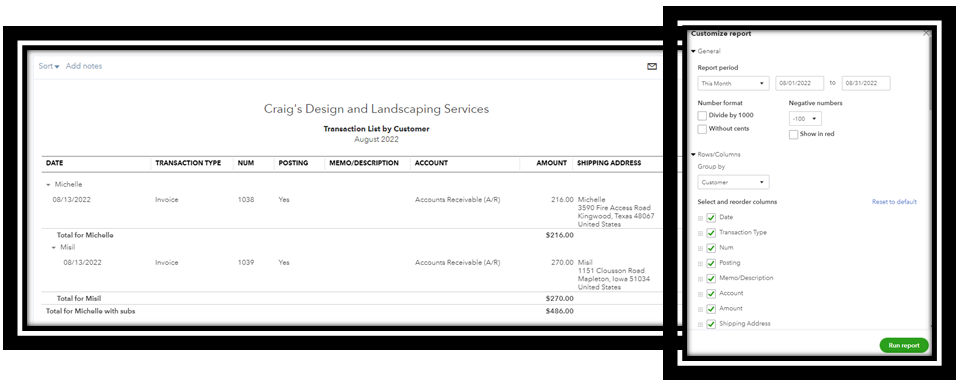
Moreover, to track your customer's transactions, you can run Transaction List by Customer report and add the Shipping Address column. See the sample screenshot below for reference:
Feel free to visit these articles below to get started in QBO and customize sales forms:
Please leave a message below if you have trouble making sense of QBO. I'm here for you, and I'll be happy to help. Keep safe always.


