After you downloaded the transactions, you'll need to categorize them in QuickBooks, Diane. I'll provide the steps below.
Before anything else, could you confirm if you've connected your Ramp account to QuickBooks Desktop (QBDT)? Or did you manually import your bank data?
It's essential to categorize and match these downloaded transactions to verify which ones have been processed by your financial institution and which are still pending. Here’s how you can do it:
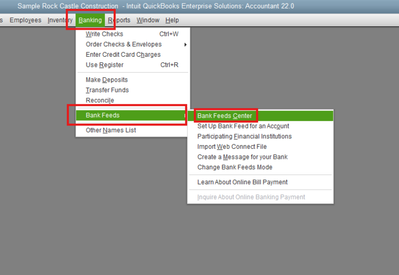
- Navigate to the Banking menu.
- Select Bank Feeds
- Choose Bank Feeds Center to review the transactions.
There are three Bank Feed modes available in QuickBooks Desktop, each with distinct methods for displaying and handling transactions. QuickBooks uses criteria like check numbers, amounts, dates, and payer details to determine matches.
If you're using the Express Mode, these are the match categories:
- (Need Your Review) Unmatched: Transactions that don't match any QuickBooks account.
- (Changed By Rules) Renamed: Transactions renamed by rules when no match is found, made ready for register addition.
- (Auto) Matched: Transactions that QuickBooks automatically matches with an existing account entry.
However, if you're using the Classic Mode, these are the match categories:
- Match downloaded transactions: Transactions from the electronic statement that match entries in QuickBooks.
- Unmatched transactions: Transactions from the electronic statement that don't match any QuickBooks account entry.
In QuickBooks Advanced Mode, transactions are categorized under three tabs: Recognized, Partially recognized, and Unrecognized.
Recognized Transactions:
- Auto-matched:Transactions automatically identified as matches with bank details.
- Rules applied: Transactions matched according to specific predefined rules.
- Auto-recognized rule: Transactions matched based on exact textual descriptions.
- Actions: Approve to confirm matches, View Details for more info, or select Not a match if incorrect.
Partially Recognized Transactions:
- These may match multiple account entries.
- Choose the best match, Ignore, Add more details, or Match manually.
Unrecognized Transactions:
- No matches or defined rules apply.
- Options are to Add directly, Add more details, Match to existing transactions, or Ignore.
For complete details about this, please visit this article: Categorize bank feed transactions in QBDT.
Once done, reconcile your accounts to ensure they match your actual bank and credit card statements. If all transactions align, it confirms that your accounts are balanced and accurate.
I'll respond promptly if you need further assistance with importing and categorizing your bank transactions. Just use the Reply button below. Have a good one.


