I have the steps you'll need to record the vendor refund, @Eugene. Let me walk you through the process.
When receiving a refund from a vendor, begin by logging a vendor credit for the associated expense. Then, deposit the refunded amount into your bank account. Subsequently, link the bank deposit to the vendor credit to accurately reflect your vendor expenses.
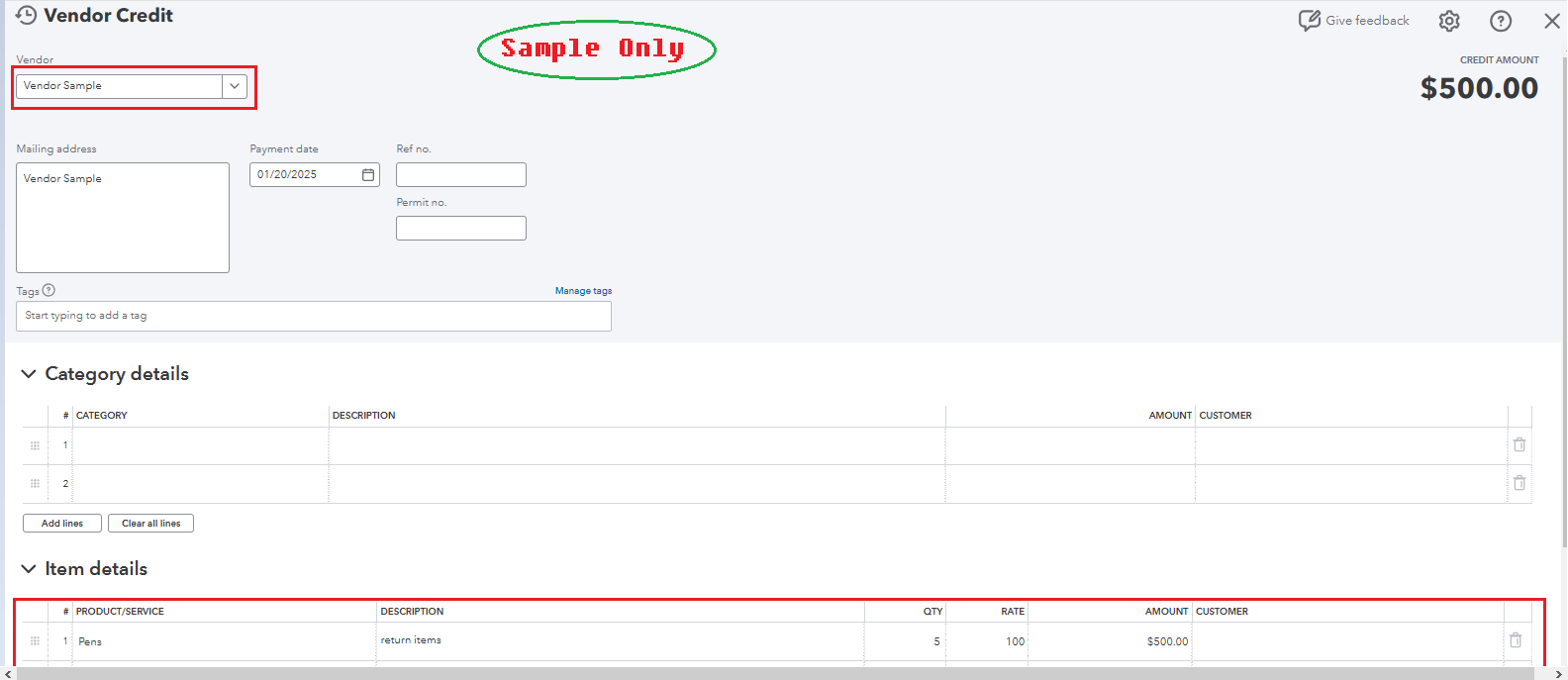
Let's start recording the refund by entering the vendor credit.
- Click the +New button.
- Select Vendor Credit.
- Choose the vendor's name from the Vendor drop-down list.
- Depending on how you record purchases with this vendor, enter the Category details or Item details. Usually, this is the category, product, or service you’re getting credit for.
- Enter the returned amount.
- Click Save and close.
Then, let's deposit the money received.
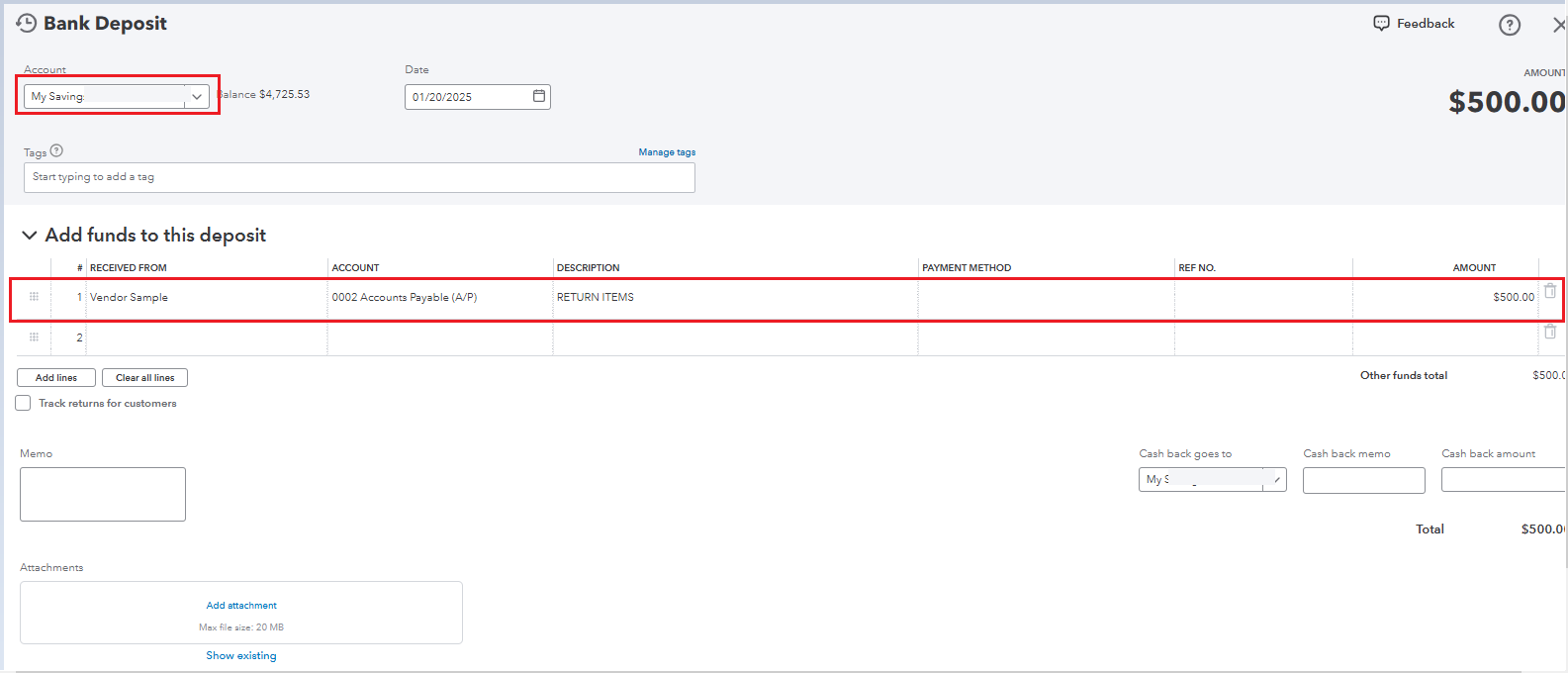
- Click +New.
- Select Bank deposit.
- Choose the bank account.
- In the Add funds to this deposit field, fill in the necessary portion:
- Received from: Enter the vendor name.
- Account: Choose the Accounts Payable account.
- Amount: Enter the returned amount, then Save and close.
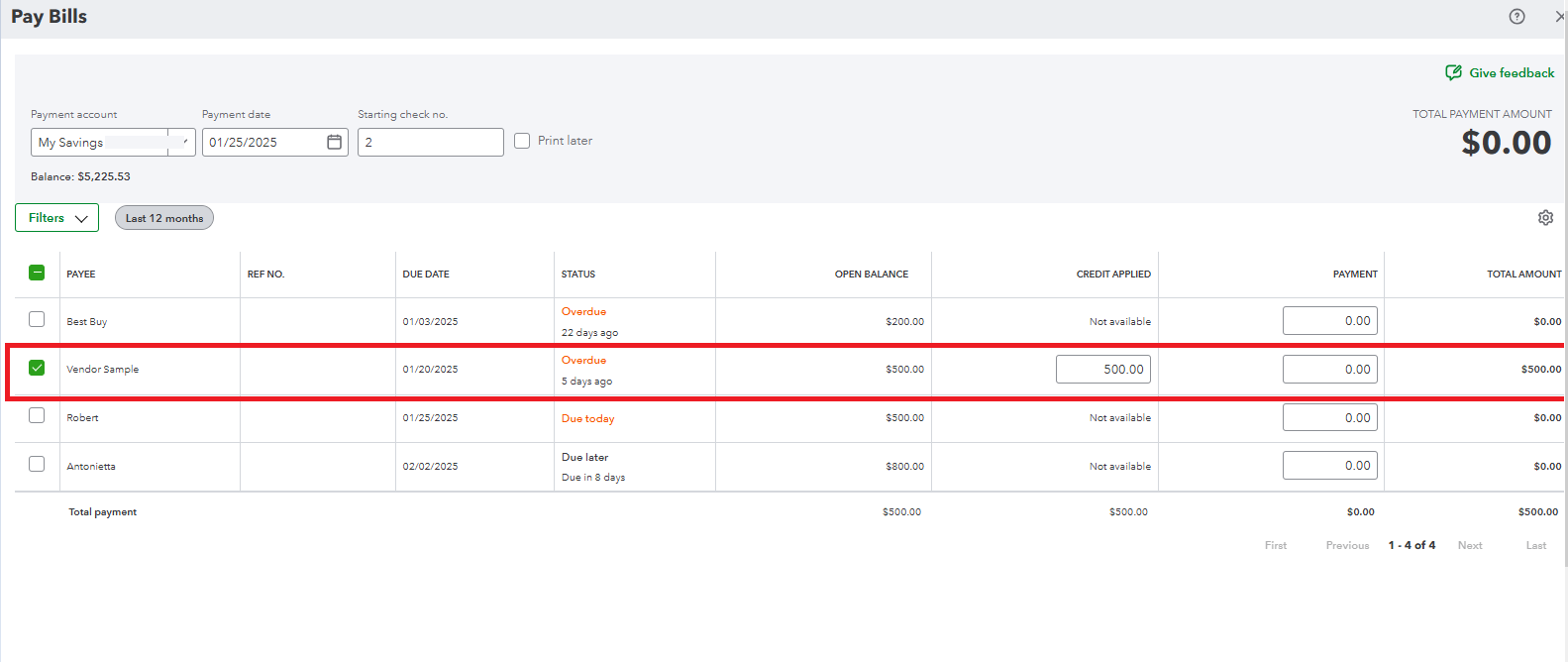
Lastly, let's link the deposit to the vendor credit with a "zero dollar" payment.
- Click +New.
- Choose Pay Bills.
- Double-check the Payment account.
- Select the deposit.
- Hit Save and close.
For more details on recording a refund from a vendor, you can check this article as your guide: Enter the vendor credit and refunds in QuickBooks Online.
After completing the process, you should reconcile your account to ensure that all transactions match those on your bank statement.
Another excellent service offered by Intuit is QuickBooks Live Expert Assist. Our trained experts are available to guide you on the best ways to manage your books effectively.
Feel free to visit the Community again if you have concerns or questions about refunds from vendors. I'd be delighted to respond to them. Have a great weekend.


