To provide accurate information, could you clarify what you mean by "undoing a transaction," Info2117? Are you referring to a reconciled entry or an edited or deleted transaction? We would greatly appreciate any additional details you can provide.
If you mean that you undo a transaction on the reconciliation page, we can manually change the status of the transaction in the register under the checkmark column.
Here's how:
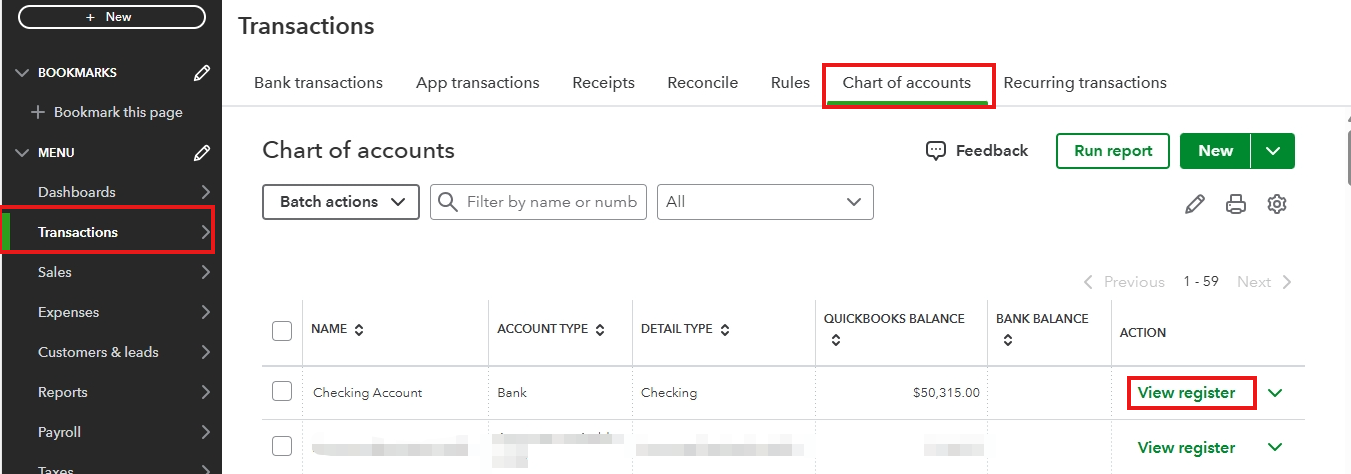
- Navigate to Transactions, then click Chart of accounts.
- Locate the account that has the transaction, then select View register.
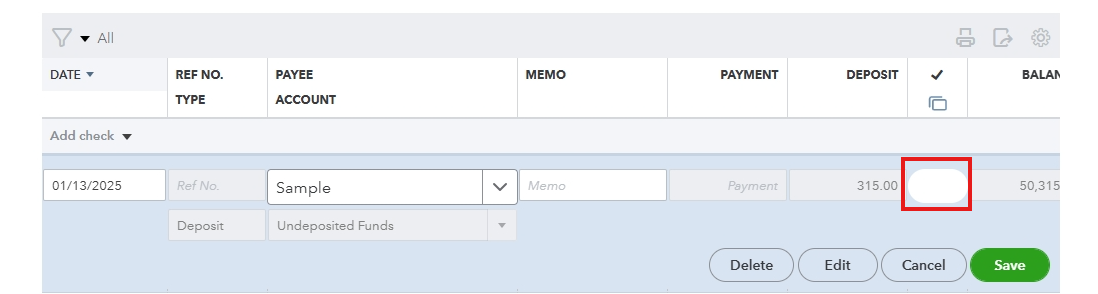
- Select the transaction to expand the view.
- In the checkmark ✔ column, click the box to change the status.
On the other hand, if you mean that you've edited a transaction, we can use the Audit log to find the one you mistakenly undid. The Audit log keeps a detailed record of all transactions and changes made to your account. Once we locate the transaction, we can easily edit and correct it to meet your needs. This feature allows for effortless maintenance of accurate and up-to-date financial records.
Here's how:
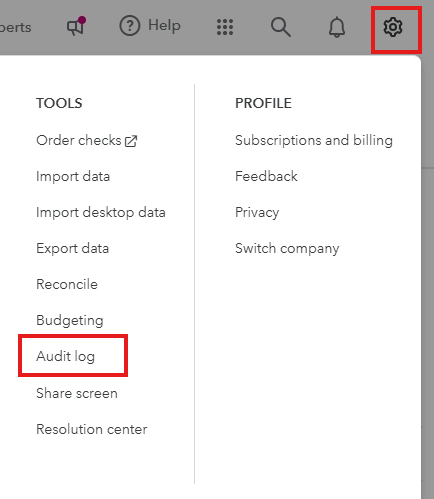
- Go to the Gear icon, then select Audit log.
- Locate the transaction, then click the hyperlink under the EVENT column to view it.
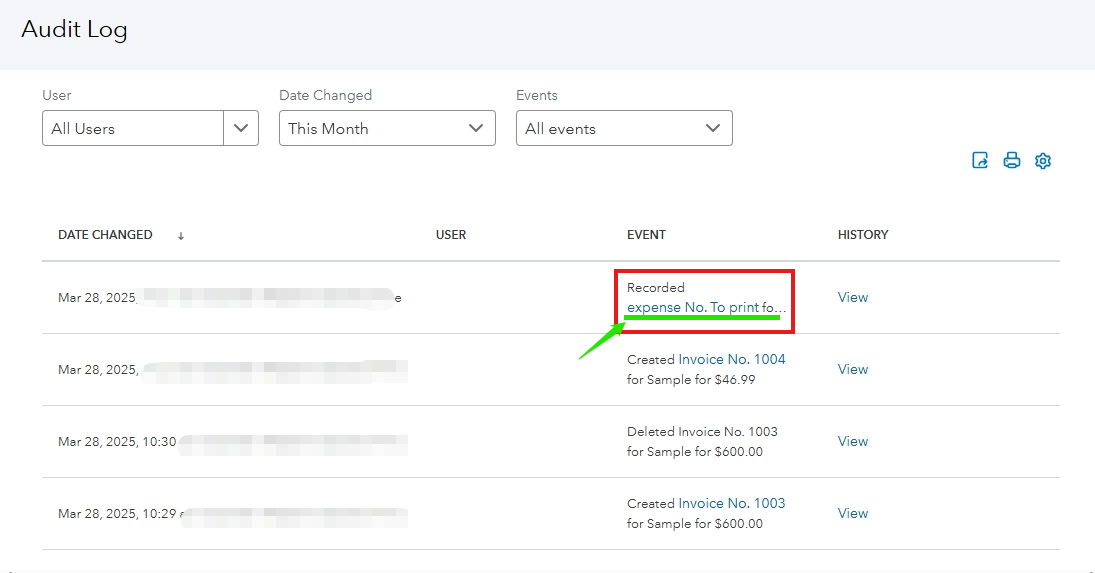
- Edit the transaction as needed.
- Once done, click Save and close.
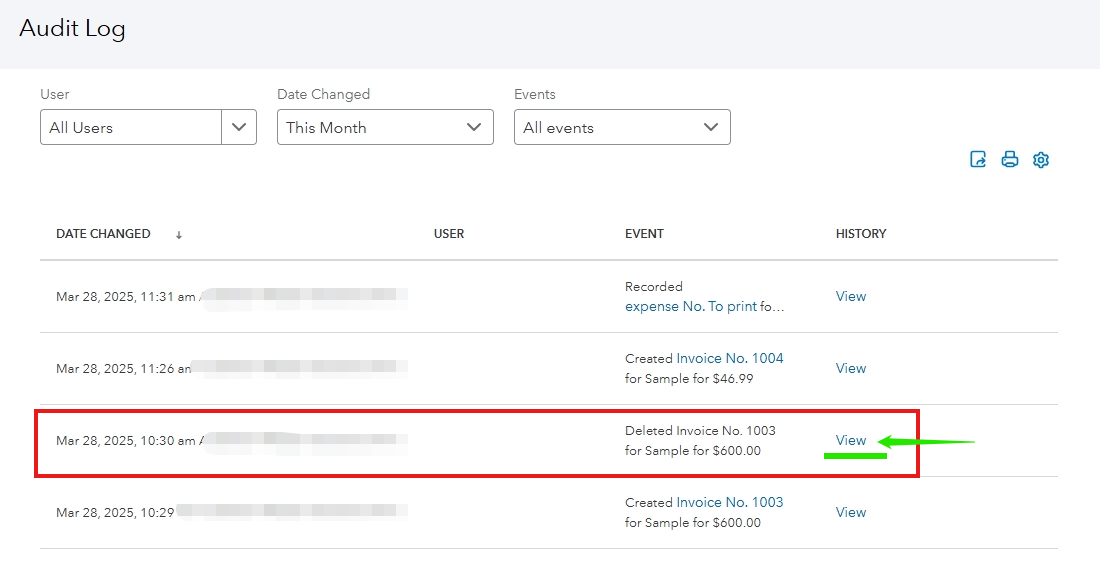
Additionally, if you mean that you accidentally deleted a transaction, we can use the Audit Log to view the transaction and use it as a reference to re-enter the correct details.
Here's how:
- Go to the Gear icon, then select Audit log.
- Locate the transaction, then click View.
Furthermore, you can easily track your cash flow and see your current and future finances through the reports in QBO. This helps you make better financial decisions for your business.
Please use the Reply button if you need further assistance with managing your transactions. The Community team is here to support you. Have a great day!


