I'm glad to have you here, @LawnMonkey.
Correcting the categorization of bank deposit and Zelle payment transactions is easy, and I'll be happy to walk you through it.
Changing the account of your transactions is available in the Categorized tab on the Bank Transactions page. Simply click each transaction and change their assigned account into Income: Sales. Here's how:
- Hover your mouse over the Transactions tab and select the Bank Transactions tab for bank deposits and the App Transactions tab if you integrate Zelle payments into QuickBooks.
- Select the correct tile of the account and go to the Categorized section (Reviewed for App Transactions.)
- Find the transactions you want to change the categorization by filtering the date.
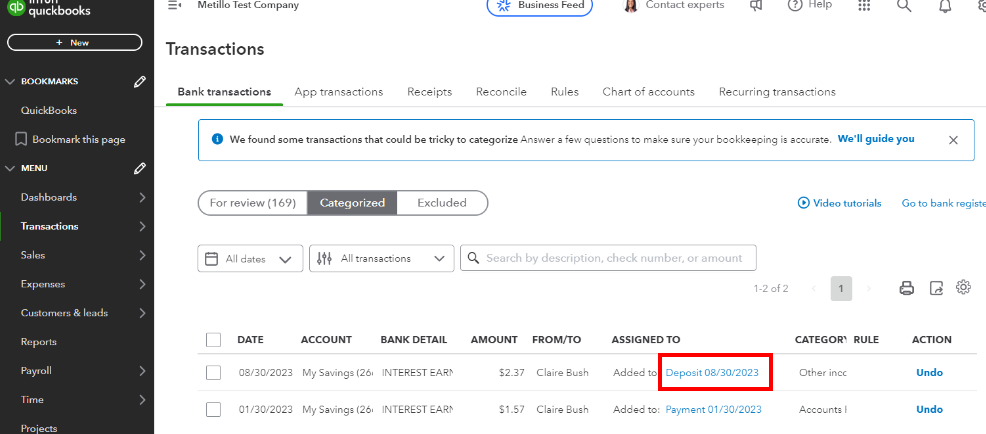
- Once you find it, click the blue-colored status sentence (example: Added to: Deposit 08/30/2023) from the Assigned To column.
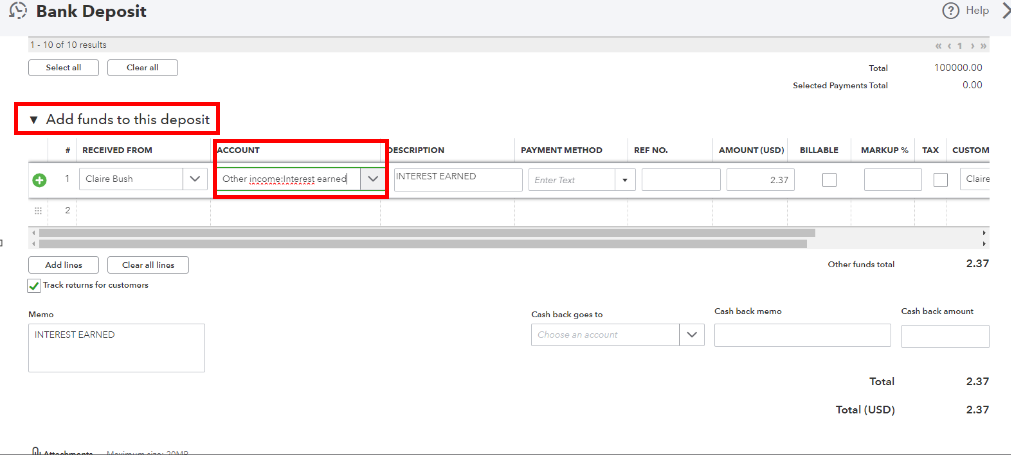
- Go to Add fund to this deposit section and change the categorization into Income: Sales from the Account column.
- Go to Add fund to this deposit section and change the categorization into Income: Sales from the Account column.
- Once done, click Save and Close. Repeat this process for transactions that need to be transferred.
You may want to learn how to categorize your bank transactions automatically. Check out this article: Set up bank rules to categorize online banking transactions in QuickBooks Online.
If you have additional questions about managing transactions account categorizations, feel free to return here. We'll be willing to help. Keep safe, and have a good one.


