Turn on suggestions
Auto-suggest helps you quickly narrow down your search results by suggesting possible matches as you type.
Showing results for
Get 50% OFF QuickBooks for 3 months*
Buy nowEstimados de la comunidad donde se encuentra el libro mayor en el software QBO?
Será cuando uno entra al plan de cuentas?
Solved! Go to Solution.

It’s great to see you in the Community, @norma, I'm here to give you more insights about it.
The chart of accounts is a list of all the accounts that exist in an organization, while the general ledger is a record of all transactions involving those accounts.
It only takes a few clicks to view the general ledger, which is accessible in both accountant and business view.
Here's how:
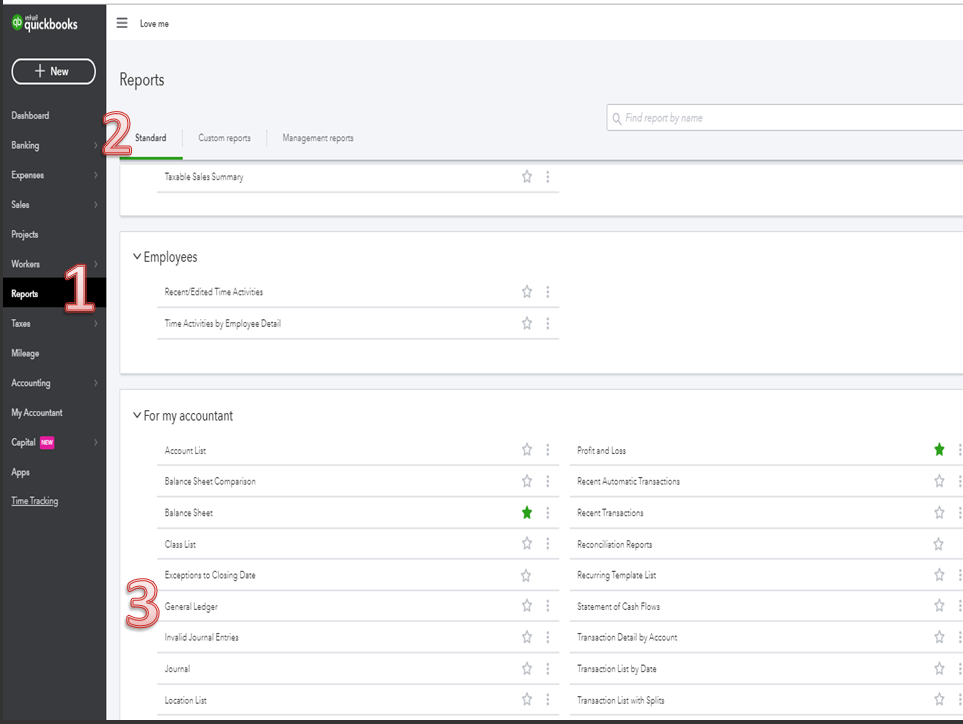
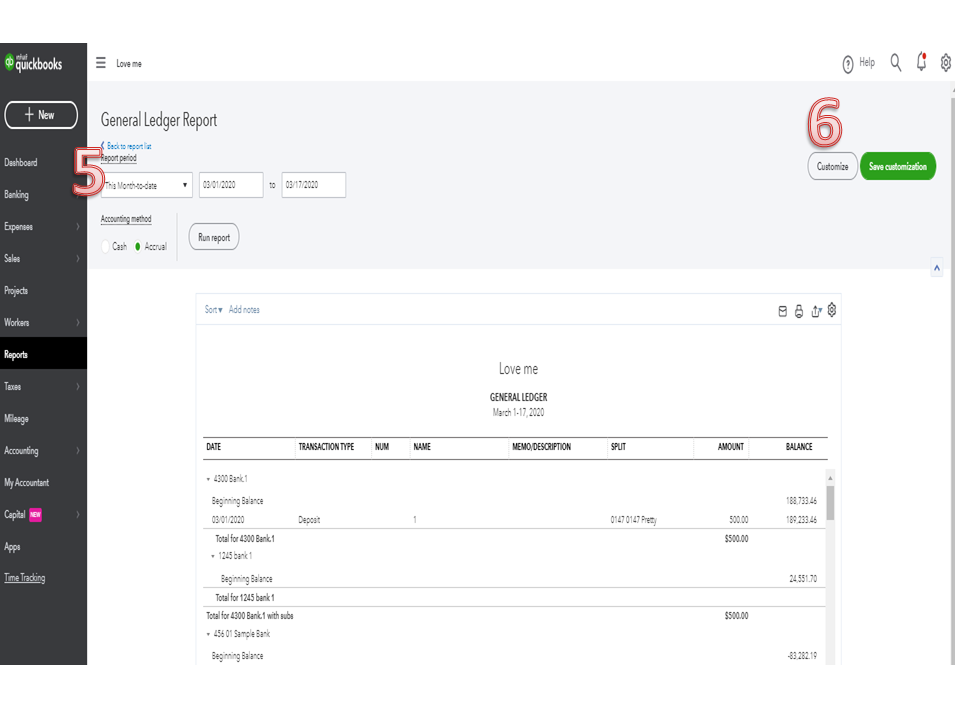
Allow me to share additional information about managing you reports:
Please let me know if you have additional questions about running your report or if you need help with any specific task. I can assist you at all times.
Please be advised that I used a translation application to translate the response from English into Spanish. The first reply was written in English.
Es genial verte en la comunidad, @norma, estoy aquí para brindarte más información al respecto.
El plan de cuentas es una lista de todas las cuentas que existen en una organización, mientras que el libro mayor es un registro de todas las transacciones que involucran esas cuentas.
Solo se necesitan unos pocos clics para ver el libro mayor, al que se puede acceder tanto en la vista de contable como en la de negocios.
Así es cómo:
Permítame compartir información adicional sobre cómo administrar sus informes:
Avíseme si tiene preguntas adicionales sobre cómo ejecutar su informe o si necesita ayuda con alguna tarea específica. Puedo ayudarte en todo momento.
Tenga en cuenta que utilicé una aplicación de traducción para traducir la respuesta del inglés al español. La primera respuesta fue escrita en inglés.
I used google translate to read your question. In QBO search bar, enter "general ledger". Or, go to Reports, and you'll see General Ledger under the "For my accountant" section. I'm viewing QB in Accountant View fyi, not sure what view you are using. The Chart of Accounts isn't the general ledger which includes entries, rather it is just a list of your accounts.
It’s great to see you in the Community, @norma, I'm here to give you more insights about it.
The chart of accounts is a list of all the accounts that exist in an organization, while the general ledger is a record of all transactions involving those accounts.
It only takes a few clicks to view the general ledger, which is accessible in both accountant and business view.
Here's how:
Allow me to share additional information about managing you reports:
Please let me know if you have additional questions about running your report or if you need help with any specific task. I can assist you at all times.
Please be advised that I used a translation application to translate the response from English into Spanish. The first reply was written in English.
Es genial verte en la comunidad, @norma, estoy aquí para brindarte más información al respecto.
El plan de cuentas es una lista de todas las cuentas que existen en una organización, mientras que el libro mayor es un registro de todas las transacciones que involucran esas cuentas.
Solo se necesitan unos pocos clics para ver el libro mayor, al que se puede acceder tanto en la vista de contable como en la de negocios.
Así es cómo:
Permítame compartir información adicional sobre cómo administrar sus informes:
Avíseme si tiene preguntas adicionales sobre cómo ejecutar su informe o si necesita ayuda con alguna tarea específica. Puedo ayudarte en todo momento.
Tenga en cuenta que utilicé una aplicación de traducción para traducir la respuesta del inglés al español. La primera respuesta fue escrita en inglés.


You have clicked a link to a site outside of the QuickBooks or ProFile Communities. By clicking "Continue", you will leave the community and be taken to that site instead.
For more information visit our Security Center or to report suspicious websites you can contact us here


