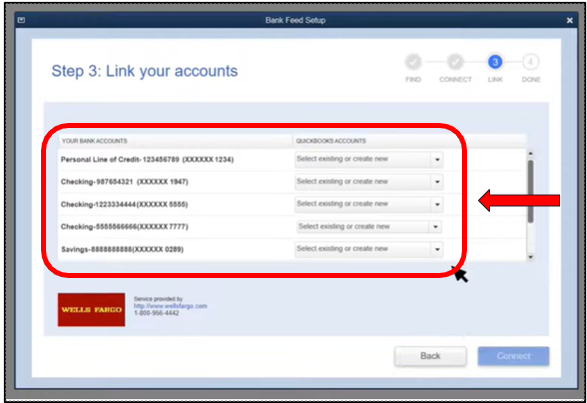
You can add multiple accounts from the same bank, provided that they are all supported account types for Bank Feeds. This allows you to automatically download all transactions without having to do it one account at a time, DS1951.
You can also add up to 40 accounts in the Bank Feeds Center. Allow me to share the entire process with you. Here's how:
- Go to the Banking menu, select Bank Feeds., and then click Set Up Bank Feed for an Account.
- Enter and select your bank in the Enter your Bank's name field.


If you're enrolling for the first time, select the Enrollment Site link. If your bank needs to approve your application, contact them and ask if you need special sign-in credentials.
Then, proceed to the following steps:
- Select Continue.
- Enter your user ID and password.
- Click Connect to connect your QuickBooks to your bank's server.
- Select the account you want to connect to in QuickBooks.
- Click Finish after the connection finishes.
Please see these articles about this feature for more details:
Next, repeat the same process for the remaining accounts. Please note that some banks allow you to download the last 90 days of transactions, while others can go back as far as 24 months.
Additionally, these articles will provide extra references for managing your financial data in QuickBooks Desktop:
Remember, the Bank Feeds feature is a powerful way to keep your finances up-to-date and accurate. You can always reach out if you encounter any issues during the process or have questions about working with your financial data in QuickBooks. We're here to help.


