I appreciate your efforts in bypassing the subscription error (81901) you've received, nepsvcpro. I'll share some steps and a workaround so you can continue paying your QuickBooks plan.
Since there's no issue with your credit card and updating the address didn't resolve the issue, let's troubleshoot your browser to narrow down the result. Let's start by opening your account using a private session and initiate the payment process from there.
Kindly follow the keyboard shortcut keys below that vary by browser type:
- Microsoft Edge: Ctrl + Shift + N
- Google Chrome: Ctrl + Shift + N
- Mozilla Firefox: Ctrl + Shift + P
- Safari: Command + Shift + N
If you don't get the error while using incognito mode, reopen your standard browser and clear its cache and cookies. It eliminates utilities that are affecting the platform's performance. You can also consider using another supported browser if you're still encountering the same problem.
Nevertheless, if the browser troubleshooting procedures were not able to resolve the error, I suggest using another payment method. Here's how:
- Log in to the Intuit Account Manager page using your Intuit Account credential.
- Navigate to the Payment methods tab.
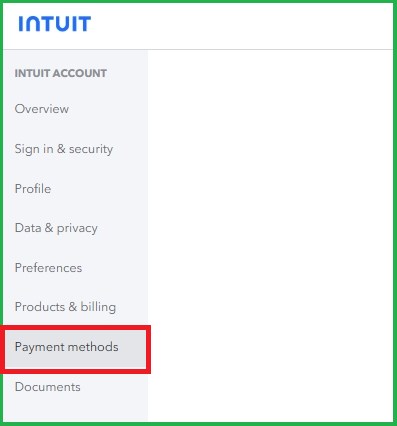
- Add Payment Method.

- Provide the required details and follow the on-screen process to add the payment information.
After that, use the recently added payment method to pay for your subscription. For reference, here are the accepted credit and debit cards in QuickBooks:
- MasterCard
- American Express
- Discover
- Visa
You might also explore the Intuit Payment Wallet. It provides a smoother way of paying your Intuit plans and services across different products.
Should you have more questions about handling the subscription error 81901, click the Reply button. We'll ensure you're taken care of.


