You can click the Discount Info to apply the discount in QuickBooks Desktop for MAC, KL135. I’ll provide you with step-by-step guidance on how to apply these discounts to your invoices.
The Discounts and Credits options are available in QuickBooks Desktop for Windows. For QuickBooks Desktop for Mac, there's a Discount Info button to give the customer a discount for payment before the due date or if you can’t collect money from a customer.
Here's how:
- From the Customers menu, select Receive Payments.
- In the Customer Payment window, click the line of the invoice to which you want to apply the discount.
- Click Discount Info.
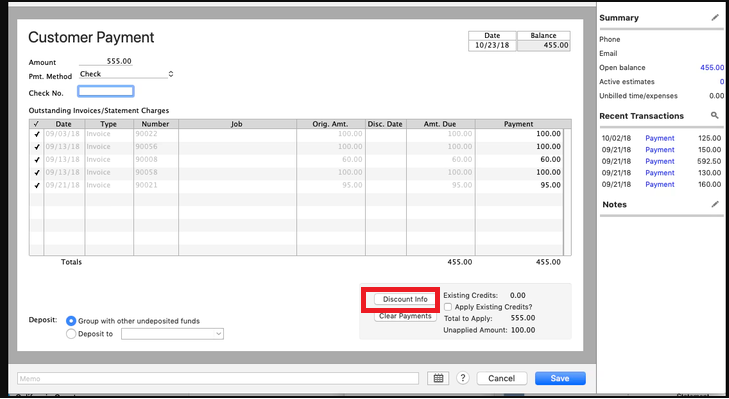
- (Optional) Change the amount of the discount. QuickBooks calculates a suggested discount amount based on your payment terms with the customer and the payment date.
- Enter the name of the account you use to track the discounts you give to customers.
- Click Save.
For further information on how to record customer payments in QuickBooks Desktop for MAC, refer to this article: Record an invoice payment.
Moreover, I'll share this article that explains how to put payments into the Undeposited Funds account until you can deposit them at your actual bank: Deposit payments into the Undeposited Funds account in QuickBooks Desktop. Although the two platforms are different, the principles in the article can still be applied to QBDT for Mac with some minor modifications.
Don't hesitate to reach out if you have further inquiries about recording customer payments or any other concerns related to QBDT. I’m here to assist you.


