Thanks for dropping by the Community forum, DB2Contractors. I've got some details on properly recording invoice payments from your customers to ensure accurate financial statements in QuickBooks Online (QBO).
If I may ask first, are you referring to the smart recommendation to create an invoice? If so, you can turn this feature off by clicking the X or No, thanks button on the pop-up. This action would prevent it from showing up again. However, it isn't why your customer's payment splits across multiple invoices. It's possible that you've accidentally selected several invoices when recording a partial payment from a customer.
We can address this by selecting the correct invoice for a customer's payment when multiple invoices appear on the Receive Payment page. Uncheck the unrelated ones. You can refer to the screenshot below for easy navigation.

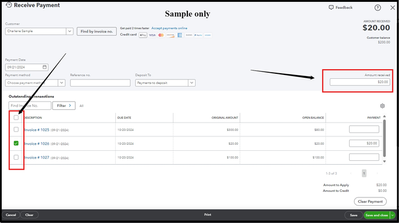
To keep your books accurate, we can delete the payments linked to multiple invoices in your account. It will clear the invoice paid status making it open again. I’m glad to show you the steps:
- Go to the Sales menu, then click All Sales.
- Locate the entry that has the payment. You can use the Filter option to narrow down the results.
- Under the Action column, click View/Edit.
- Tap the Payment made link (Example: 1 payment ($222.00) and hit the Date hyperlink.
- Tap More at the bottom of the Receive Payment page.
- Choose Delete and select Yes to the prompt message. Your invoice will return to its open status after.
Moreover, when you’re ready to record the invoice payment in the program, you'll want to record it following the steps below to ensure accurate records. Here's how:
- Go to + New and then select Receive payment.
- Select the name of the customer.
- From the Payment method drop-down menu, select the correct method.
- Choose the correct account.
- In the Amount received field, enter the partial payment.
- In the Outstanding Transactions section, select the invoice.
- Once done, click on Save and close.
Additionally, you can set up automatic invoice reminders, which saves you the hassle of manually tracking due dates. Check out this article on how to set this up: Send invoice reminders automatically.
I've got your back if you have more questions about managing your invoices. Just reply to this thread and I'll get back to you. Take care always.


