It appears that the items not reflecting correctly, @camaro5-0. Let me explain why this is happening and how inventory items are managed in QuickBooks Desktop.
Creating a bill for inventory items increases their quantity in QuickBooks. Unlike non-inventory items, these aren't marked as billable on bills. These items aren't marked as billable on bills like non-inventory items would be. Instead, QuickBooks tracks them in your inventory until you sell them. When you invoice a customer for these items, QuickBooks then moves the cost to your Cost of Goods Sold (COGS) account. This method ensures your inventory costs align with your sales, giving you an accurate view of your profits.
Given the nature of commodity pricing, which can fluctuate frequently, QuickBooks Desktop offers tools to help manage these variations. Price Levels allow you to set different pricing for various customers or jobs. If you're using QuickBooks Desktop Enterprise, you also have access to Price Rules, which provide even more flexibility. These rules let you set conditions for price changes, enabling dynamic pricing adjustments.
If you update your inventory item recorded and see this pop-up (see screenshot below), choose the Yes option.
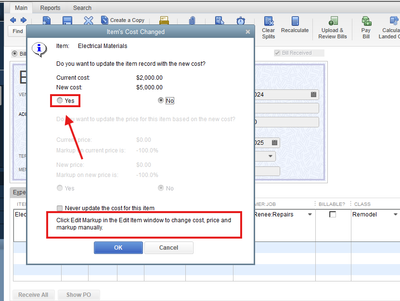
Moreover, refer to this article to understand how QuickBooks handles inventory assets, average cost, and Cost of Goods Sold (COGS): Understand inventory assets and cost of goods sold tracking.
Additionally, you can check this article, which provides step-by-step instructions on emailing sales forms, invoices, and statements using QuickBooks Desktop. This resource aims to help you organize your financial communications more efficiently and reduce the time spent on these tasks: Email sales forms, invoices, and statements in QuickBooks Desktop.
Should you need additional clarification on adding time costs in QuickBooks Desktop, don't hesitate to revisit this conversation. I'll be here to provide further guidance.


