Turn on suggestions
Auto-suggest helps you quickly narrow down your search results by suggesting possible matches as you type.
Showing results for
Get 50% OFF QuickBooks for 3 months*
Buy nowHi there, @ibbpayroll.
To remove the no job code schedule hours amount from the Scheduled vs Worked report in QuickBooks Time, you need to review the timesheets of each team member and edit the individual timesheets to either assign a job code or delete the entries entirely, as there is no specific filter to exclude this category from reports.
To update your timesheet, follow these steps:
1. Navigate to the Time Entries section and select Timesheets.
2. Click on the pencil icon to edit the timesheet.
3. Update the Customer field with the correct code.
4. Click Save to apply your changes.
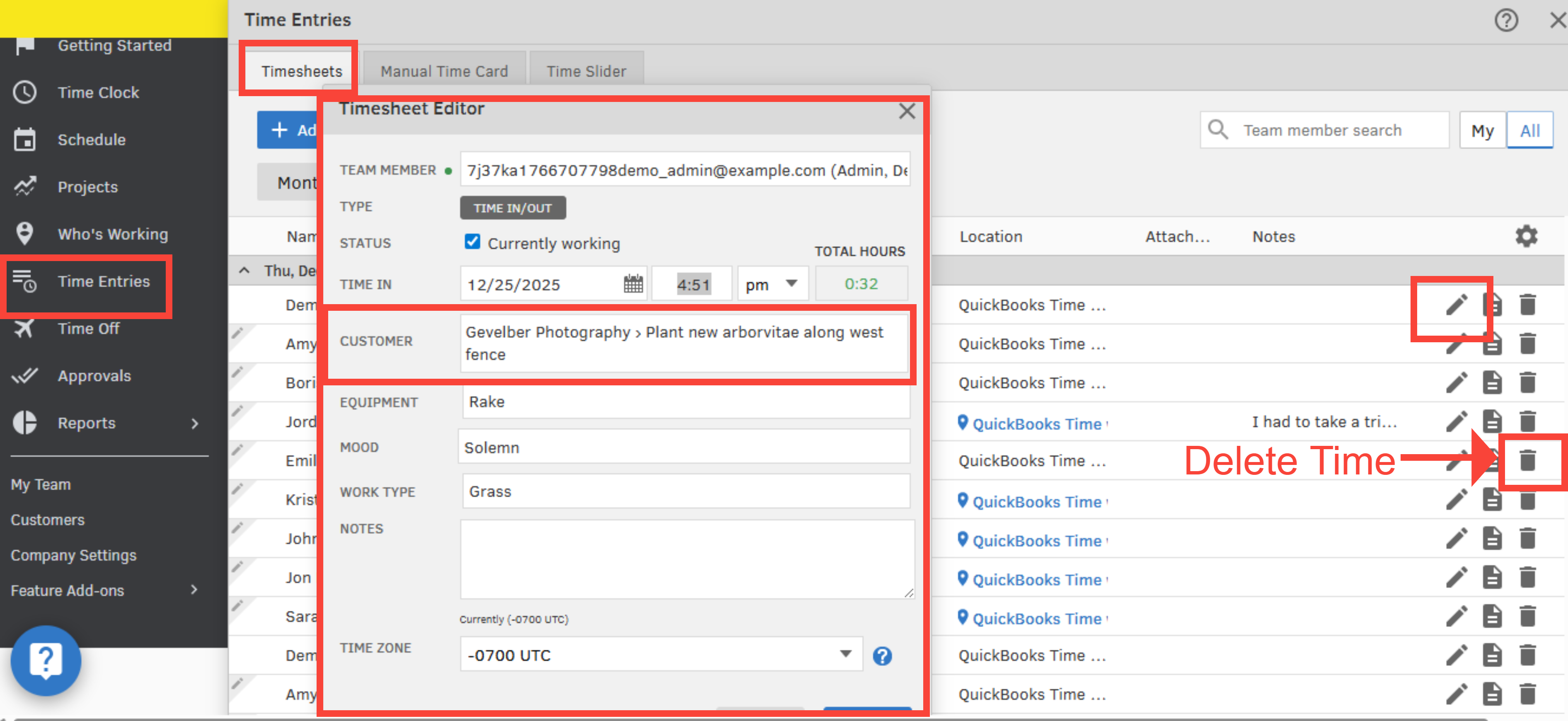
If hours were scheduled incorrectly, you can delete the time next to the entry. This only removes the schedule, not the actual tracked hours worked by employees. They can re-enter their hours for the relevant days if they have a record of what was deleted.
You're welcome to return here whenever you need assistance.
Hi there, @ibbpayroll.
I just wanted to follow up and see if the steps I provided helped you remove the "(no job code)" scheduled hours amount from the Scheduled vs Worked report in QuickBooks Time. Were you able to successfully update the timesheets or assign the correct job codes as needed?
If you’re still experiencing challenges with editing the entries or managing your reports, please don't hesitate to reach out at any time. I’d be happy to assist you further.
You have clicked a link to a site outside of the QuickBooks or ProFile Communities. By clicking "Continue", you will leave the community and be taken to that site instead.
For more information visit our Security Center or to report suspicious websites you can contact us here