Let me guide you on how you can resolve these duplicate transaction issues, RP.
QuickBooks Online (QBO) doesn't only provide streamlined and automated workflows but also performs global batch processing of payable payments, automatic payments reconciliation, fewer labor needs, better cash flow management, and fraud risk reduction.
You can run a report from your chart of accounts if you want easy access with those duplicate transactions. To do so, follow the steps below:
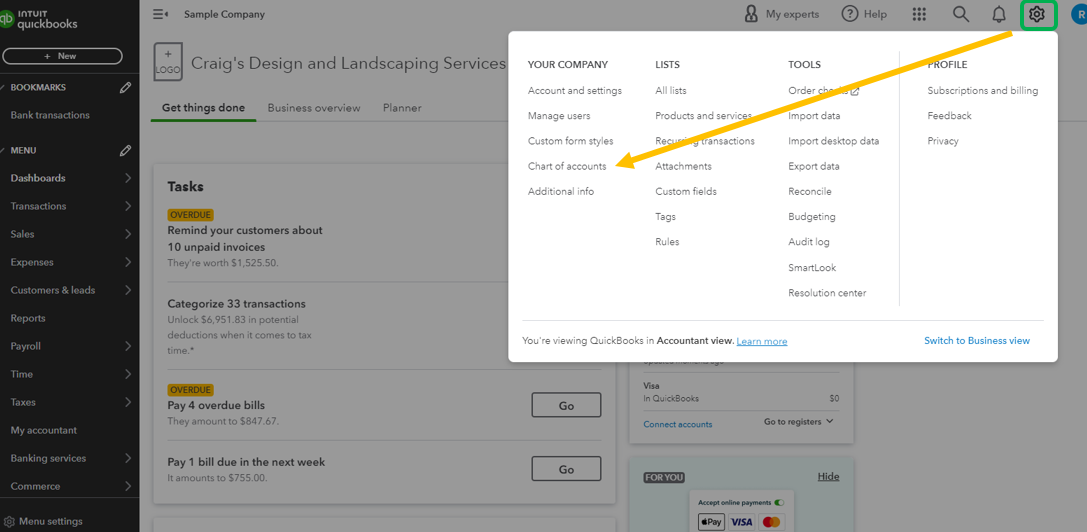
- Go to the Gear icon, then select Chart of accounts.
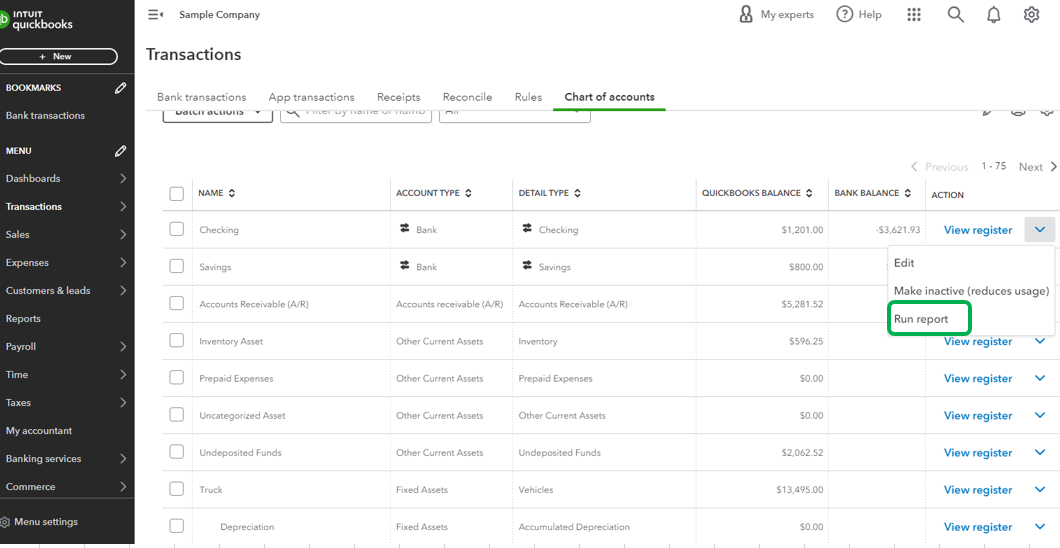
- Locate for the account.
- Click the drop-down arrow and choose Run report.
- Pick the correct report period to show the transactions.
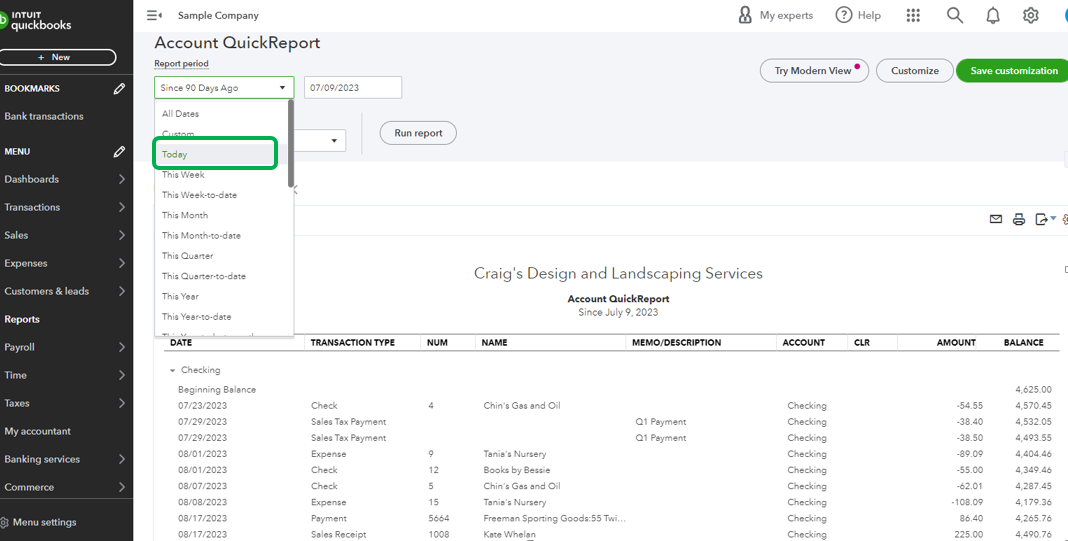
- Double-check what are those duplicate transactions
After you've determined what are those transactions, you'll want to exclude them to ensure you'll be able to match your statement once you reconcile it. Here's how:
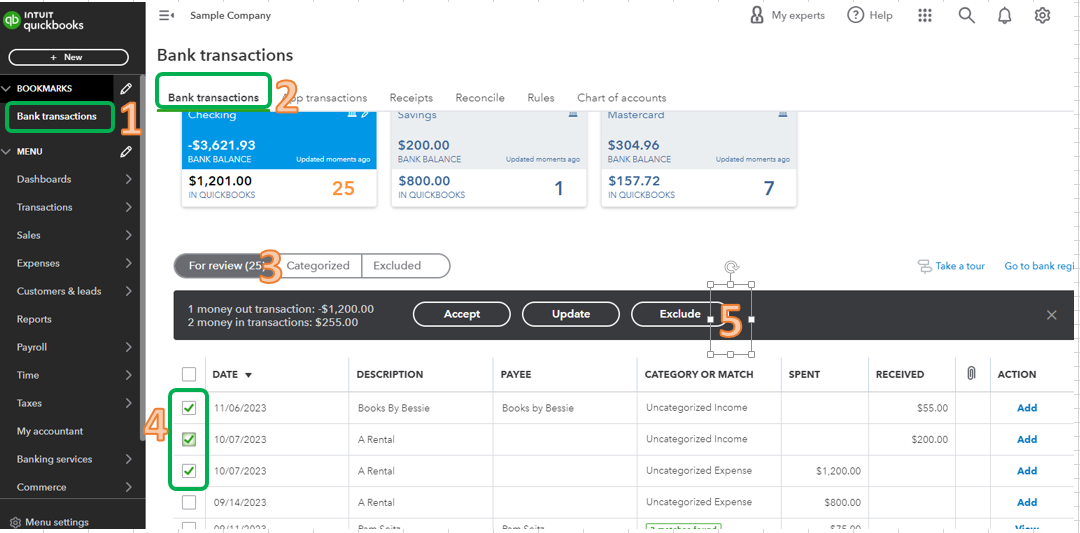
- Go to Transactions, then select Bank transactions (Take me there).
- Select the For Review tab.
- Select the checkbox of the transactions to exclude.
- Select Exclude.
You can also read this article for the complete steps and more details on how to exclude bank transactions: Exclude A Bank Transaction You Downloaded Into QuickBooks Online.
Additionally, QuickBooks Online won't download pending transactions. It only downloads when they're no longer pending and are officially posted on the bank site. To learn more on how you can add and match them after it's downloaded, check out this article for future reference: Categorize Online Bank Transactions In QuickBooks Online.
Let me know if you have any questions about duplicate transactions. We're here to ensure you'll be able to get the help you need.




