Turn on suggestions
Auto-suggest helps you quickly narrow down your search results by suggesting possible matches as you type.
Showing results for
Get 50% OFF QuickBooks for 3 months*
Buy nowHello:
We just moved all our data from old QB desktop to Online and it has been a frustrating process. The options for adding fields in the Invoice is limited and seems like some of our data in our old invoices is not visible in the new QBO.
We need to sort and extract the invoices we issued by Customer Company name for a certain period, but the company anime is now associated with various people AND company, who work at the company. I just want to get the invoices issued to all the people in that company in one list. How to do it? Help

Why don't you stay with QB Desktop?
Hi Bertie, we understand that switching from QuickBooks Desktop to QuickBooks Online (QBO) can be challenging. These two systems function differently, and QBO doesn’t offer as much flexibility for customizing invoices or handling data as you're used to. Here are some simple tips to help you navigate these challenges and keep things running smoothly.
To group invoices by company in QBO, you can use the Sub-Customer feature. This allows you to organize all the individuals or contacts who work for the same company under one main account for the company. It makes it easier to pull reports that show all invoices associated with that company in one place.
Once this setup is complete, all transactions for sub-customers will be linked to the parent account. When you run reports such as Sales by Customer Detail or Invoice Report, you’ll see all transactions for the company, including those from its sub-customers, grouped together.
You can also use this QuickBooks Migration Guide to understand how features and data are transferred from QuickBooks Desktop to QuickBooks Online.
If you have additional questions, feel free to comment below.
Thank you for your reply.
But the question, is how can I generate such a report from the old data that has been migrated to the QBO.
We should have, but the QB folks are not supporting our old version of the Desktop, which we had paid for. They want yearly subscription fees and the sales guys do not tell you the whole story about the cost or the difficulties. They have been after us for two years. The online program is has limited flexibility for our needs, and they want us to upgrade even further and pay more. Disappointed.
Hello there, PACS-BC. It can feel a little overwhelming at first to find things in QBO after being so used to the deep menus in QuickBooks Desktop.
We can run a Sales by Customer Detail report to view that already-migrated data and group everyone together under the parent company. Here's how:
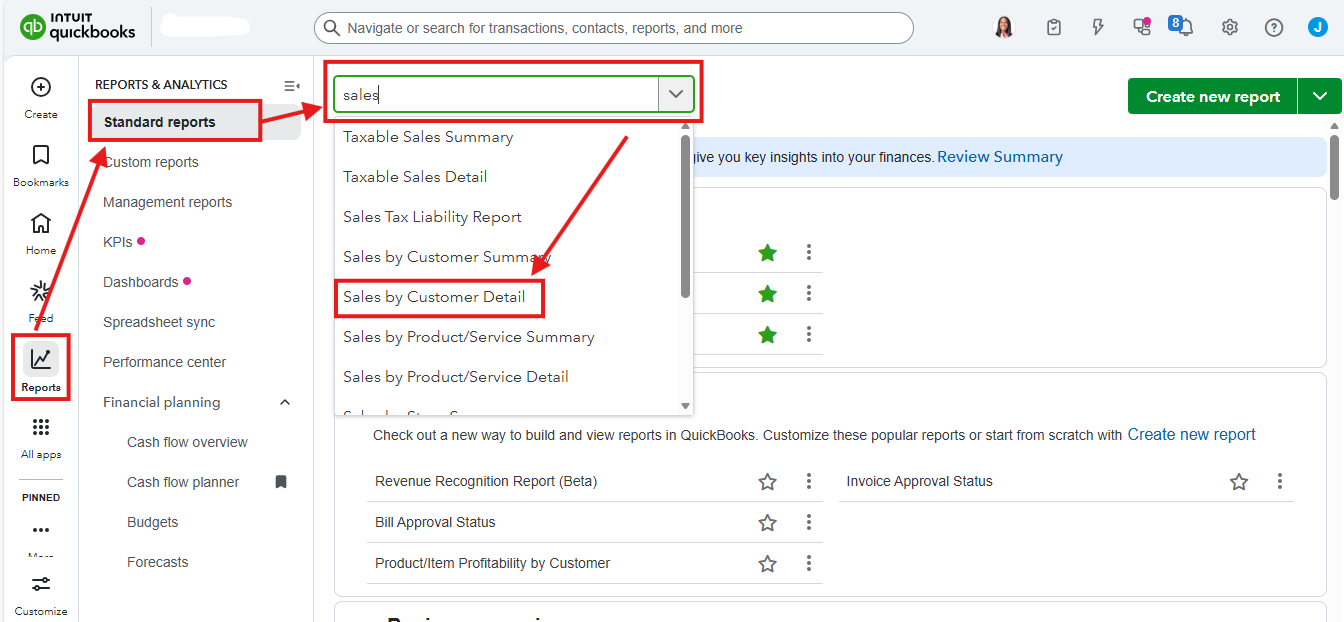
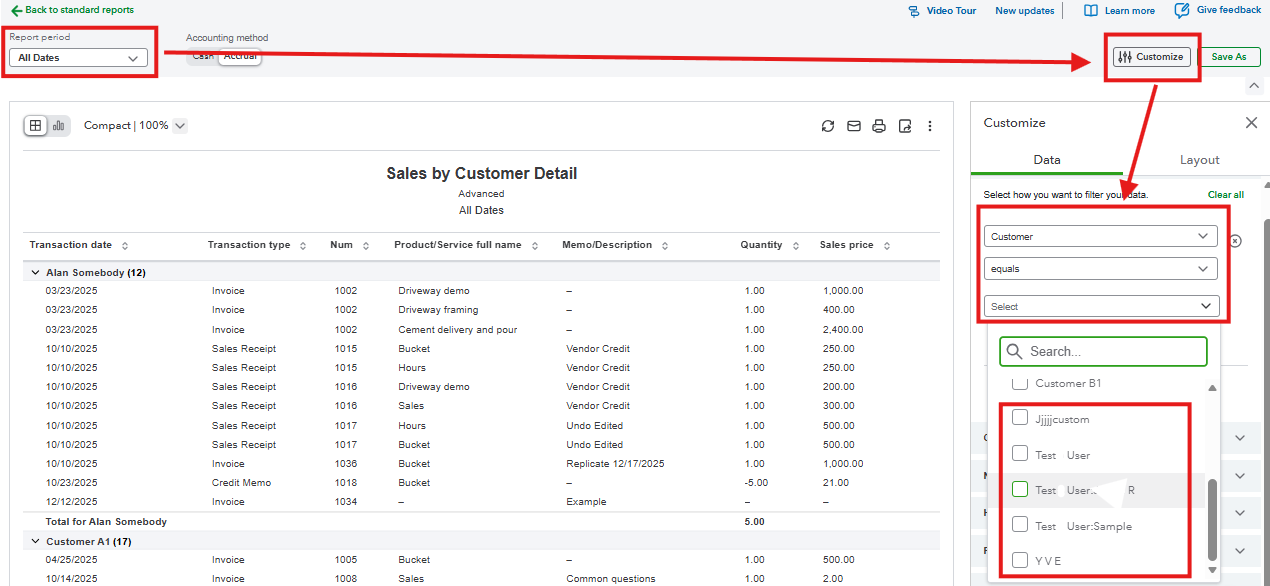
When you choose only the parent company in QuickBooks Online (QBO), it shows transactions billed to the main office. To combine invoices from sub-customers into one report, also select their names. If you don’t see a name beside the parent account, it means the account is just a regular parent customer.
You can follow the steps provided by my colleague above on setting up a sub-customer. If someone is currently a sub-customer and you want them to be their own independent parent customer, follow the same steps and uncheck the Is a sub-customer box.
Please visit this article to check what data on your invoices won't move and how some of these invoice data are migrated/how they're shown in QBO: Learn how features and data transfer from QuickBooks Desktop to QuickBooks Online.
You can also check this article to guide you on how to customize a report in QuickBooks: Customize reports.
Please let us know if you need further assistance or have any other questions. We're happy to help.
how can I generate such a report from the old data that has been migrated to the QBO.
Can you access your historical data in QB Desktop and produce the report?
Partially, as some invoices are in the old system and some in the new.


You have clicked a link to a site outside of the QuickBooks or ProFile Communities. By clicking "Continue", you will leave the community and be taken to that site instead.
For more information visit our Security Center or to report suspicious websites you can contact us here


