I'm here to guide you through the process of recording a credit memo in QuickBooks Desktop (QBDT). Let's break it down step-by-step to make it straightforward and easy to follow.
Here's how to record a credit memo:
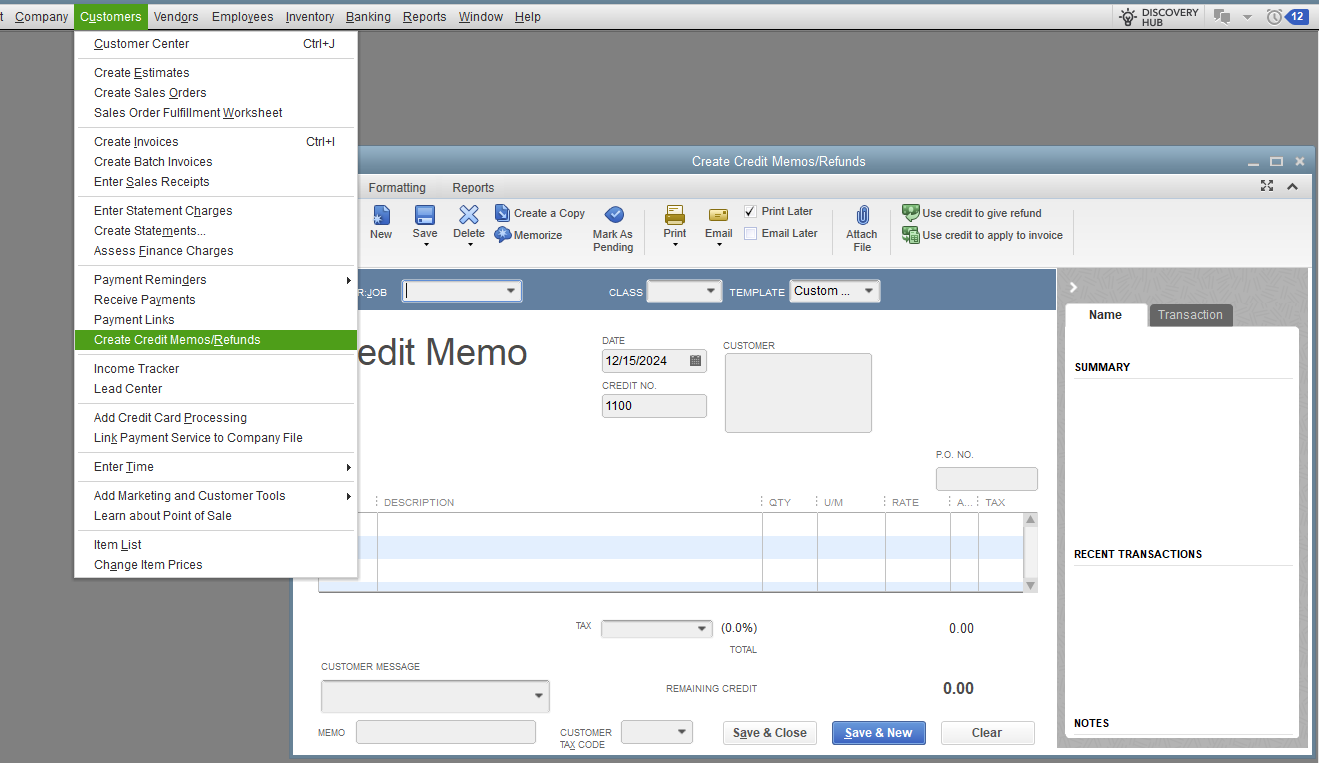
- In the Customers menu, select Create Credit Memos/Refunds.
- From the Customer: Job dropdown, choose your customer.
- Enter the items you're giving credit for, then select Save & Close.
For more detailed information, check this article: Give credit or refund in QBDT. This will also guide you with comprehensive instructions on creating a refund check in QBDT.
For your future reference, you can create deposit and pull up the Transaction List by Customer report and customize it to show only credit memos if desired.
Let me show you how:
- Go to the Reports at the top menu bar.
- On the dropdown list, click Customers & Receivables and choose Transaction List by Customer.
- Click the Customize Report button.
- Go to the Filters tab.
- In the filter search box, type, and select Transaction Type.
- Under the Transaction Type dropdown, choose Credit Memo and hit OK.
Don't hesitate to reach back if you run across questions stuck on another concern along with your corporate customers. I’m here to help ensure that all your concerns are addressed and that everything runs smoothly. Your success is important, and I want to ensure you have the support you need.




