
Hi Community! Welcome back for another Top 5. If you’ve been wondering how to go about requesting a deposit on an invoice, scanning a receipt, and set up a custom invoice template, then you’ll want to keep on reading. I’m going to be focusing on the top Invoicing related questions asked directly from our community.
Let’s go through these together.
1. How do you request a deposit on an invoice?
If you require a deposit from your customer, you can add a deposit field to their invoices. Once you enter a deposit on the invoice, it’ll reduce the total amount and calculate your customer’s balance due. Make sure you enter it correctly so you can see it in the deposit detail report.
Step 1: Turn on deposits
Here's how to add a deposit field to your invoices.
1. Go to Settings, then select Account and settings.
2. Go to Sales.
3. In the Sales form content section, select Edit ✎.
4. Turn on Deposit.
5. Select Save, then select Done.
Step 2: Add a deposit to an invoice
To see the deposits in your deposit detail report, make sure to group them with other payments to deposit.
1. Go to All apps, then Sales & Get Paid, then Invoices.
2. Find the invoice you want to add a deposit to, then select Edit ✎.
3. Enter the amount in the Deposit field.
4. From the Deposit to ▼ dropdown menu, select Payments to deposit or Undeposited funds.
Note: If you select a bank account, it won’t show up on your deposit detail report. The deposit detail report only shows deposit transactions and payments deposited directly to the bank.
5. Select Save and close.
2. Is there a way to have QuickBooks scan an invoice or receipt and automatically upload it into an ...
QuickBooks Online (QBO) offers a Receipt Capture feature that allows you to scan or upload receipts. Then, it automatically extracts the data to create a transaction for you to review, edit, and match. You can use the QBO mobile app to capture receipts on the go or upload digital receipts directly through the web interface. This can save you time and reduce the need for manual data entry.
Here’s how you do it:
1. Install the QBO app, then open it.
2. Select the Menu ≡ icon.
3. Go to Receipt snap.
4. Click the Receipt camera and snap a photo of your receipt.
5. Select Use this photo, then Done.
You can access these resources to learn more about the feature and how to check, add, or match transactions in the program: How to capture and manage receipts (video reference)

3. If an invoice has been paid, how do I send a receipt to the customer to show that it was paid?
In QuickBooks Online (QBO), you'll receive a payment receipt automatically once your customer pays the invoice. However, creating and sending receipts to them is unavailable. Instead, you'll need to send it manually by going to the Sales menu and finding the specific invoice. From there, you can send the receipt to your customer.
Here's how:
1. Go to the Sales menu located at the left navigation panel and click Invoice.
2. Click the Dropdown under the Action column.
3. Choose the Send option.
4. In the Email body field, you can change the message and enter what you prefer to say to your customer.
5. Once done, press Send.
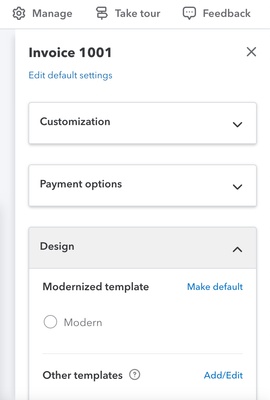
4. How do I set a custom default invoice template?
Create a new sales form.
1. Select ⚙ Manage.
2. Select the Design ▼ dropdown.
3. Select Remove default from the Modernized template section. The default template will automatically be the standard template.
4. Select Add/Edit to edit the standard template.
5. Select Done. This new (Standard) template will now be your default.
Note: Aside from the standard template, you can’t set other custom templates as a default template. You also can’t edit the modernized template.
-
5. How do I force emailed invoices to be treated as a bill rather than a receipt?
The extracted information depends on the uploaded files. I'll provide details to help you ensure that QuickBooks will treat them as bills.
The system will only extract information based on the documents you attach. It could be that you uploaded the wrong file, which is why the system treated it as a receipt.
Make sure you capture or attach the correct file from the Receipts tab. If it's incorrect, you can simply click the dropdown icon in the Action column and select Delete. Then, upload the correct receipt.

If the issue persists, try completing the process using a private or incognito browser and logging into your QuickBooks Online (QBO) account. This way, you can access the most recent version of the webpage without storing data that might cause display issues.
Once your bills are uploaded, review and categorize them into the correct accounts to help you organize your transactions seamlessly. Then, reconcile the account to match it with your bank statement.
That’s all we have today! I hope you found this information helpful and that you feel even more confident when it comes to managing your invoices. As always, If you have any other questions, please let us know here in the community and we’re happy to help.





