Printing checks depends on how they were initially recorded, accounting668.
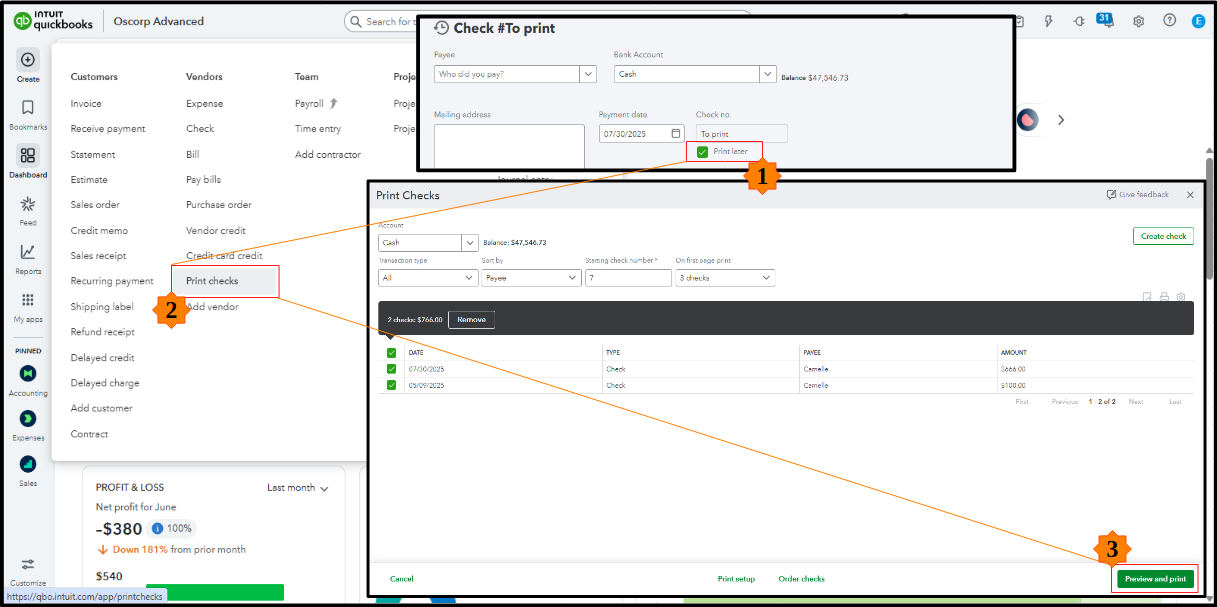
For checks marked as Print later during recording, go to the +Create menu, and select Print checks under the Vendor column. In the Print Checks window, adjust filters as needed, then click Preview and print. See the image below for guidance.
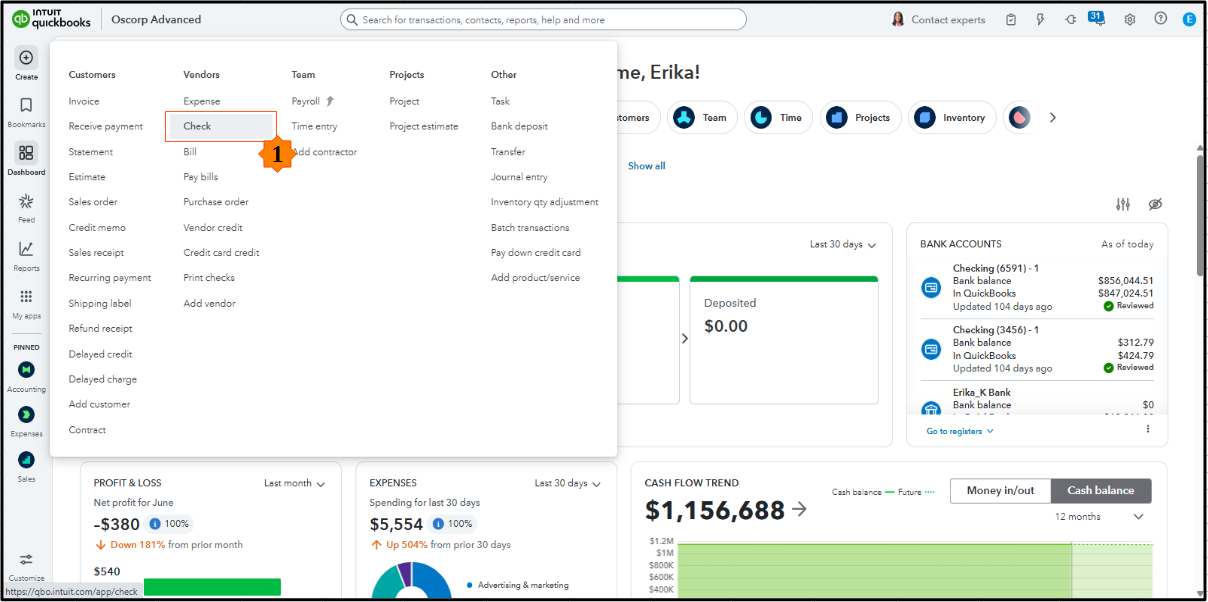
If the checks weren’t marked as Print later, you have two options to locate and print them. First, navigate to the +Create icon, then follow the steps below on how to proceed:
- From the Create section, choose Checks.
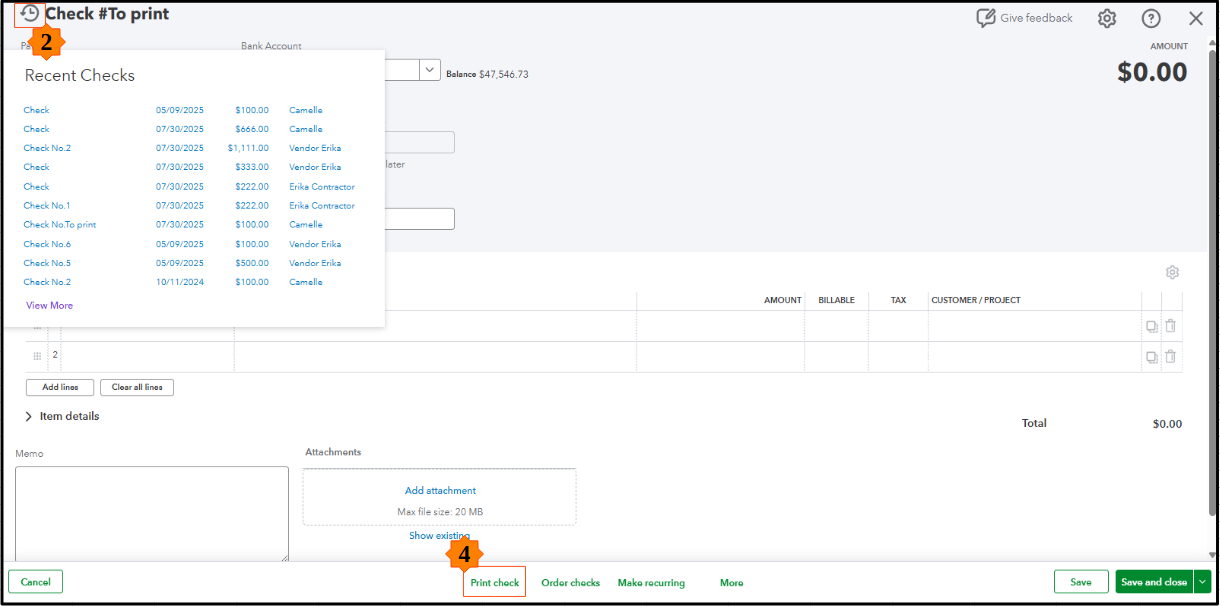
- Click the Clock icon to view your Recent checks.
- Then, select the checks individually.
- Once done, hit the Print check button located at the lower section.
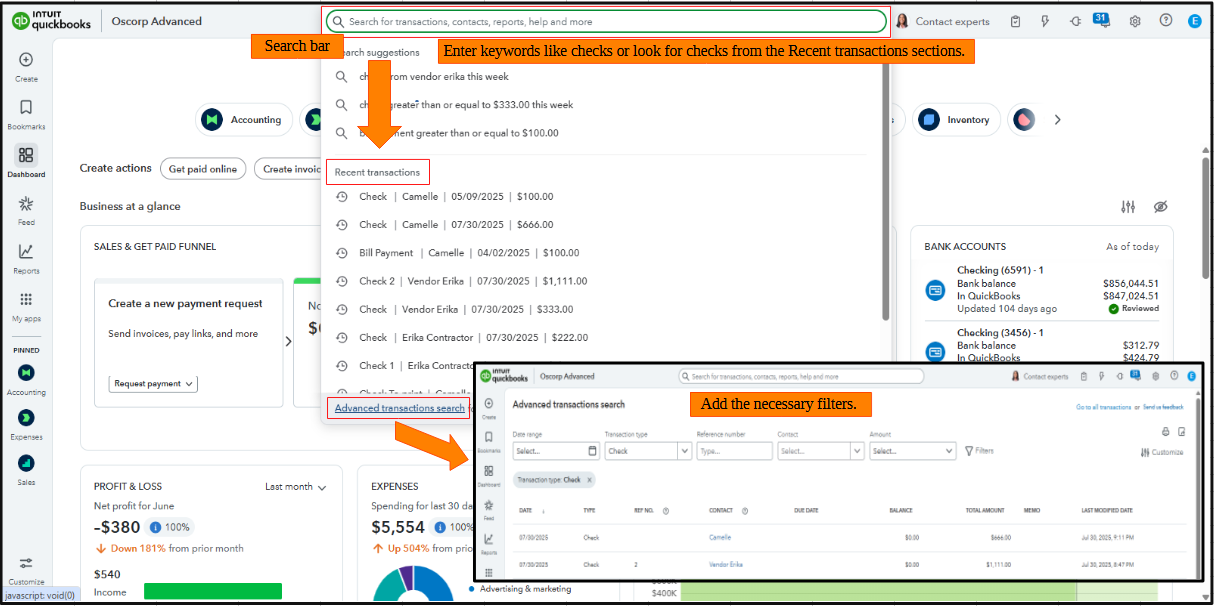
The second alternative is to use the Search bar or Advanced transaction search to locate and print the checks.
Here's an article for additional reference: Configure and troubleshoot your print settings for printing checks in QuickBooks Online.
Feel free to reach out if you need further help with managing checks.




