Turn on suggestions
Auto-suggest helps you quickly narrow down your search results by suggesting possible matches as you type.
Showing results for
Get 50% OFF QuickBooks for 3 months*
Buy nowWhen doing a report the fiscal year is going on "Invoice Date" and not "Due Date", why is this and is it possible to change globally?

Hello there, JayBlake.
QuickBooks has a unique way of tracking customer-related transactions. I'm here to share more information about it.
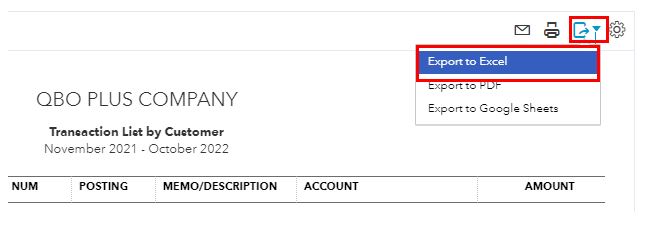
The system will use the invoice date to keep track of customer transactions. If you want to use the due date, you may export the report to an Excel file and then modify the date manually.
I've added this screenshot as your guide in exporting the data:
I've also shared this article when you're ready to file taxes: Set up and use automated sales tax.
Keep me posted whenever you have concerns about taxes.
I think this post was accidently posted here as it has nothing to do with what I'm asking?????
I appreciate you for getting back to us, JayBlake.
To ensure I'll be providing the correct solution, can you add more details about your issue? What specific report are you running? I'd also appreciate it if you add a screenshot.
I'll be keeping an eye on your response.
Every report seems to take the "This Fiscal Year-to-date" from the "Invoice Date"... when we create an invoice we send them a month before the "Due Date". When running the reports or the entire QuickBooks system looks at "Invoice Date". This misses an entire month of sales. Example below:
Thanks for sharing the detailed info on your concern, @JayBlake. Let me chime in and provide some insights about running reports in QuickBooks.
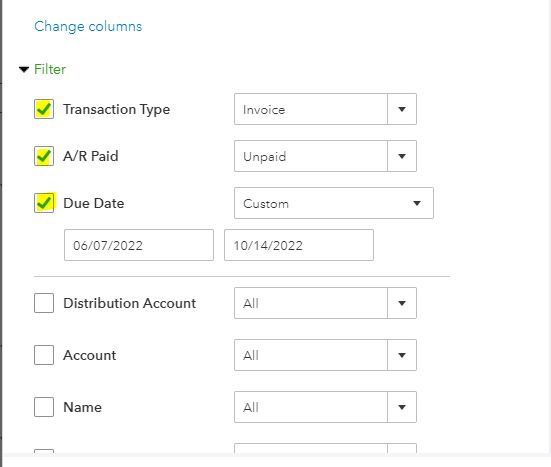
The target and source will depend on the report that you'll run. If you want to see the sales based on the due date of your invoices, we can generate a Transaction Detail by Account report. Then add some filters to customize the report.
Here's how:
I'm adding this article for more insights on how to personalize your reports in QuickBooks Online: Customize reports in QBO. Then, you can memorize reports in QuickBooks if you want the same settings of the customized report to be available for future use.
Keep me posted if you have further questions about running report showing the Fiscal Year by Due Date in QuickBooks. I'm always around to help. Stay safe!
I'm confused on what your not understanding, the entire Quickbooks system is using "Invoice Date" to define the Invoices fical year, why isn't it using "Due Date"?
Thanks for actively responding, @JayBlake. I understand you want the system to use the Due Date instead of the Invoice dates.
At this time, the system will only use the invoice date to keep track of customer transactions. The workaround to export the report to an Excel file and modifying the date manually as shared by my peer @Adrian_A is the best option for now.
While this is unavailable, I recommend sending your feedback to our developers to help us improve your QuickBooks experience.
Here's how:
You can also send your feedback directly to our developers by filling out our QuickBooks Feedback form. Simply enter your request/suggestions, and rest assure that all our suggested plans are subject to further study.
Keep in touch if you have follow-up questions about managing fiscal year's report. We're always around to be your guide.


You have clicked a link to a site outside of the QuickBooks or ProFile Communities. By clicking "Continue", you will leave the community and be taken to that site instead.
For more information visit our Security Center or to report suspicious websites you can contact us here


