You can document the three invoices and manage payments efficiently, Andrea. Here are detailed steps on how to record them accurately in QuickBooks Desktop.
Firstly, let’s create a new account for collection agency fees, which will help in tracking the fees you receive from the Collection Agency. Here’s how to do it:
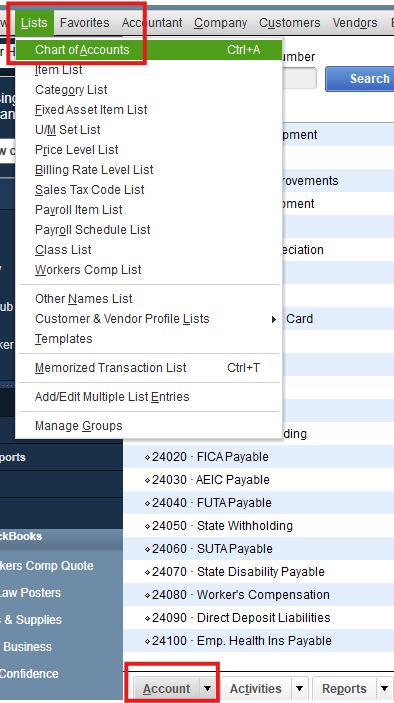
- Go to the Lists menu and choose Chart of Accounts.
Select the Accounts dropdown, then choose New to create a new account.
- Choose an account type of Expense, then select Continue.
- Enter the Account Name and provide additional details such as Description, Note, and Tax-line Mapping.
- Select Save & Close.
You should also create an account for service taxes by repeating the process above and selecting Other Expense as the account type. After following the steps mentioned above, I would still recommend getting in touch with your accountant to ensure that your books are accurately maintained.
Next, record the payment received from the Collection Agency by following these steps:
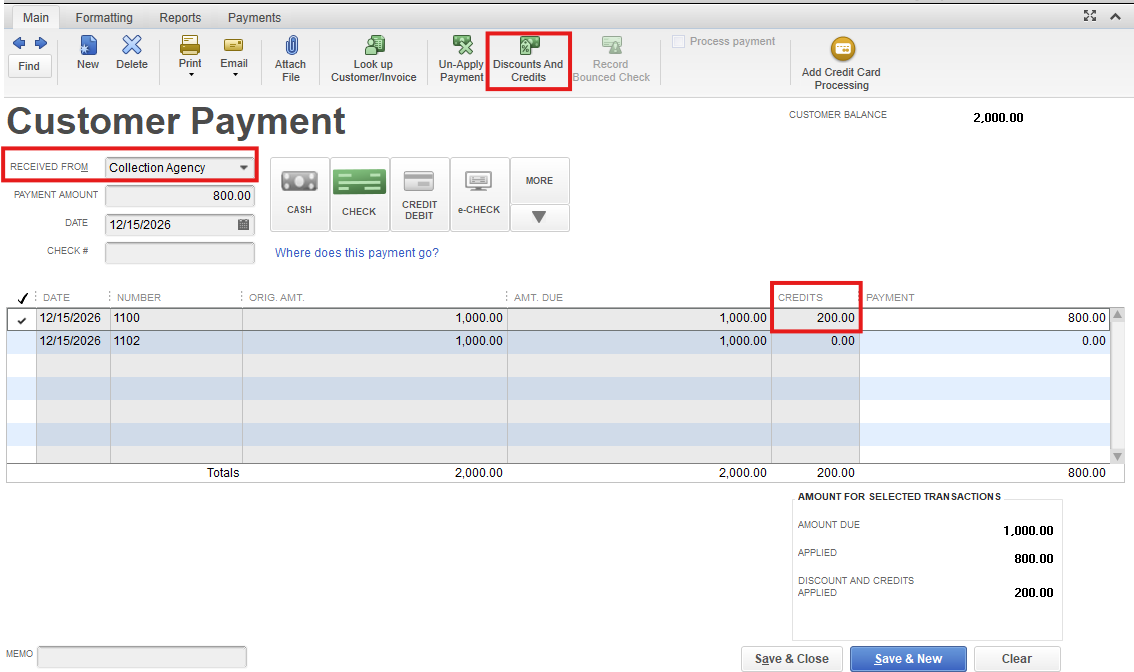
- Go to the Customers menu, and select Receive Payment.
- In the Received From dropdown, select the customer's name.
- Enter the Amount received.
- Ensure the date is correct, then choose the Payment Method.
- Select the invoice or invoices you wish to pay.
- To add a discount or credit, select Discounts and Credits.
- Record a discount for the amount of the agency fee charged ($200) and choose the Collection Agency Fees expense account you created.
- Record any service taxes as a separate expense in the Service Taxes account.
- Select Save & Close.
For invoices 2 and 3, you may repeat the steps above but omit steps 6-8 if no credits apply to these invoices. If they involve another agency, follow the outlined steps as necessary. For further details, open this article: Record an invoice payment.
For the remittance checks that you have received, you can record them as a bank deposit since you have already deducted their dues and taxes, affecting the Accounts Receivable account to zero out the payment.
To better guide you with the process, open this link: Record and make bank deposits in QuickBooks Desktop.

Additionally, I'll be sharing these resources that offer guidance on how to record deposits automatically and reconcile your accounts in QuickBooks:
Should you have any additional questions about recording transactions in QBDT or need further assistance, feel free to post a comment below. We're here to help you. Have a great day!


