Turn on suggestions
Auto-suggest helps you quickly narrow down your search results by suggesting possible matches as you type.
Showing results for
Get 50% OFF QuickBooks for 3 months*
Buy now
Let me share some information about recording credit card payments, Jerrodpj.
A credit card account is a liability type by nature and the credit side will increase its balance. Then, the debit side will reduce its balance. This is why transactions are posted on the credit side since you increase your credit balance as you use your card. When paying your credit card company, that payment will post to the debit side. This means you're reducing your credit card balance or the amount you owe to the credit card company.
We can record a credit card payment by transferring funds from a bank account to a credit card in QuickBooks Online (QBO). We can do this by writing a check from bank to credit card, or adding a downloaded Online Payment transaction from Banking to the credit card register. All of them will reduce the credit card balance and if you have duplicate payments or transfers, we'll end up having a negative credit card balance. To record your credit card payments, just follow the steps below:
To learn more about this one, see the Record your payments to credit cards article. Please refer to the How accounts are affected by debits and credits article to see different information on how debits and credits work. This also helps you understand the basic functions behind transactions and what to expect when entering them.
Feel free to visit our Banking page for more insights about managing your bank feeds and reconciling accounts.
I'd like to know how you get on after trying the steps, as I want to ensure this is resolved for you. Just reply to this post and I'll get back to you. Have a great day ahead.
When I down load transactions from my bank account, I see a payment to credit card and I click confirm. I'm not tracking my card balance as I pay off every month. I feel as though quickbooks is showing higher income than I actually have and I'm wondering if say I have 2000 in expenses but but then the credit card payment erases that to a net zero, I now have income of 2000.
When I download transactions from my checking account a credit card payment shows up and I click confirm that yes that is a credit card payment. Which shows as a credit not a debit. My biggest concern is that all of the expenses that were paid on that credit card now equal a net 0 and I have income. I feel quickbooks is showing a higher profit for me than I have which would make sense if my credit card payment is offsetting my expenses?
Hi there, @Jerrodpj.
I'm here to provide you with some information that'll help you correct your zero expenses.
You'll want to ensure you use the appropriate CSV format and map the file correctly.
For more details about the process you can check out this article: How to import bank transactions using Excel CSV files
Once done you can manually upload the transactions again. To avoid duplicate transaction please make sure to exclude a bank transaction you downloaded into QuickBooks Online.
Here's how:
Feel free to check out this article for more details: Manually upload transactions into QuickBooks Online
For your reference, I'm also adding here some resources that you can scan through that can help you in handling your bank downloaded transactions:: Categorize and match online bank transactions in QuickBooks Online
Drop a comment below if you have other concerns about recording expense transactions or inquiries about QuickBooks. I'm just around to help. Take care always.
I have the same issue. Was wondering if you found a way to solve this. Thanks.
You're right, @Houman. Credit card payments are posted under the debit side, so I'll route you to our Support Team to sort this out.
Credit cards are liability accounts. Received payments are transactions paying off your credit card. Thus, these are debits.
Since Community is a public forum, we're unable to discuss personal information here. I recommend contacting our Support Team for further investigation. They have the tools to figure out why the payments are posted on the opposite.
Here's how:
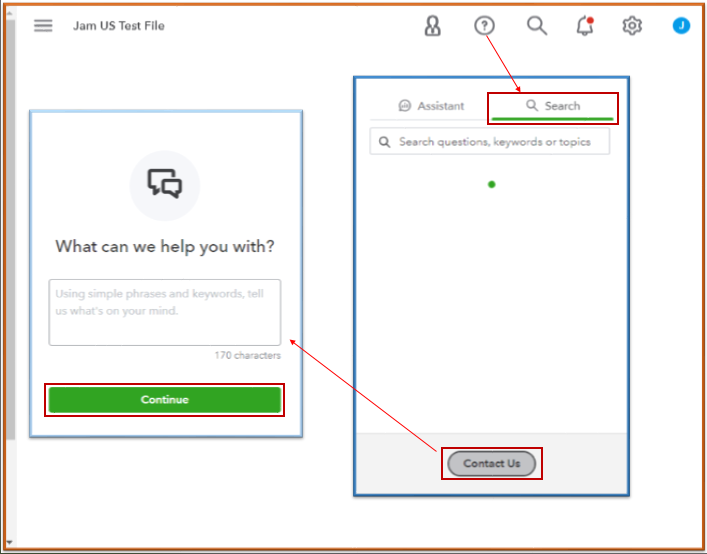
See this article for the support hours: QuickBooks Online Support. It includes the contact number you can use to call us directly.
After that, read this reference about matching transactions and putting them in the correct accounts: Categorize and match online bank transactions in QuickBooks Online.
Once done, you can review your accounts in QuickBooks to make sure they match your bank and credit card statements. For complete instructions, check out this guide: Reconcile an account in QuickBooks Online.
After trying the steps above, let me know how it goes by leaving a comment below. I’ll be here to keep helping. Take care.


You have clicked a link to a site outside of the QuickBooks or ProFile Communities. By clicking "Continue", you will leave the community and be taken to that site instead.
For more information visit our Security Center or to report suspicious websites you can contact us here


