Turn on suggestions
Auto-suggest helps you quickly narrow down your search results by suggesting possible matches as you type.
Showing results for
Get 50% OFF QuickBooks for 3 months*
Buy now

Welcome to the Community, @Cmjam.
I want to ensure we’re on the same page in resolving your concern about reconciling your debit card. With this, can you tell me more about this matter?
Are you seeing a reconciled status (R) on your Bank Registers? I'd appreciate it if you could provide me with a screenshot regarding this concern. It will give me better insight into this matter and allow me to provide an appropriate solution.
You’ll want to check that by following the steps below:
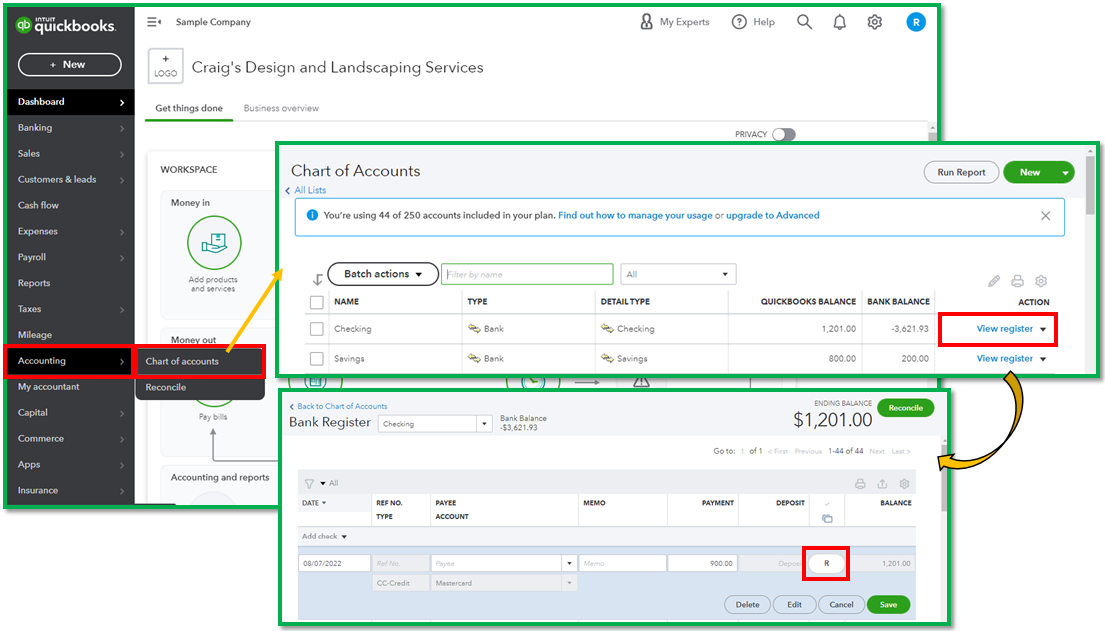
I'd appreciate any additional details you can provide. I’m looking forward to your reply. Have a great rest of the day.
The "R" is on the Quickbooks Checking register but not in the chart of accounts debit card.
Thanks for getting back here in the thread, @Cmjam. I'll share some details about reconciling a debit card account in QuickBooks Online (QBO).
Please be aware that if you've reconciled it in QuickBooks checking, it won't sync with your QuickBooks Online account. That said, you'll need to reconcile it in your QBO company. I'll be happy to input the steps so you can get through this and have your debit card account reconciled. To begin, here's how:
For further guidelines, please see this article: Reconcile an account in QuickBooks Online.
Once done, you can run a report to verify if you've got your data correct. I've got you this article if you want to customize a report and add more details on it: Customize reports in QuickBooks Online.
You can also check this page in case you encounter issues when reconciling an account in QBO: Fix issues at the end of a reconciliation in QuickBooks Online.
It's a pleasure to have you here in the Community, @Cmjam. Should you need further assistance reconciling an account in QuickBooks? Or do you have any additional QuickBooks-related concerns? Feel free to click the Reply button below. As always, I've got your back, and I'll help you again. Take care!


You have clicked a link to a site outside of the QuickBooks or ProFile Communities. By clicking "Continue", you will leave the community and be taken to that site instead.
For more information visit our Security Center or to report suspicious websites you can contact us here


