Turn on suggestions
Auto-suggest helps you quickly narrow down your search results by suggesting possible matches as you type.
Showing results for
Get 50% OFF QuickBooks for 3 months*
Buy nowIn the QB Desktop, you can map each earning to different classes. Can this be done in QBO payroll? It seems like only employees can be mapped to class?
We need to allocate one employee's salary to three different classes.

Hey there, PSconsulting. Allow me to share some information regarding allocating salaries to different classes in QuickBooks Online.
I know how important it is to allocate an employee's salary to three different classes, however, the option to do so is currently unavailable. You can only assign one class per employee in QuickBooks Online.
Here's how:


I'd also suggest submitting feedback within your QuickBooks Online (QBO) account. This way, it goes to our product developers to help improve your experience while utilizing the program. See the steps below:
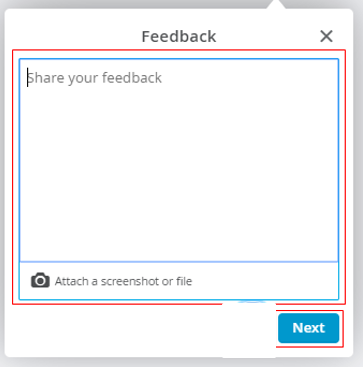
I'll be leaving you the links below. These will provide you with more information on how class tracking works as well as tips on how to manage your payroll preferences in QuickBooks Online:
Set up Payroll account preferences.
Get started with class tracking in QuickBooks Online.
I want to make sure you're all set, and I'm here if you need further guidance. Have a great day! All the best.
Hi, PSconsulting.
Hope you're doing great. I wanted to see how everything is going about allocating an employee's salary. Was it resolved? Do you need any additional help or clarification? If you do, just let me know. I'd be happy to help you at anytime.
Looking forward to your reply. Have a pleasant day ahead!
Hi, Rose!
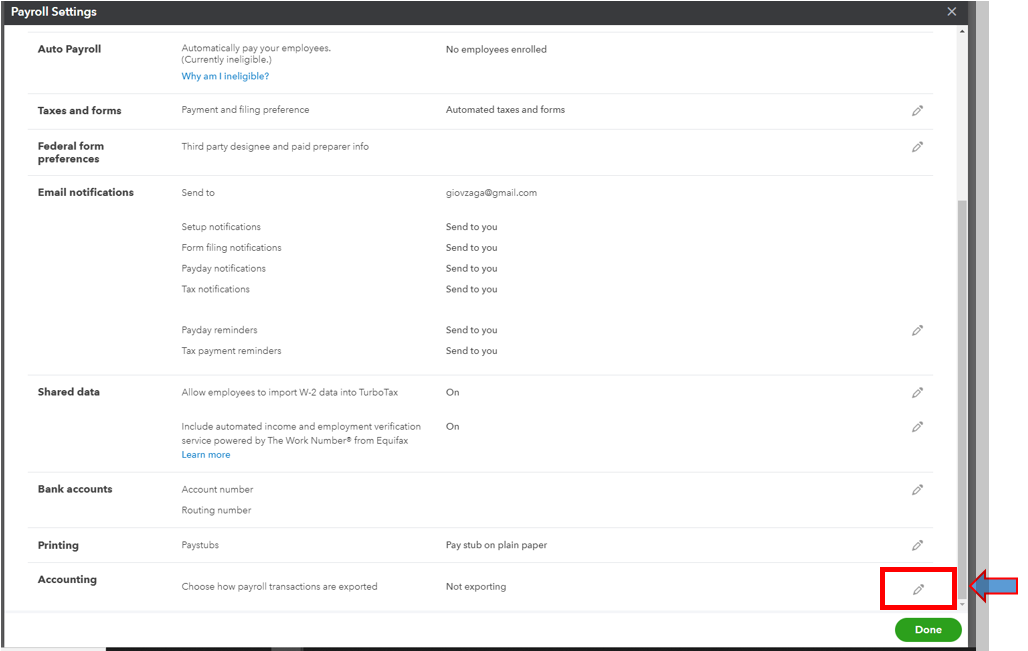
I am using QBO, but I do not see that kind of preferences screen you are seeing when you open it. this is what I see under payroll settings.
We only have two employees, but we are a Not for Profit, so classes are important! :-)
Thanks for joining in the thread, polishcat.
I'll make sure you can assign classes to your employees in QuickBooks Online.
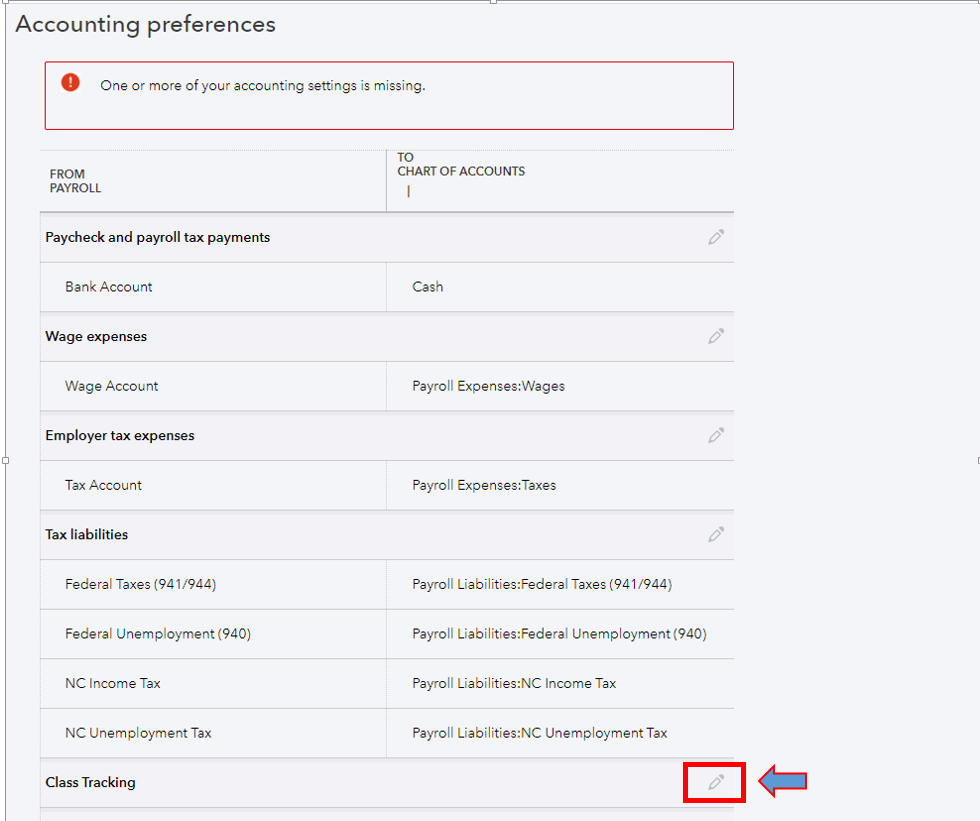
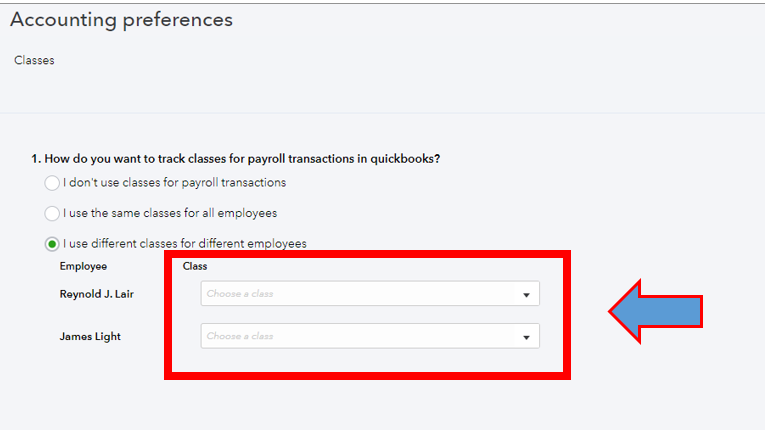
The information provided above was based on the old payroll system. You likely have a view of our new payroll settings that's why unable to see the option. I have the steps to allocate classes to your employees in QuickBooks Online.
Before proceeding, please ensure to turn on the Class feature under the Account and settings.
Step 1: Turn on class tracking.
Step 2: Assign class to the employee.
Check out this article for more information on class tracking in QuickBooks Online: How to set up and use class and location tracking.
Do you want to get a better understanding of your company's finances? If so, you can run a payroll report to view details about your business and employees. Refer to this resource: Run payroll reports. Here we'll explain these reports and how you can access them.
Feel free to add any details below if you need further assistance with the class feature. We're always here to help you.

You have clicked a link to a site outside of the QuickBooks or ProFile Communities. By clicking "Continue", you will leave the community and be taken to that site instead.
For more information visit our Security Center or to report suspicious websites you can contact us here


