Once an employee is deleted, they won't appear when categorizing payroll transactions, mmcintosh. Let's visit the Audit Log menu to find out why and who made this change to your account. This way, we can identify the best action to resolve the error message you encountered and ensure your payroll data are accurate.
You need to sign in as an admin to access the Audit Log. When you're ready, follow these steps:
- Go to Settings or the Gear icon and select Audit log.
- Choose the appropriate User, Date, or Events to narrow the results.
- Locate the user who deleted the employee and then select View under the History column to know the details.
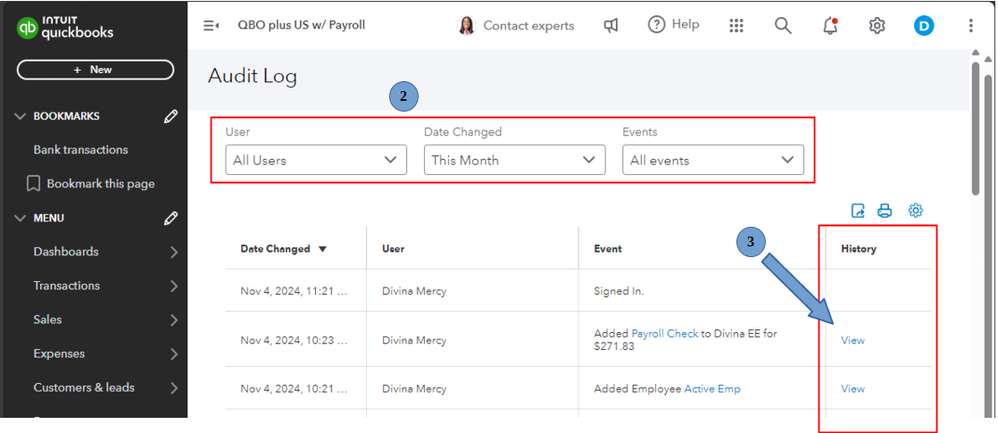
To learn more about how to keep track of your activities in the Audit Log, please see this article: Use the audit log in QuickBooks Online.
Once you determine the cause of the deletion, go to the Employees tab from the Payroll menu to change the employment status of your employee to Active. This way, the journal sync error message will be fixed and removed when running payroll.
Additionally, you can create a summary report if you wish to view your employees' totals and other payroll-related data. To guide you through the process, check out this article: Create a payroll summary report in QuickBooks.
For additional payroll concerns and issues managing employees in QuickBooks, let us know by replying to this thread. We'll be willing to lend a hand.


