Turn on suggestions
Auto-suggest helps you quickly narrow down your search results by suggesting possible matches as you type.
Showing results for
Get 50% OFF QuickBooks for 3 months*
Buy nowI've created a new company file and am trying to import the customer list. When I go to import the iif file it says
"We weren't able to import right now. Try again later."
All of my other lists have imported fine.
What can I do?

I got you, @Tori. Let's figure out what's going on and find a resolution in importing your customer list in QuickBooks Desktop.
You can run the Verify/Rebuild tool. Verify will catch any damaged data. Rebuild will attempt to fix the damaged data detected. It also permits your QuickBooks software to restore the data inside the company file.
Let's ensure creating a backup copy of your company file before doing the Verify and Rebuild process. If changes occur, having a backup copy allows you to restore it to undo the changes.
Follow the steps below on how to verify data:
Next, here's how to rebuild data:
If the process above has zero results, let's review the errors in IIF. Check out this article on how to fix them: Improved IIF Import in QuickBooks 2019 and later.
You can also scan this page for your reference on importing and exporting limitations: Export, import, and edit IIF files.
There you go, Tori. Kindly notify me how it goes after trying the possible solutions above. Thank you for visiting us.
It shows I have zero errors with both.
I appreciate you for coming to this thread, @AW-TORI.
Let us fix this together. In order for me to help you, may I know if ever you've seen this error prompt? You can refer to the screenshot.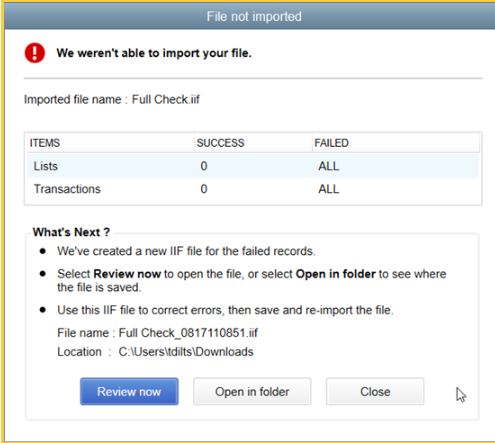
This is the number of last transactions that both failed and were successfully imported. QuickBooks automatically creates a new IIF file for a failed record with error info.
You then have 3 opinions to move forward:
I'll be providing another troubleshooting step to review the error in IIF and fix it. Here's how:
Note: If you encountered the error "File not imported", QuickBooks gives you the option to review and resolve the errors found in the IIF file.
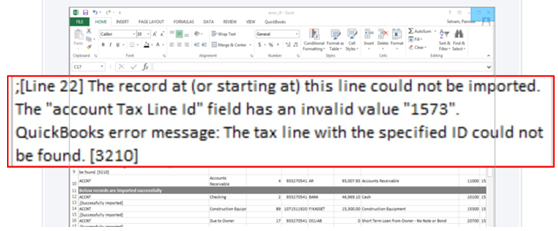
Take note that Intuit doesn't offer assisted technical support for creating or importing IIF files.
Once done performing the troubleshooting steps, let's try importing again your customer list. If the same error persists, I recommend contacting QuickBooks Desktop Support. They have the resources to look over your account and identify and fix the root cause of the issue.
If you want to learn how to edit IIF files, feel free to read this article: Export, import, and edit IIF files.
For additional questions, never hesitate to reply to this post. Keep safe and have a good one!


You have clicked a link to a site outside of the QuickBooks or ProFile Communities. By clicking "Continue", you will leave the community and be taken to that site instead.
For more information visit our Security Center or to report suspicious websites you can contact us here


