Hi EC_22,
Accounts Payable transactions are basically bills and are not for reconciliation. Therefore, your deleted transactions are likely bill payments which are also reflected in the bank register. You can recreate them by paying the bills and putting an R mark on each payment to indicate that they have been reconciled.

On the other hand, when the reconciled transactions are deleted, the reconciliation report of that period will reflect that change. In addition, the closing account balance during that period will become incorrect due to these missing transactions.
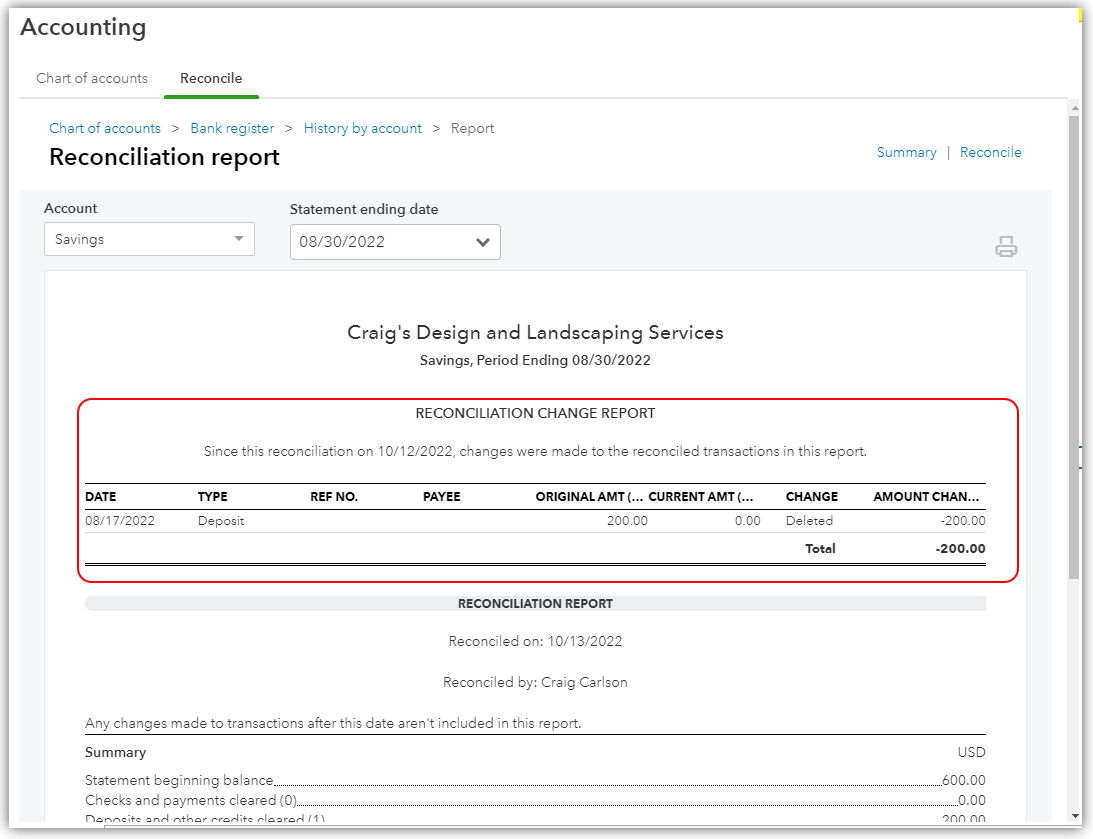
Recreating the deleted transactions and marking them as reconciled (R) will correct the closing account balance, but the reconciliation report will remain to show that they've been deleted. This is because QuickBooks uses transaction IDs in reconciliation reports. Although you recreate them, still the original transactions (based on their IDs) are being reported. Some users are okay with having a discrepancy in the report as long as the account balance is corrected. However, most users would choose to redo the reconciliation to have a new and perfect reconciliation report.
If you wish to redo your reconciliation, you need to unreconcile (remove the R marks) all transactions of the affected period first. Then, reconcile them the usual way.
- Go to Bookkeeping or Accounting, then select Chart of accounts.
- Select View register on the account in concern.
- Click each transaction of the affected period, and click their R marks until it changes to C (Cleared) or blank. Do this one at a time.
- Select Save and select Yes to confirm.
Here's an article with a video tutorial that explains how to fix issues like this: Fix issues for accounts you've reconciled in the past in QuickBooks Online.
You can always go back to this thread if you have any other questions about correcting your reconciliation. Take care and have a good one!


