You can issue a check by recording it under Accounts Receivable and linking it to the issued credit memo, Dixon.
Here's how:
Step1. Create a Check:
- Go to the +Create or + New and select Check under the Vendors column.
- Choose the customer in Payee and the bank account in Bank Account.
- In the Category field, ensure to select Accounts Receivable.
- Enter the refund amount and set Sales Tax to Out of Scope.
- Fill in the necessary information and click Save and Close.
Step 2: Link the Check to the Credit memo:
- Go to +Create or + New and click Receive payment.
- Choose the customer name in the Customer field.
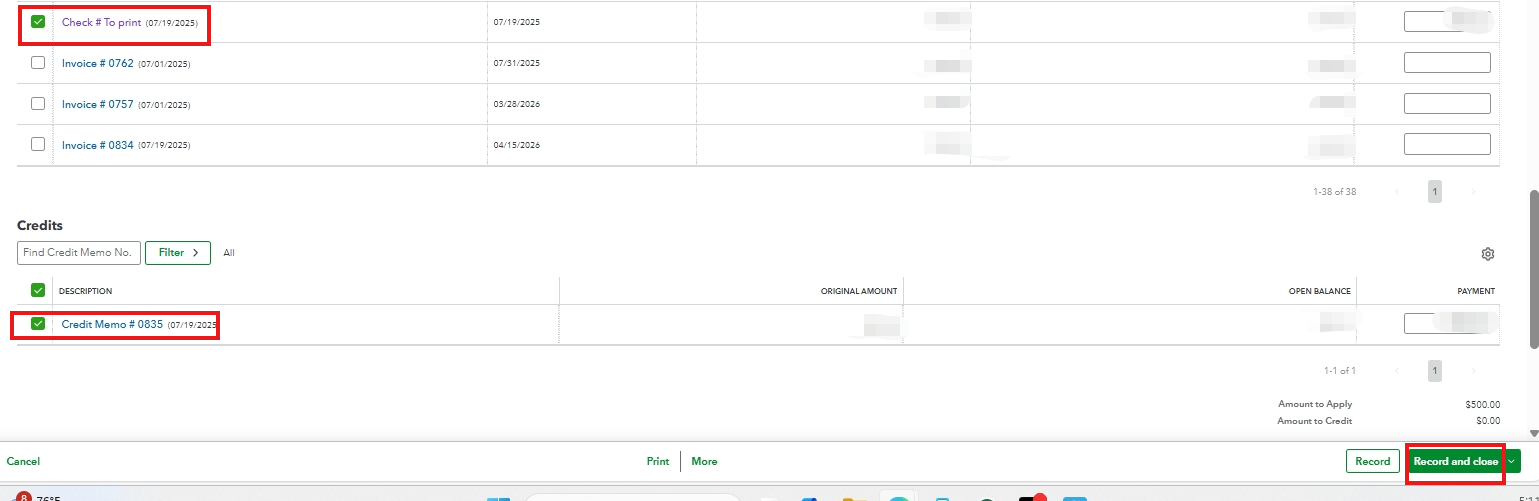
- Under Outstanding Transactions, check the box for the check and credit memo transactions.
- Under Outstanding Transactions, check the boxes for the Check and Credit memo.
- Click Save and Close.
You can explore this article for more detailed information: Issue and record a customer refund in QuickBooks Online.
To print a check, refer to this article for guidance: Print a check in QuickBooks Online.
We're always here to lend a hand if you need more help with your QuickBooks tasks.


