Nice to see you here in the Community space, Szymoniak.
I'd be delighted to assist you with making sure the price rules will be applied to your products/services when creating invoices in QuickBooks Online (QBO).
To get this sorted out, I suggest reviewing the setup of your students' price rules. This will help ensure the rates are updated once you select the item on your sales forms. Follow the steps below to proceed:
- Go to the Gear icon and then select All Lists.
- Choose Price Rules and click Edit under the Actions column.
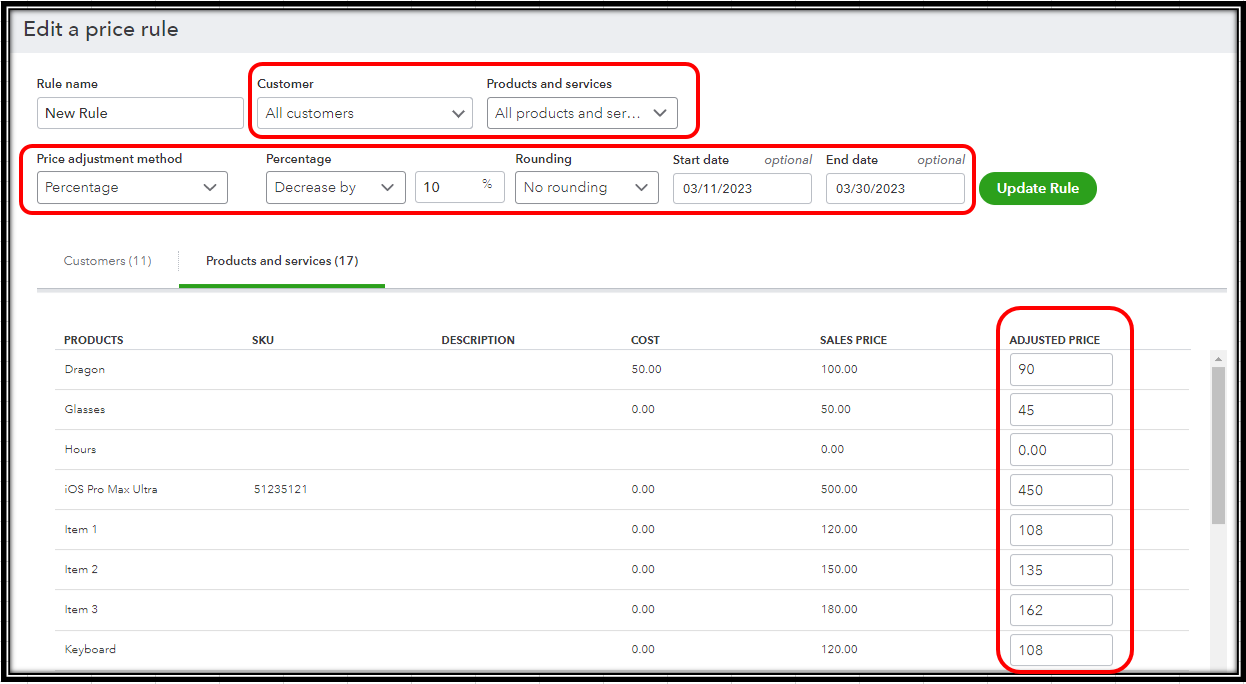
- Make sure the Customers, Products and services, and Dates are correctly set up so they will show up when you generate your future transactions.
- You'll see the Adjusted Price once it's applied. Once done, tap Save and close.
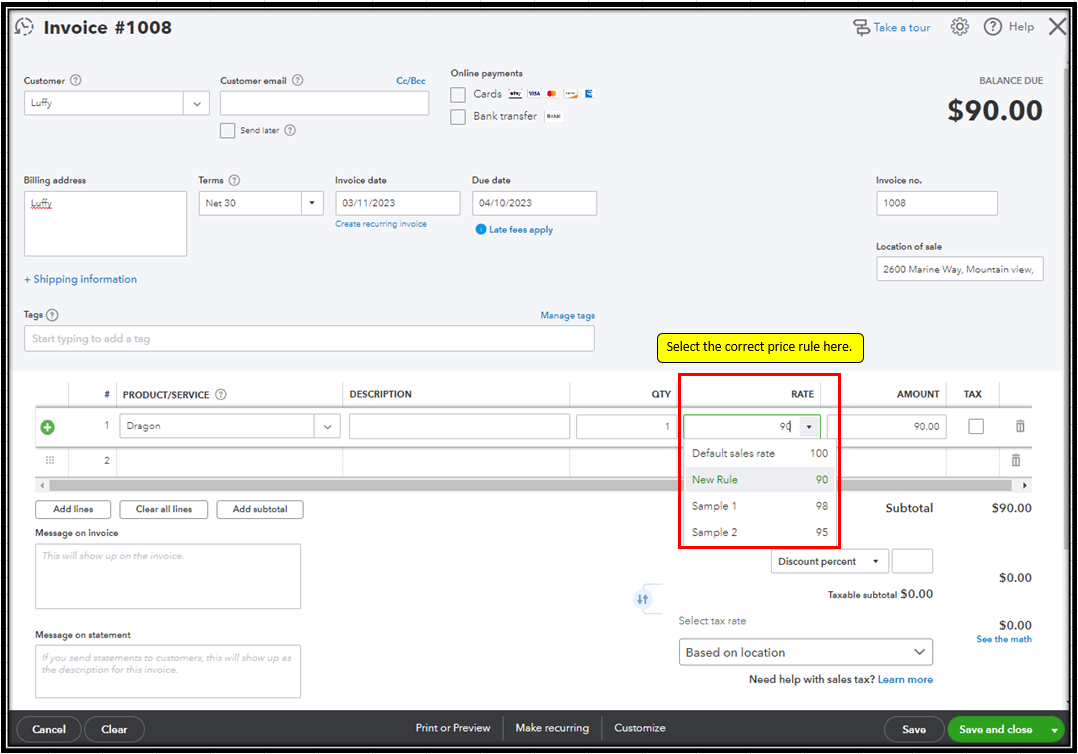
See this sample screenshot to make sure your students select the correct rate on the sales forms page.
However, if the error persists after ensuring the price rules are set up correctly, I suggest logging into your account using a private browser/ incognito mode. Private browsing prevents cookies from being stored on your computer, making it a great place to identify browser issues. Use these keyboard shortcuts:
- Google Chrome: press Ctrl + Shift + N
- Mozilla Firefox: press Ctrl + Shift + P
- Safari: press Command + Shift + N
Once everything's good with using a private window, clear the cache to start with a clean slate. Otherwise, using other supported browsers can be a good alternative too.
For more information about this process, please refer to this article: Set price rules in QuickBooks Online. Scroll down the page to find a list of common questions about this feature, along with their answers.
I'll be here if you have other questions or concerns besides the price rules in QBO. I'd be happy to answer them for you. Have a great day!


