Turn on suggestions
Auto-suggest helps you quickly narrow down your search results by suggesting possible matches as you type.
Showing results for
Get 50% OFF QuickBooks for 3 months*
Buy nowI have upgraded from Quickbooks 2019 desktop to Quickbooks 2022 desktop- I cannot get my company file to upgrade on the new version past 20%. I have tried the file doctor and everything. So frustrated! I am running Windows 11 on an HP laptop. Please help!! Thank you!!

How big is your file size?
Did you create a backup file on QBD 2019 and restore it on QBD 2022?
Hi there, @bag2012.
To isolate this, let's run the rebuild and verify data utilities. If you haven't used tools these before, they are automated diagnostic utilities that comb through, repair, and notify you of data damage within the file.
Here's how:
1. Go to the File menu, then select Utilities and Rebuild Data.
2. Choose OK. Follow the prompts to save a backup.
3. Click OK when you see Rebuild has completed.
4. Now, go back to File, then Utilities and select Verify Data this time.
5. Should the Verify find an issue with your data, you will be prompted to Rebuild Now or View Errors. Choose Close, then perform the steps below.
a. Find QBWin.log or QuickBooks.log files.
b. Check the log file.
c. Scroll all the way to the bottom for the most recent Verify information.
d. Find the line that contains the LVL_ERROR, then check Top data damage errors in QuickBooks Desktop.
For your reference, you can also check out this article for further guidance: Resolve data damage on your company file.
Give this a try and please let me know how it goes in the comment section. I'll be here should need further assistance. Take care and have a good one.
I have tried to rebuild and verify the file in 2019 and it freezes up and will not complete.
Hello there, @bag2012,
Thanks for coming back to this thread and letting us know what happened after trying out the suggested troubleshooting. I understand that having issues like this can be time consuming and cumbersome. For this, I want to make sure we look into this.
Regarding this problem, can you please confirm if you run the program as administrator? Also, is the rebuild issue also happening in a sample file? We need to verify if there's something wrong with the company file or the software itself.
To open a sample company file to print a test report:
Try rebuilding the file and see if it works. If it does, go back to the original file and run the Verify/Rebuild Utility again. Here's how to do that in QuickBooks:
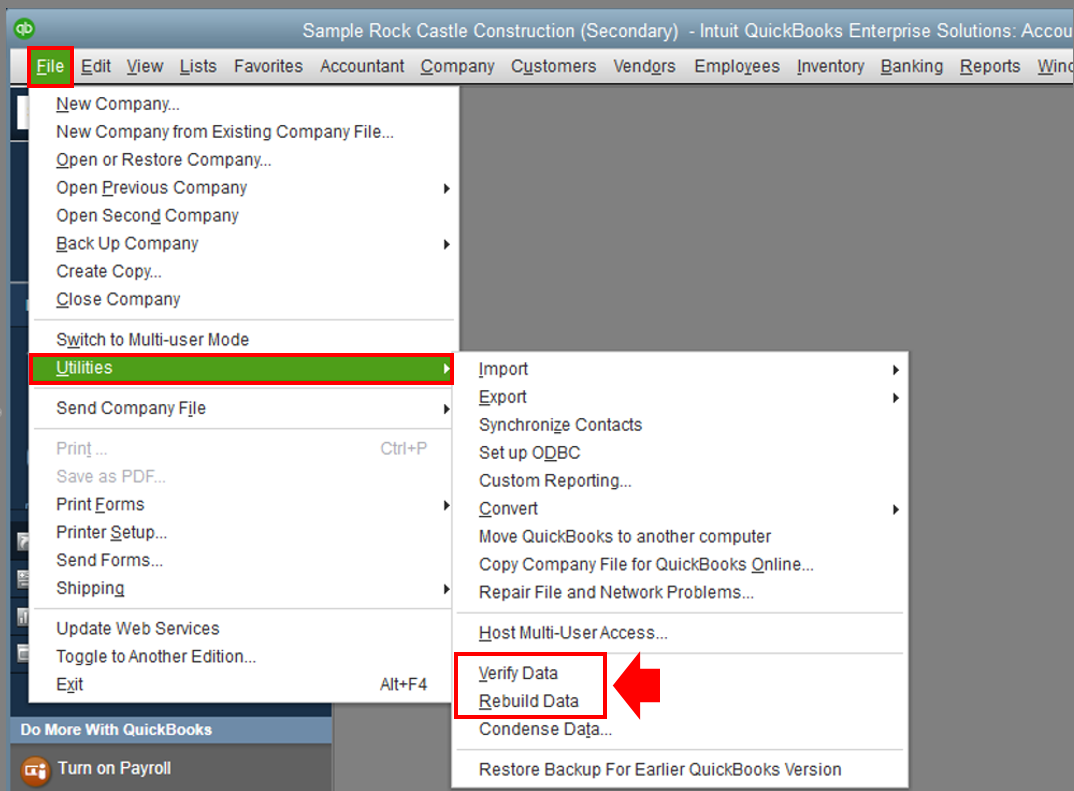
However, if the problem also happens in the sample file or after verifying and rebuilding the file, proceed to repairing the software. This fixes program issues in QuickBooks. To do that, follow the steps below:
To learn more about repairing QuickBooks and its complete steps, go to this link: Repair your QuickBooks Desktop for Windows.
After that, try to push the upgrade and see if it works this time. Still making sure you run the program as administrator.
If the issue persists after doing the suggestions, I recommend that you continue working with our Technical Support Team to get this escalated. They have the tools necessary to check your company file and help you resolve this issue. To get our support, follow the steps below:
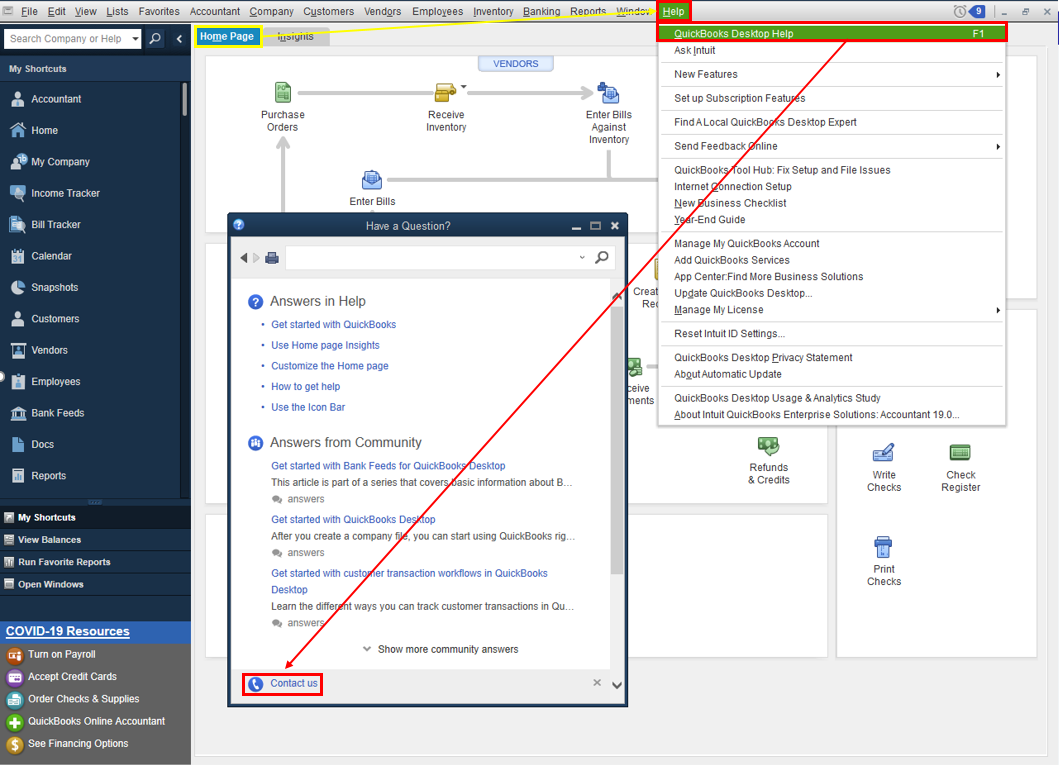
Refer to this article to learn more about our contact options and support availability: Contact QuickBooks Desktop support
Kindly update me on the results in the comment. I want to ensure everything is working well for you, and I'm here to provide further assistance and insights. Have a great day!
Can you open the sample file on your QBD 2019 and upgrade it to QBD 2022?
opened the sample file, verify and rebuild data works without any issues. Sample company also updated and opened in 2022.
Your company file is damaged. Chat Support and ask Data Service to fix it. Otherwise you have to purchase a 3rd party file repair service.


You have clicked a link to a site outside of the QuickBooks or ProFile Communities. By clicking "Continue", you will leave the community and be taken to that site instead.
For more information visit our Security Center or to report suspicious websites you can contact us here