Get 50% OFF QuickBooks for 3 months*

Buy now
Switch to QuickBooks and 70% off for 3 Months
September 15, 2025
Solved

Avoiding Repetitive Tasks - QuickBooks Online - Categorizing Expenses

  • September 15, 2025
  • 1 reply
  • 7 views

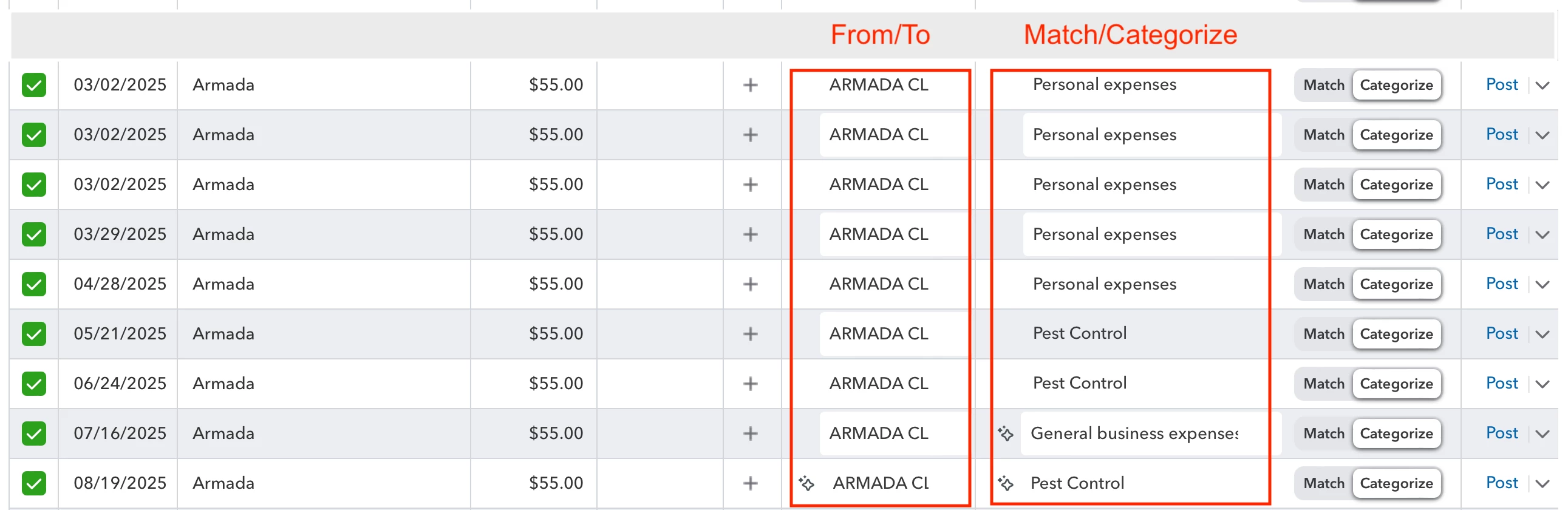
Under bank transactions (pending selected) I have a year’s worth of pest control payments.


At this time the only way I know how to select the proper category (“From/To” and “MatchCategorize” columns) is to manually select the correct item from the drop down list.


This is inefficient. For example, let’s say I have12 payments made during the year. In that case I’d need to manually adjust up to 24 items.


Is there a way to accomplish the same with a single action?


The screen capture below illustrates items I wish to change simultaneously to have the same selections. 
 

Best answer by Ethel_A

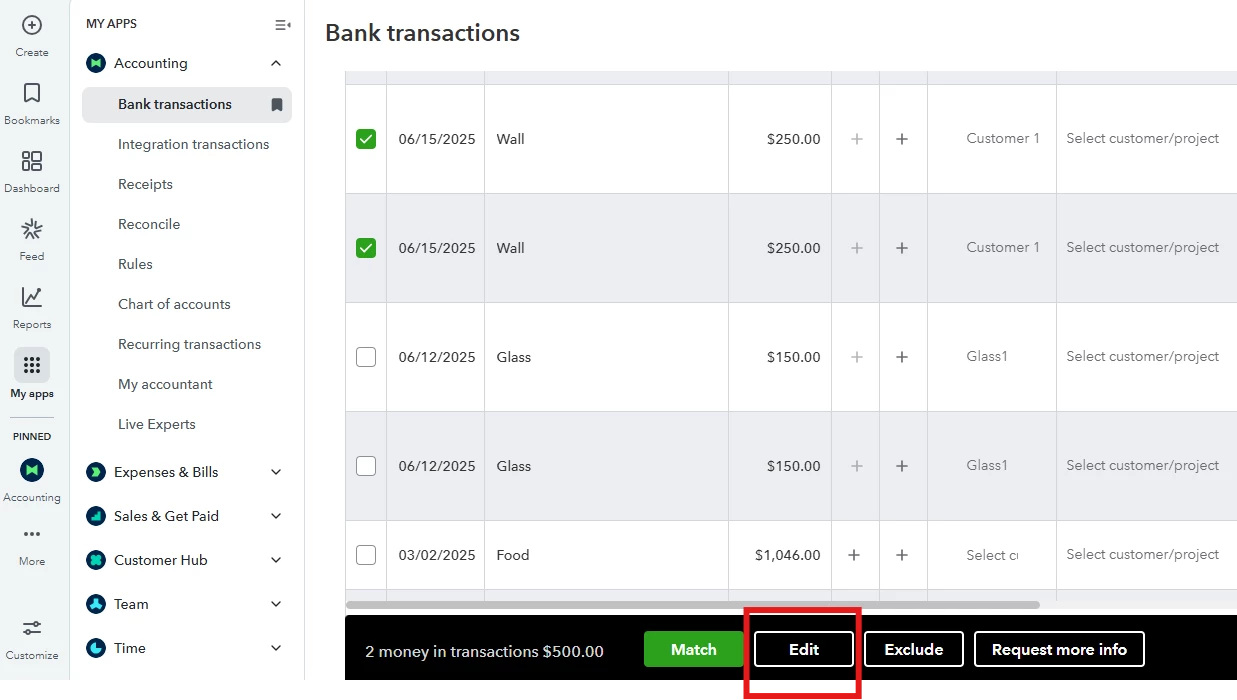
You can bulk edit the transactions you want to assign to a certain customer and category, Peter.


Here's how:


  1. Hover your mouse over My Apps, then Accounting, and then select Bank transactions.
  2. Tick the check boxes for the transactions you want to assign to the same Vendor or Customer and the same Category.
  3. Click the Edit option at the bottom.


  4. Select the Vendor /Customer name and Account.
  5. Hit Apply.


Return to the Pending tab and repeat the steps for other transactions you want to assign to a different Vendor/Customer and Category.


Moving forward, when you download bank transactions, you can then categorize them into the correct accounts. Bank rules can automate this process. Over time, QuickBooks Online learns from the rules you create and gets better at categorizing transactions, automatically adding details as it recognizes patterns.


Here is an article you can read to guide you in creating bank rules: Set up bank rules to categorize online banking transactions in QuickBooks Online.


Leave a comment below if you have additional questions about managing transactions in QuickBooks Online.

1 reply

Ethel_AQuickBooks TeamAnswer
QuickBooks Team
September 15, 2025

You can bulk edit the transactions you want to assign to a certain customer and category, Peter.


Here's how:


  1. Hover your mouse over My Apps, then Accounting, and then select Bank transactions.
  2. Tick the check boxes for the transactions you want to assign to the same Vendor or Customer and the same Category.
  3. Click the Edit option at the bottom.


  4. Select the Vendor /Customer name and Account.
  5. Hit Apply.


Return to the Pending tab and repeat the steps for other transactions you want to assign to a different Vendor/Customer and Category.


Moving forward, when you download bank transactions, you can then categorize them into the correct accounts. Bank rules can automate this process. Over time, QuickBooks Online learns from the rules you create and gets better at categorizing transactions, automatically adding details as it recognizes patterns.


Here is an article you can read to guide you in creating bank rules: Set up bank rules to categorize online banking transactions in QuickBooks Online.


Leave a comment below if you have additional questions about managing transactions in QuickBooks Online.