You can set price rules to charge different rates for different customers, @TURFRANGER.
Pricing rules allow you to manage the prices of your products and services. To get started, you first need to turn on the price rule from the Account and settings page.
Once you have done that, follow these steps to create a pricing rule:
- Click the Gear icon in the upper right corner and select All Lists.
- Click on Price Rules.
- Select Create a rule. If you've already created a rule, select New price rule.
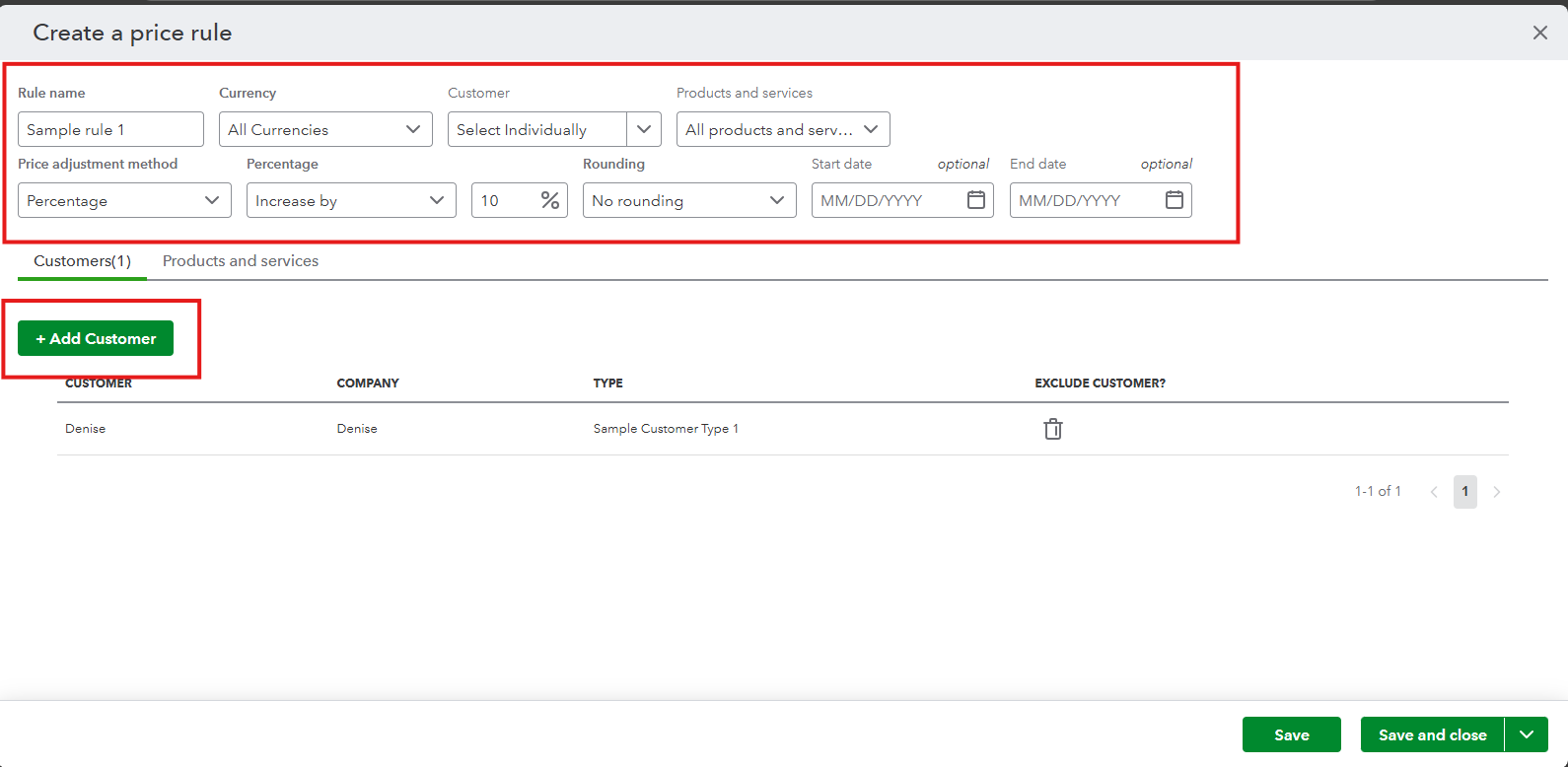
- Name your rule. Then, use the Select customers▼ dropdown and choose Select individually. Click Add customer to select the customer you want to charge a different rate.
- By default, price rules apply to all products and services. If you only want the rule to apply to specific items, use the Select products or services ▼ dropdown to make your selection.
- Use the Price adjustment method and Rounding ▼ dropdowns to decide how much you want to increase or decrease prices. You can also specify the active period for the rule in the Start date and End date fields.
If you need to apply different rates for multiple customers, you will have to create a separate rule for each one. However, please note that this feature is available only for Plus and Advanced plans.
If you're on the Simple Start or Essential plans, you'll have to manually enter a price rate for each invoice you send to your customers based on the charges for them, or consider upgrading your plan to access this feature.
In case you need tips and practical solutions on how to keep accounts balanced and free from discrepancies, our QuickBooks Live Expert Assisted team can help you all the way.
Let me know if you have any additional questions.


