Hi there, Tom.
When you run an audit report in QuickBooks Online, it won’t display whether the customer is tax exempt directly. Instead, it shows the tax status of the transaction.
The taxable status shown in a report depends on the transaction details including the taxability of individual line items and invoice settings even if the customer is marked as taxable. If the customer is marked as non-taxable (or tax-exempt), the taxable status in the report will display as a dash (-) or remain empty to indicate no sales tax was applied even if the line item in an invoice has tax enabled.
QuickBooks Online doesn’t offer a single toggle or bulk action to mark all customers as Not Taxable. Each customer’s tax status needs to be set individually. Here’s how you can do it:
- Go to Sales & Get Paid, then select Customers.
- Select the customer you’d like to edit.
- Click Edit at the top right.
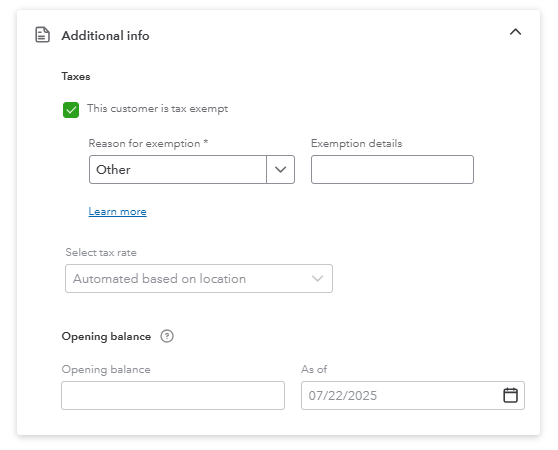
- Scroll down to the Additional info section.
- Check the box for Tax Exempt if you want to make the customer exempt from sales tax.
Let me know if you have additional questions with QuickBooks Online. We're always here to help.


