Turn on suggestions
Auto-suggest helps you quickly narrow down your search results by suggesting possible matches as you type.
Showing results for
QB enterprise vs 2021.
When a purchase order is created and only partial items are received, we go to receive items, click on the bill recived.
All items are carried to the bill and many of the line items carry zero as qty as they were not received and only the items received show qty.
Unless you delete each line then bill will carry this zero qty / no accounting impact, however when you look at item history you see transactions, like a bill with zero.
Is there a better way to do it so the bill shows only the items received?
Thank you,

I'll take care of this query about receiving inventory in QuickBooks Desktop (QBDT), @Florina.
I replicated the situation you stated above, and here's what I have. I created a sample PO using a test company file.
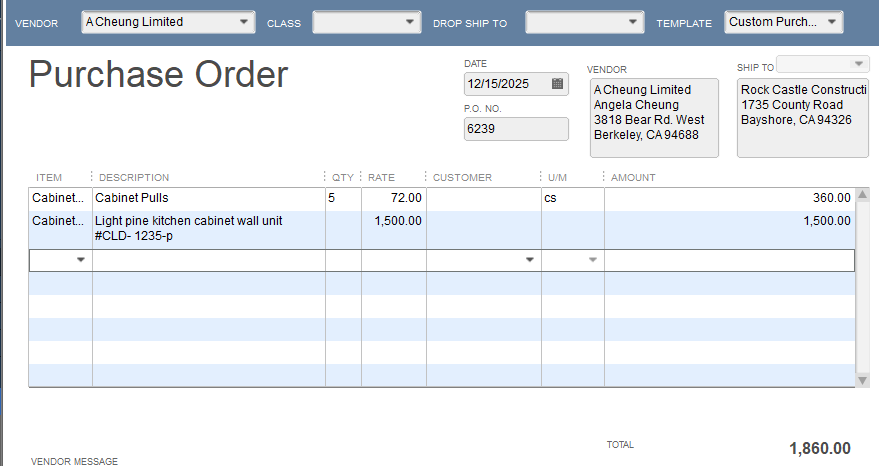
After that, I went to the Inventory menu and selected Receive Items. Picked the correct vendor, along with the correct PO number. This page is where you can edit the actual number of items received. Here's a screenshot of my sample transaction:
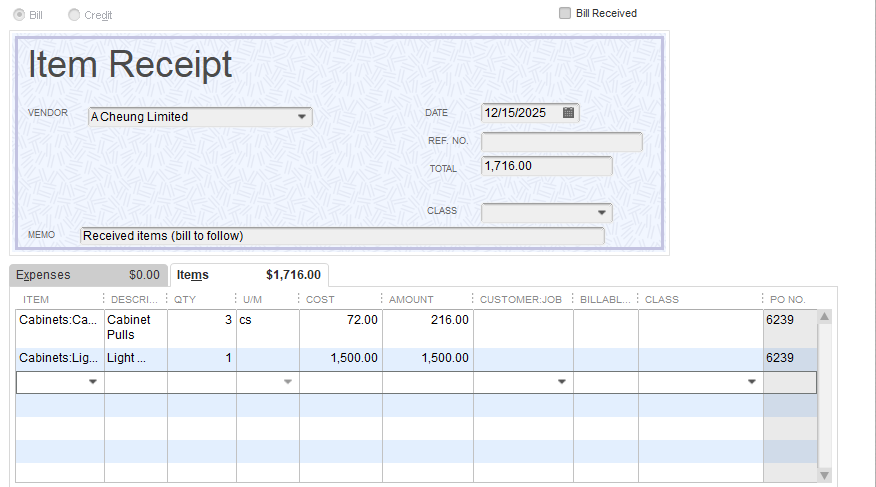
The next thing you need to do is create a bill for the items received. Move to the Vendors menu, then select Enter Bill for Received Items. Pick the correct vendor and the item receipt to proceed.
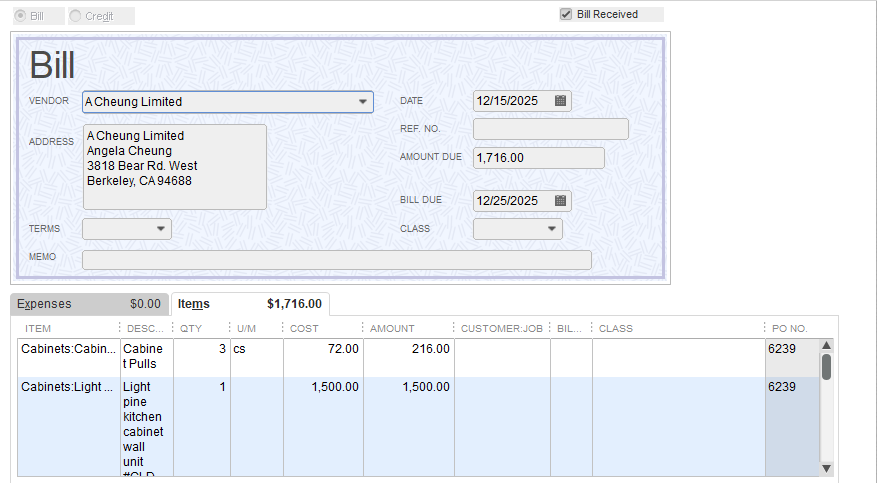
Going back to the PO in question, the system automatically updates any items that are in backorder.

You can refer to this article for more information about this process: Receive inventory.
I also suggest keeping this article for your reference in the future: Accounts Payable workflows in QuickBooks Desktop. It has a detailed description of the two Accounts Payable workflows available QBDT, along with the steps on how you can proceed.
Let me know in the comments below if you have other questions about receiving inventory in QBDT. I'll be glad to assist you further. Have a great day!
The initial item receipt isn't a problem but when backordered items come in we cannot create a new item receipt for them because the PO does not show in the list of open POs.
Thanks for joining in on this thread, Janet-2021.
I'd like to share some info and steps for your situation.
When you receive all the items on the purchase order, QuickBooks marks the purchase order as Received in Full. This is why you're unable to see the other open items in the Item Receipt window.
What we can do is to delete the initial receipt and re-create it from the purchase order. Then, remove the items that are still open. This way, the purchase order status will show as partially paid, so you can create a new item receipt for the open items.
To delete the initial Item Receipt, here's how:
After the steps, open the purchase order and follow these steps:
Here's a sample screenshot for a visual reference:
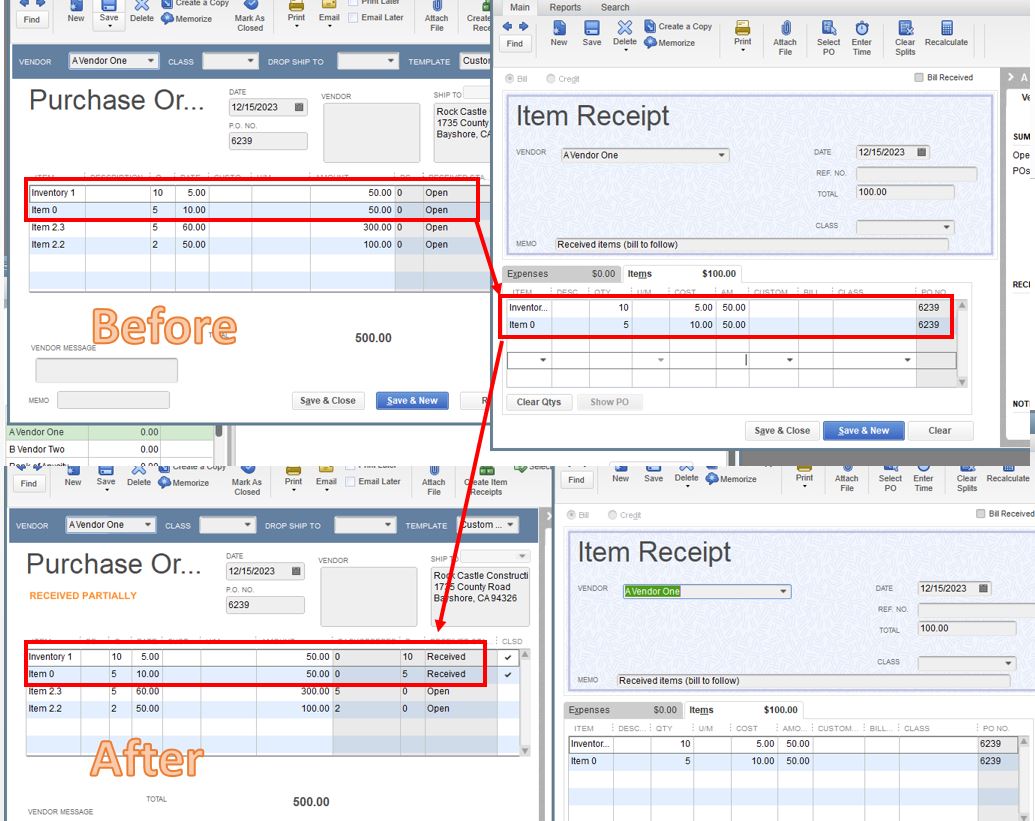
Once you're ready to receive the other items, you can click the Create Item Receipts icon.
To learn more about the process, you can read this article: Create purchase orders in QuickBooks Desktop.
Please let me know if there's anything else you need. Me and my colleagues are here to help you out some more. Take care and stay safe.
What if the vendor bills you for items you haven't received yet? So its a partial recieved but the bill is for items coming in a separate delivery.
I can help you with creating a purchase order for the partial payment and apply it to your bill, @gina741.
After creating a bill, create a purchase order for the partial payment and apply it to the bill.
Here's how:
After this, we can apply the purchase order to the bill by following these steps:
Additionally, you might want to check this article and learn the customization for your vendors in terms of expenses and accounts payable: Customize vendor reports.
I'll be glad to help in the comments if you require additional assistance managing your bills in QuickBooks Desktop. Have a great day ahead!


You have clicked a link to a site outside of the QuickBooks or ProFile Communities. By clicking "Continue", you will leave the community and be taken to that site instead.
For more information visit our Security Center or to report suspicious websites you can contact us here


