I will provide an exact solution so you can utilize the class tracking feature in QuickBooks Online, Admin347.
Before anything else, please note that the Class Tracking feature is only available in the QuickBooks Online (QBO) Plus and Advanced. If you're currently subscribed to one of these plans, you can enable the option in the Accounts and Settings.
Here's how:
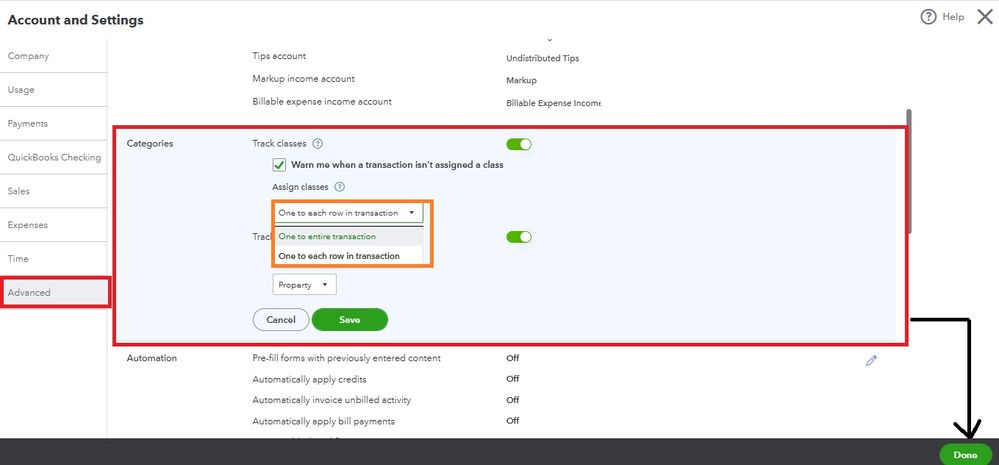
- Go to the Gear icon and select Account and Settings.
- Choose the Advanced tab, then select the Categories section to edit.
- Turn on the Track classes switch.
- Select Warn Me when a transaction isn't assigned a class.
- Under Assign classes, select One for the entire transaction or One for each row in a transaction.
- Select Save, then Done.
However, if you're using one of the mentioned subscriptions above, let's perform a browser troubleshooting. It’s possible that a browser glitch is causing this unexpected issue.
First, we can conduct a quick test by opening your account using a private browsing window. This method can help us eliminate the impact of cached data and browser extensions that are interfering with QuickBooks Online performance.
Here are the shortcut keys for accessing incognito browsers:
- Google Chrome: press Ctrl + Shift + N
- Mozilla Firefox: press Ctrl + Shift + P
- Microsoft Edge: press Ctrl + Shift + N
- Safari: press Command + Shift + N
Once done, turn on the class tracking again and see if it works. If it does, I recommend
deleting the cache history so the system can start fresh. If the issue persists, switch to another
supported browser.
After enabling class tracking, you'll need to set up your
class categories manually. These classes let you categorize transactions like income, expenses, and others based on different segments of your business, such as product lines, locations, departments, or any other relevant divisions.
However, if you subscribed to QBO Simple Start or Essentials,
consider upgrading to a higher version to ensure you'll get to utilize the feature.
Moreover, you can see the class categories you've made by going to the Classes page. To learn how to track these categories or assign them to a transaction, please refer to these articles:
Additionally, I suggest considering our
QuickBooks Live Expert Assisted service to enhance your QBO experience. Our knowledgeable team of experts stands ready to provide immediate support tailored to your business's unique needs, like managing customer and vendor transactions.
Feel at ease to comment down below if you have other questions about class tracking concerns in QBO. I'll be happy to assist you again. Keep safe, and enjoy the rest of the day.


