You can import bulk sales data from eCommerce sites into QuickBooks using a CSV format, Bonnie.
QuickBooks lets you import transactions like invoices, expenses, or deposits using Excel CSV files. Keep in mind that only certain fields, like Date, Item Quantity, Item Rate, and Item Amount, will be imported. Fees or shipping costs won’t be added automatically.
To make sure the process goes smoothly, check that your file columns match QBO requirements or download a sample file for reference.
Here's how:
- Select Import Data from the Gear icon.
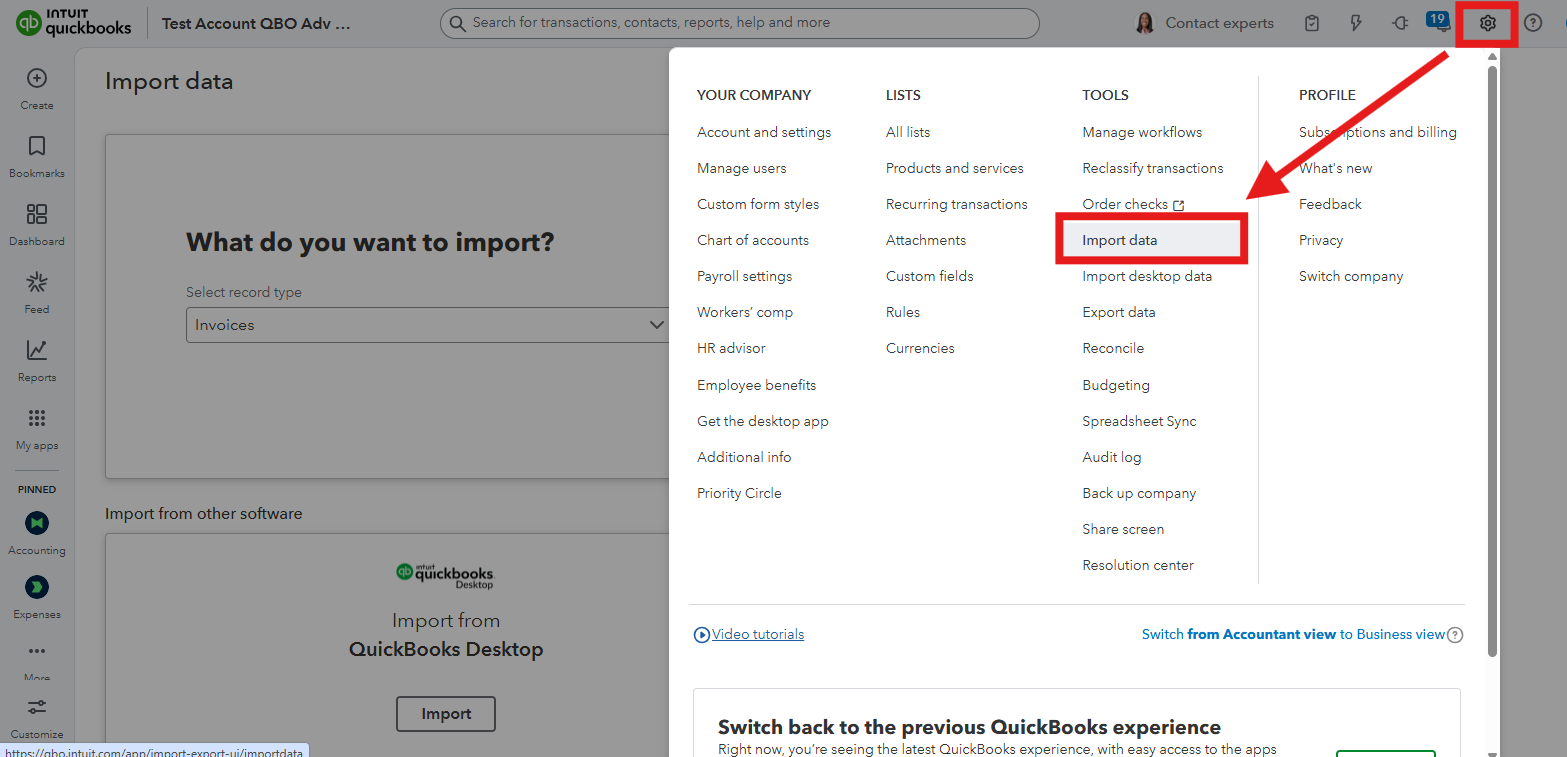
- Click the drop down arrow on the record type and select the Data you want to import.
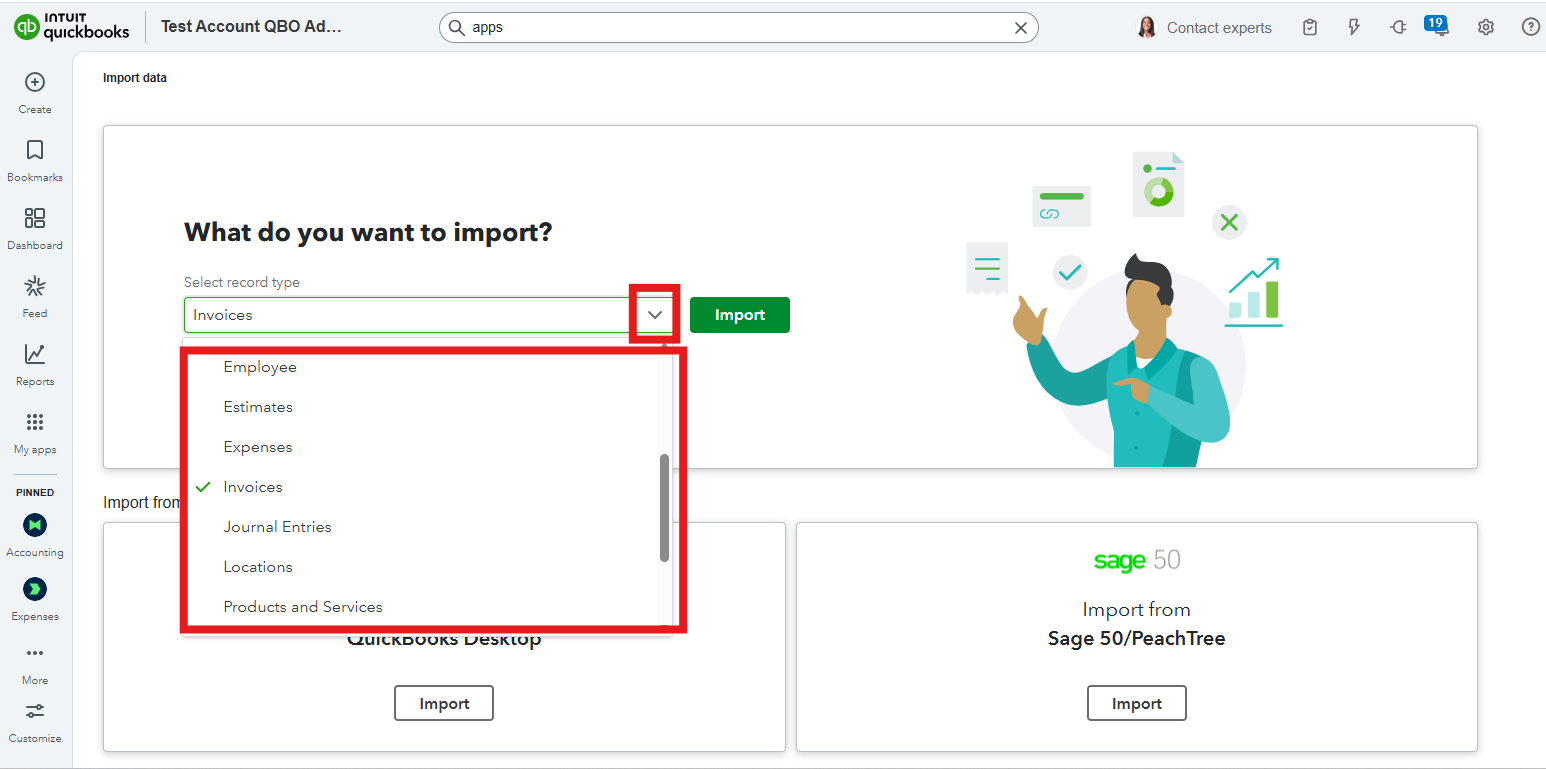
- Once located, click the Next option below and enter the Date format correctly. Then, choose Next.
- Follow the on-screen instructions to upload and map your file, then select Continue to complete the import.
Alternatively, you can consider using a third-party application that can automatically import your sales transactions from eCommerce into QBO.
You can refer to these following articles for more guidance in importing data in QuickBooks Online:
Also, to enhance your QuickBooks experience, our QuickBooks Live Expert Assisted team is here to help with bookkeeping, navigation, and all your business needs.
For any additional queries regarding data import in QuickBooks Online, kindly utilize the comment section below.


