Turn on suggestions
Auto-suggest helps you quickly narrow down your search results by suggesting possible matches as you type.
Showing results for
Get 50% OFF QuickBooks for 3 months*
Buy now
Hello,
I am relatively new to QB and just noticed some Unapplied Payments under Books Review. How would you handle these, especially as reconciliation has already happened?
For example, a customer made a payment of $380.10 on a $312.22 invoice back in July. When I click on the Unapplied Payment for this, it shows $312.22 of the payment went to paying the invoice (good) and there is an Amount to Credit of $67.88. (There is also a Clear Payment option?). I'd like to have this as a credit on the account and not apply it to another invoice at this time. Can this be done? If so, how do I do it, including the reconciliation part? Will this clear this item from the Books Review/ Unapplied Payments section? Thanks for your advice!

Welcome to the Community. Let me guide you on how to handle unapplied payments of an invoice in QuickBooks Online (QBO), g_Quik_Online.
We commend you for doing a great job in applying unapplied payments. The option to have the credit directly on the account and not apply it to another invoice at this time is unavailable. In QBO, there are a few ways to handle credits. We can create a credit memo to immediately reduce a customer's current balance or enter a delayed credit to use it in the future.
Since you don't want to apply it to another invoice at this time, we can apply the delayed credit to an invoice. Please take note that adding a delayed credit to an invoice from a prior accounting period will affect that period's balances. Let me guide you on how:
You can check out this article for more information about giving a credit memo or delayed credit to customers: Create and apply credit memos or delayed credits in QuickBooks Online.
I added these articles for more insights about unapplied payments:
Please fill me in if there's anything else I can do to help you manage your customer transactions. You can click the reply button below to add your response. Have a great day ahead.
Thank you for your reply. Unfortunately, neither of the above options worked. The only thing that mentions a credit is when I look at the transaction page for the customer, one of the line items says.
7/27/23 Payment Customer Name -558.92 Paid (below this is says $126.19 credit)
When I click on this item it says what is in the attached. Can you resolve this? Thanks.
We should verify the accuracy of your financial records and make sure that the credits won't be applied to the forthcoming invoice, g_Quik_Online.
Within QuickBooks Online (QBO), we can turn off the "Automatically apply credits" feature, preventing it from being applied to current and future invoices. I'll guide you on how to do it.
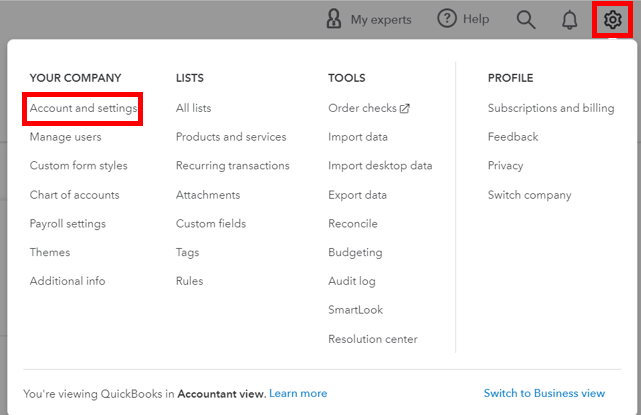
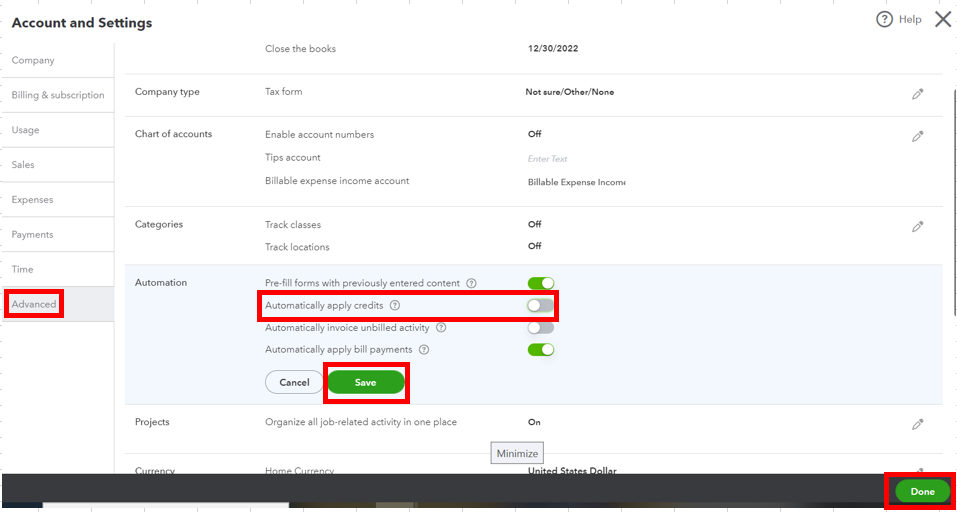
Furthermore, to incorporate the payment into the reconciliation process, you'll have to deposit into the specific bank you intend to reconcile.
Here's how:

Then, once the payment is downloaded, match it to the existing entry in QuickBooks to keep your account updated. For the step-by-step guide, refer to this article: Categorize online bank transactions in QuickBooks Online.
After that, you can now reconcile your books. It'll help you monitor your income or expenses and detect possible errors accordingly. You can check out this article for the detailed steps: Reconcile an account in QuickBooks Online.
Please don't hesitate to let me know if you have other concerns about managing invoices and payments in QBO. You can drop a comment below, and I'll gladly help. Take care, and I wish you continued success, g_Quik_Online.


You have clicked a link to a site outside of the QuickBooks or ProFile Communities. By clicking "Continue", you will leave the community and be taken to that site instead.
For more information visit our Security Center or to report suspicious websites you can contact us here


